Graphic software for Windows Mac graphic software  
Please enter your email to be kept posted on updates and discounts:
 
  
  Products     Download     Online Store     Tutorial     Support     About Company
en  fr  de  es  pt  it  jp  ru    
 

Tips & Tricks

Changing image size to view on the screen in Jasc Paint Shop Pro


To change the image dimensions in Jasc Paint Shop Pro, follow the instructions:

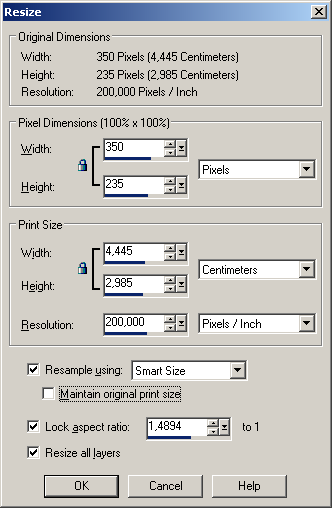
  • Step 1. Select the command Resize from the menu Image to call the dialogue box Resize.
  • Resize dialogue box
  • Step 2. Activate the check-box Resample using and select the interpolation method: Smart Size, Weighted Average, Bilinear, Bicubic or Pixel Resize. We recommend to choose the method Smart Size.
  • Step 3. Deactivate the check-box Lock Aspect Ratio to keep the image proportions.
  • Step 4. Activate the check-box Maintain original print size, if you want to keep the current print size of the image. In this case, when you change the image size, the resolution will increase to keep the print size.
  • Step 5. In the group Pixel Dimensions choose units from the fall-out list and enter new values in the fields Width and Height.
  • Step 6. Press the button OK.
 
Tips and Tricks Tips and Tricks
Paint Shop Pro selection Tools Paint Shop Pro selection Tools
Paint Shop Pro layer transformation Paint Shop Pro layer transformation
Paint Shop Pro  rotation and flipping Paint Shop Pro rotation and flipping
Paint Shop Pro  changing image resolution Paint Shop Pro changing image resolution
Paint Shop Pro changing image size Paint Shop Pro changing image size
Photo-Paint selection Tools Photo-Paint selection Tools
Photo-Paint rotation and flipping Photo-Paint rotation and flipping
Photo-Paint image resolution Photo-Paint image resolution
Photo-Paint changing image size Photo-Paint changing image size
PhotoImpact installing plug-ins PhotoImpact installing plug-ins
GIMP adding Photoshop plug-ins GIMP adding Photoshop plug-ins


   Privacy Policy | Site Map | Search | English  | Français  | Deutsch  | Español  | Português  | Italiano  | 日本語  | Pусский  | © 2004-2008, AKVIS Software Inc. All rights reserved.