The Gift of Flowers: Improving An Image In AKVIS Refocus


Entrar seu e-mail para subscrição em novidades.
 
 
  Produtos     Download     Online Store     Tutorial     Suporte     Quem Somos      Conta de usuário
en  fr  de  es  pt  it  jp  ru    
 

Tutorial: AKVIS Refocus

The Gift of Flowers


Neste momento algumas páginas estão disponíveis somente em Inglês e em Espanhol.
Você pode obter uma licença para qualquer programa AKVIS, se traduzir os arquivos do nosso acervo
para o Português (do espanhol ou do inglês) para saber mais escreva para o team@akvis.com

Flowers, both real and in a painting, are pleasing to the eye and give a sense of joy and a festive mood. Perhaps this is why the image of flowers are an almost integral part of festive compositions.

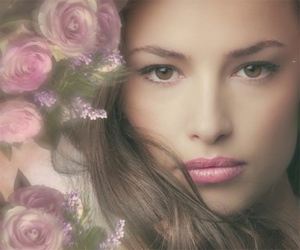
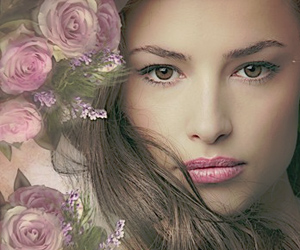
Unfortunately, a poor image may spoil the reputation of these perfect works of nature. Let's take a photo of flowers in a vase which could be used in a decorative setting. The photo is beautiful but somewhat blurry. AKVIS Refocus can address this shortcoming.
Imagem original: Click To Enlarge Resultado: Click to Enlarge
Imagem original Resultado
(Click on either image to open a larger version in a new window)

The standalone version of AKVIS Refocus was used for this tutorial, but it's possible to obtain the same result in a graphics editor with the plug-in.

  • Passo 1. Open AKVIS Refocus. Open the image of flowers by pressing .
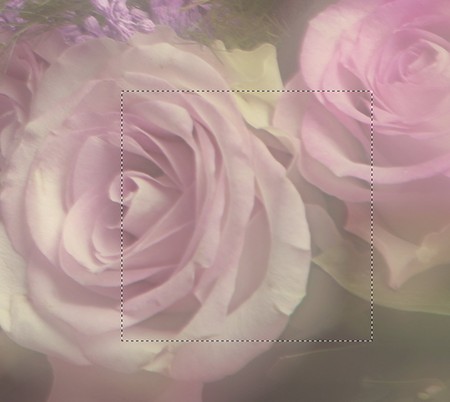
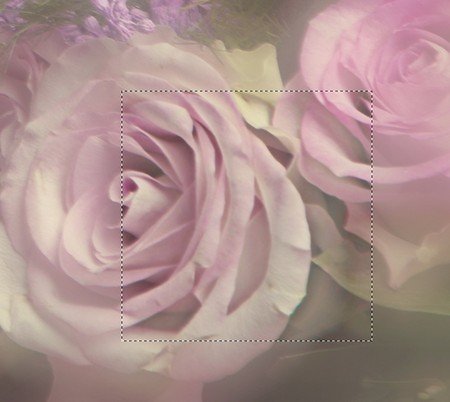
    Original Blurry Image
  • Passo 2. The image will be processed automatically using the default settings (AKVIS Default preset). The result will be shown in the Before in the preview area.
    Focusing the Image Using Default Settings

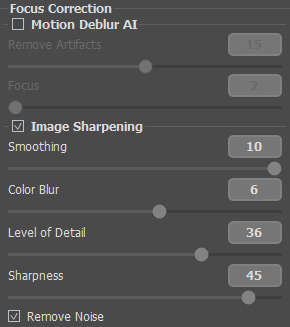
  • Passo 3. The image still seems a little unclear. Change the parameters in the Settings Panel as shown below:
    Changes Made to Focusing Parameters

    Afterward you will see the following result:

    Focusing Parameters Adjusted

    Much better.

  • Passo 4. Press to process the entire image. After processing is complete the result will be shown in the After tab.
    Entire Image Processed

  • Passo 5. Save the result by pressing . Now it's ready for any additional changes.
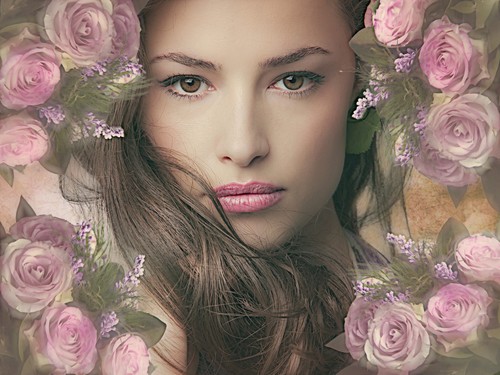
  • Passo 6. To give a finishing touch to this festive composition, you could, for example, place the image in a frame or make a frame form the image itself (by using AKVIS ArtSuite).
    Image in frame Frame from the image
    Possible Uses for the Image

 
Como funciona Como funciona
   — Área de trabalho — Área de trabalho
   — Utilizando o programa — Utilizando o programa
   — Opções — Opções
Exemplos Exemplos
   — Olhe nos meus olhos — Olhe nos meus olhos
   — Refocalização e textura — Refocalização e textura
   — Mundo de brinquedo: efeito Tilt-Shift — Mundo de brinquedo: efeito Tilt-Shift


No começo da página


   Política de privacidade | Mapa do Site | Pesquisar na site    
   Contacte-nos | Twitter | Facebook | YouTube Channel    
| English  |Français  |Deutsch  |Español  | Português  |Italiano  |日本語  |Pусский  | © 2004-2012 AKVIS. Todos os direitos reservados.