Ameliorando um foto: como fazer seu foto apareçer melhor
Avemos reçebido esse tutorial de Gordon Sisson, o autor de dois exemplares por Coloriage (Estoria de Amor e Colorindo velho desenhos branco e preto).
Esta vêz Sr Sissons faz prova da nossa software par suppressão do ruido (com pouco ajudo de AKVIS Enhancer e AKVIS Retoucher) para amelhorar seu foto. Ele contribua sua opinião:
“Querendo provar o novo plugin AKVIS Noise Buster AI, achei esse foto de mim. Nao é bom retrato, e paraçe que quase não renda o aproveitar. Com minha grande fé em AKVIS, decidiu a fazer prova.”
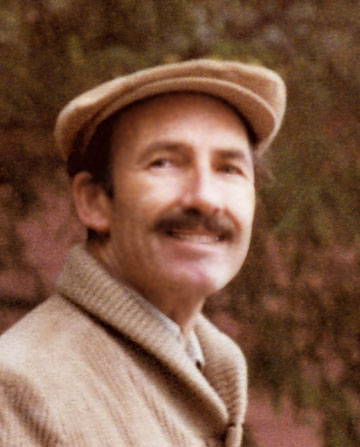
Por favour comparar a foto original e o resultado final:
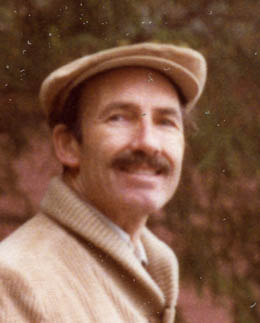
Antes
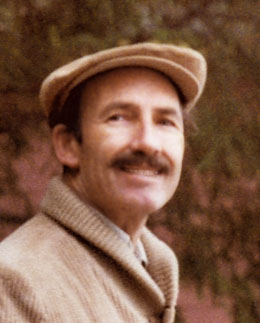
Despois
- Passo 1. Fazer um scan do foto a 2500 dpi, 48-bit color.
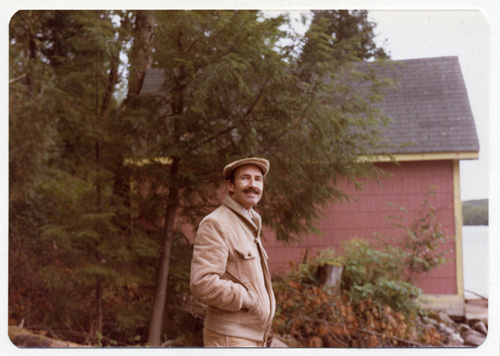
- Passo 2. Selecionar que deseja do scan e alargar X5.
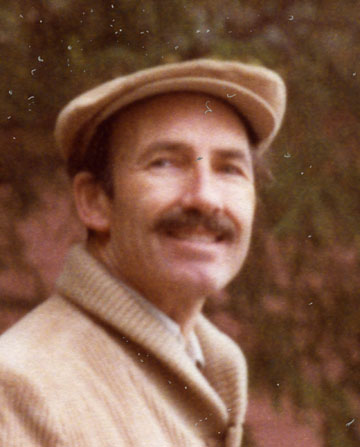
- Passo 3. Reduzir a resolução a 400 dpi.
- Passo 4. Abre o plugin AKVIS Noise Buster AI (ou a aplicação autonoma) e trabalhar nas condições.
Com a janela Visão antecipada, pode-se ajustar as correções para o òtimo resultado:
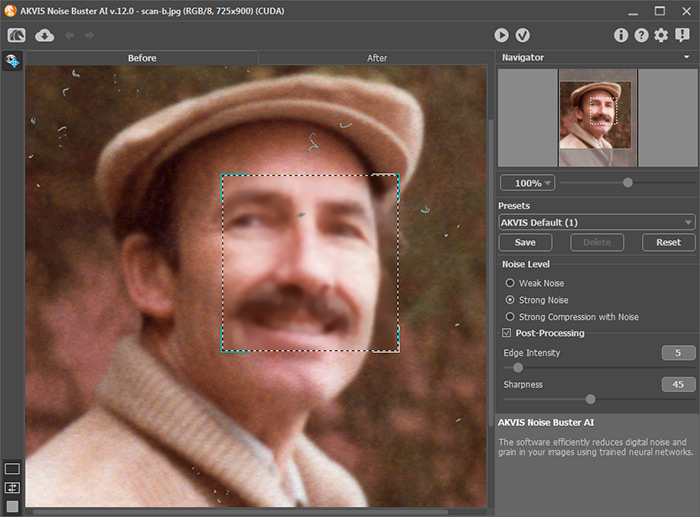
Isso já é uma enorme improvação, mas agora estou veramente interessado e quero mais.
- Passo 5. Abrir AKVIS Enhancer (clique aqui para ler mais sobre o plugin Enhancer).
Com grande apresentação e guias claras para como usar as condições, pode-se ajustar Enhancer para dar resultados excellentes.
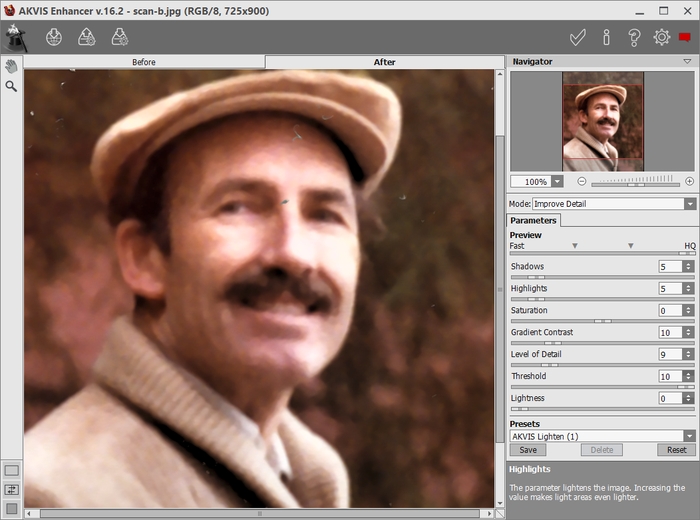
Seguindo a aproveitação do Enhancer, ainda tinha foto muito mole, então fui para meu plugin AKVIS Refocus AI e apliquei um modesto valor de focus.
Isso ajudou, mas ainda não era afiado, então voltei a Enhancer – e usando somente o controlle para o Nível de detalhes com um pouco de assistencia do controlle de Luminosidade fêz grande aproveitação no afiamento, detalho e cor do foto.
Agora pode-se vêr que ainda temos marcas indesejáves nesse velho foto.
AKVIS Retoucher (um plugin para restoração de foto) vai-nos ajudar.
- Passo 6. Abrir AKVIS Retoucher e escolher Pincel de seleção
 para colorar as áreas que devem ser reparadas.
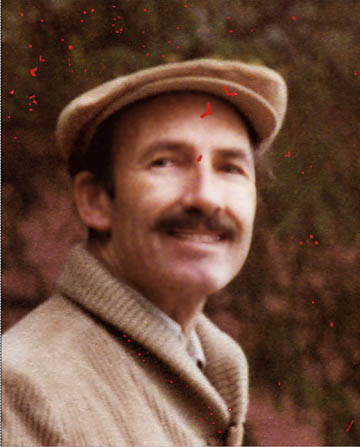
Aqui é o resultado final:

Noise Buster AI v. 13.2 - Teste gratuito 10 dias
