La eliminación de tatuajes
La autora de este tutorial es Tammy Russotto, quién nos cuenta que los programas de AKVIS editan de forma más rápida y fácil; y también nos dice que es más divertido. Asegúrese de practicar y, en un abrir y cerrar de ojos, usted lo descubrirá a través de sus ediciones.
En este caso, la autora quería hacer un retrato para enviárselo a su familia, por lo que decidió eliminar los tatuajes. La modelo de la imagen es Tiffany, que es hija de Tammy y tiene 25 años de edad.

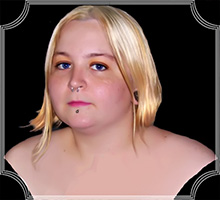
Por favor, siga estos pasos:
- Paso 1. Abra una imagen en su programa de edición con el comando Archivo -> Abrir.

Fotografía original de Tiffany - Paso 2. Seleccione las áreas a ser retocadas con herramienta Selección rectangular
 .
.
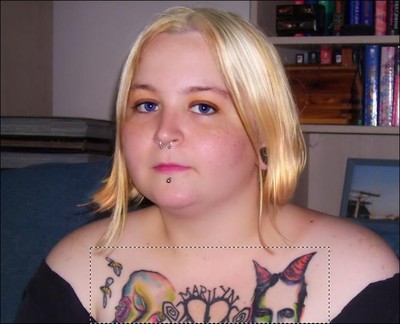
Selección de tatuajes - Paso 3. Luego abra el plugin AKVIS Retoucher: Efectos -> AKVIS -> Retoucher.
El área seleccionada aparecerá de color rojo transparente.
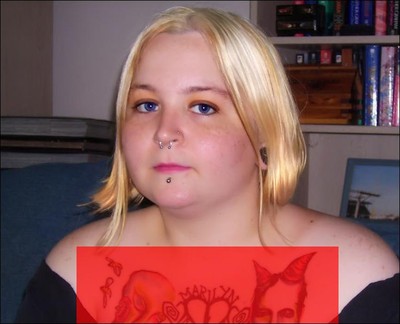
Aparición del área seleccionada de color rojo - Paso 4. Haga clic en el botón
 para comenzar el procesamiento de retoque. Usted podrá ver cómo se elimina el área seleccionada.
- Paso 5. Una vez realizada la eliminación, haga clic en el botón
 para guardar la imagen y regresar al programa de edición. Si hay más áreas que necesitan ser retocadas, repita las instrucciones mencionadas anteriormente.
- Paso 6. Ahora abra el programa AKVIS SmartMask utilizando el comando: Efectos -> AKVIS -> SmartMask.
Elija el modo Automático. Con Lápiz conservar área
 , vaya al área de la imagen que desea retener. Luego, con Lápiz eliminar área
  , delinee el área que desea eliminar.
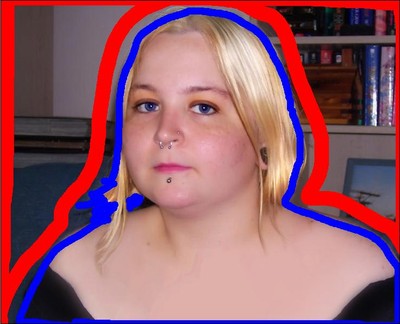
Dibujo de contornosHaga clic en el botón
para procesar la imagen.
- Paso 7. Elija Lápiz transición
 e incremente su tamaño. Delinee los bordes de la silueta. Luego, haga clic en el botón para aclarar el fondo.
- Paso 8. Haga clic en Objeto sobre fondo de color
 para abrir el cuadro de dialogo Seleccionar color y elija un nuevo color para el fondo.
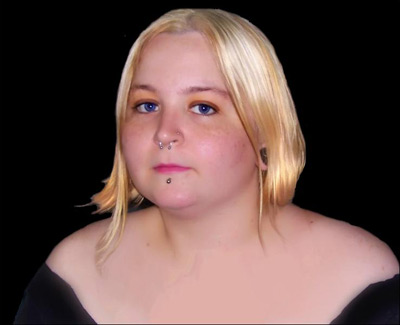
Fragmento del nuevo fondoSi aún no desea agregar un nuevo fondo o terminarlo, haga clic en el botón
para guardar la imagen y regresar al programa de edición.
- Paso 9. Abra el plugin AKVIS ArtSuite para añadir un marco: Efectos -> AKVIS -> ArtSuite.
En esta tutorial, la autora seleccionó las opciones Marcos Artístico, luego optó por el color blanco. Se cambió el ancho del marco para que la imagen cupiera en él.

Selección de marco - Paso 10. Una vez seleccionado el marco, haga clic en el botón para aplicarlo a la imagen y regresar al programa de edición. Si usted cree que se deben realizar más modificaciones, prosiga y hágalo. Luego guarde una nueva y hermosa imagen.
Retoucher v. 12.2 - Prueba gratuita de 10 días
