Zoom in AKVIS MultiBrush


Please enter your email to be kept posted on updates and discounts:
 
 
  Products     Download     Online Store     Tutorial     Support     Company      Customer Room
en  fr  de  es  pt  it  jp  ru    
 

Tutorial: AKVIS MultiBrush

Zoom


The Zoom tool is designed to change the image scale. Press Z to quickly access this tool.

To increase the scale, left-click on the image with this tool in the AKVIS MultiBrush window. To decrease the image scale, right-click on the image.

You can use hotkeys to change the image scale: + and Ctrl++ (++ on Macintosh) zoom in, - and Ctrl+- (+- on Macintosh) to zoom out.

It is also possible to increase the scale of the selected area. For this purpose press and select a rectangular area. When the rectangular area is selected, the image scale will be changed so that the selected part of the image will fill the whole window.
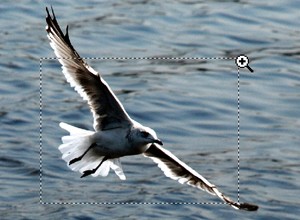
Increase the scale of the selected area
 
How It Works How It Works
   — Workspace — Workspace
   — How To Use The Program — How To Use The Program
   — Create New Image — Create New Image
   — Preferences — Preferences
   — Hot Keys — Hot Keys
Palettes Palettes
   — Toolbar — Toolbar
   — Color — Color
   — Swatches — Swatches
   — History — History
   — Layers — Layers
   — Channels — Channels
Standard Brushes Standard Brushes
   — Color Brush — Color Brush
   — Color Pencil — Color Pencil
   — Spray — Spray
   — Eraser — Eraser
   — History Brush — History Brush
   — Clone Stamp — Clone Stamp
   — Chameleon Brush — Chameleon Brush
   — Blur — Blur
   — Sharpen — Sharpen
   — Smudge — Smudge
   — Lighten — Lighten
   — Darken — Darken
   — Saturation — Saturation
Artistic Brushes Artistic Brushes
   — Oil Brush — Oil Brush
   — Roller — Roller
   — Felt-tip Marker — Felt-tip Marker
   — Chalk — Chalk
   — Artistic Pencil — Artistic Pencil
   — Artistic Spray — Artistic Spray
   — Artistic Eraser — Artistic Eraser
Additional Tools Additional Tools
   — Eyedropper — Eyedropper
   — Hand — Hand
   — Zoom — Zoom
Examples Examples
   — Changing Eye Color — Changing Eye Color
   — Selecting Lipstick — Selecting Lipstick
   — How To Enliven the Color of a Face — How To Enliven the Color of a Face
   — Figure Correction — Figure Correction
   — Portrait Editing — Portrait Editing
   — Odd Man Out — Odd Man Out
   — Alter Ego — Alter Ego
   — Removing Facial Shine — Removing Facial Shine
   — Photo Retouching — Photo Retouching
   — Removing an Object — Removing an Object
   — Visiting a Wildlife Park — Visiting a Wildlife Park


back to top


   Privacy Policy | Site Map | Search at AKVIS    
   Contact Us | Twitter | Facebook | YouTube Channel    
| English  |Français  |Deutsch  |Español  |Português  |Italiano  |日本語  |Pусский  | © 2004-2012 AKVIS. All rights reserved.