Removing Freckles


Please enter your email to be kept posted on updates and discounts:
 
 
  Products     Download     Online Store     Tutorial     Support     Company      Customer Room
en  fr  de  es  pt  it  jp  ru    
 

Tutorial: AKVIS MultiBrush

Removing freckles


The example was made in the old version of AKVIS Stamp.

Starting from version 4.0 the program is called AKVIS MultiBrush.
The tool used in this tutorial is now called the Chameleon Brush tool.


We are going to remove freckles without resorting to cosmetic tricks. Just follow the instruction:

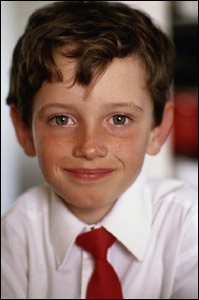
  • Step 1. Open the photo of the boy in your photo editor.
    a boy with freckles
  • Step 2. Select the plugin AKVIS Stamp. In Adobe Photoshop, you should select the menu item Filter - AKVIS - Stamp, in Jasc Paint Shop Pro - the menu item Effects - Plugins- AKVIS - Stamp; and in Corel Photo-Paint - Effects - AKVIS - Stamp.
  • Step 3. Select the Stamp tool from the Toolbar by pressing the button Stamp and adjust the size of the stamp.
  • Step 4. Deactivate the check box Aligned so that every time you apply the stamp the pattern is taken from one and the same starting point.
  • Step 5. Press the Alt key (Option in Macintosh) and use the left mouse button to specify the pattern of the face that is not covered with freckles. In this case we sample the area over the upper lip or on the chin of the boy.
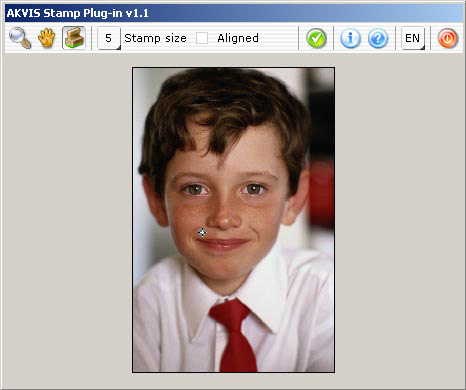
    sample an area for cloning
  • Step 6. Apply the cloned pattern to the areas covered with freckles with the Stamp keeping the left mouse button pressed.
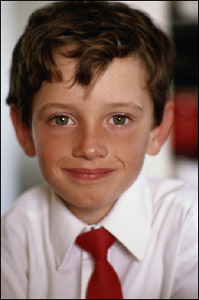
  • Step 7. Press the button Ok in the Toolbar to apply the result of retouching and to close the plugin window.
    the boy with freckles...and without
 
How It Works How It Works
   — Workspace — Workspace
   — How To Use The Program — How To Use The Program
   — Create New Image — Create New Image
   — Preferences — Preferences
   — Hot Keys — Hot Keys
Palettes Palettes
   — Toolbar — Toolbar
   — Color — Color
   — Swatches — Swatches
   — History — History
   — Layers — Layers
   — Channels — Channels
Standard Brushes Standard Brushes
   — Color Brush — Color Brush
   — Color Pencil — Color Pencil
   — Spray — Spray
   — Eraser — Eraser
   — History Brush — History Brush
   — Clone Stamp — Clone Stamp
   — Chameleon Brush — Chameleon Brush
   — Blur — Blur
   — Sharpen — Sharpen
   — Smudge — Smudge
   — Lighten — Lighten
   — Darken — Darken
   — Saturation — Saturation
Artistic Brushes Artistic Brushes
   — Oil Brush — Oil Brush
   — Roller — Roller
   — Felt-tip Marker — Felt-tip Marker
   — Chalk — Chalk
   — Artistic Pencil — Artistic Pencil
   — Artistic Spray — Artistic Spray
   — Artistic Eraser — Artistic Eraser
Additional Tools Additional Tools
   — Eyedropper — Eyedropper
   — Hand — Hand
   — Zoom — Zoom
Examples Examples
   — Changing Eye Color — Changing Eye Color
   — Selecting Lipstick — Selecting Lipstick
   — How To Enliven the Color of a Face — How To Enliven the Color of a Face
   — Figure Correction — Figure Correction
   — Portrait Editing — Portrait Editing
   — Odd Man Out — Odd Man Out
   — Alter Ego — Alter Ego
   — Removing Facial Shine — Removing Facial Shine
   — Photo Retouching — Photo Retouching
   — Removing an Object — Removing an Object
   — Visiting a Wildlife Park — Visiting a Wildlife Park


back to top


   Privacy Policy | Site Map | Search at AKVIS    
   Contact Us | Twitter | Facebook | YouTube Channel    
| English  |Français  |Deutsch  |Español  |Português  |Italiano  |日本語  |Pусский  | © 2004-2012 AKVIS. All rights reserved.