Graphic plugins for Windows Mac graphic plugins  
Please enter your email to be kept posted on updates and discounts:
 
  
  Products     Download     Online Store     Tutorial     Support     About Company
en  fr  de  es  pt  it  jp  ru    
 

Tips & Tricks

Add plug-ins to GIMP


Those users who works with GIMP on Windows now can add Photoshop plugins to this image editor.

The author of the tutorial Torsten Neuer shares his practices:


How to make the plugins work in GIMP

  • Step 1. Download the Photoshop filter plugin (pspi) for GIMP:
    http://www.gimp.org/~tml/gimp/win32/gimp-pspi-1.0.5.win32.zip

    Open the archive "gimp-pspi-1.0.5.win32.zip" and copy the plugin filter (pspi.exe) to the GIMP plugin directory,
    either in the GIMP installation path or the user data directory: (GIMP directory)\lib\gimp\(GIMP version)\plug-ins\

  • Step 2. Check for the existence of "plugin.dll" and "msvcrt10.dll" on your harddrive.

    Some Photoshop plugins will require this to run. If these are installed in another program's installation directory, you should copy them to a global .dll directory like \windows\system32\.

    If you cannot find them already installed on your harddrive, you need to download them as well (click to download).

  • Step 3. Install Photoshop plugins, for example, AKVIS software. You can find the instruction here.

    GIMP is not recognized by the setup program, but that does no harm.

  • Step 4. Open GIMP and select Photoshop Plug-in settings... in the Xtns (Extensions) menu
    (the latter may have a different name, depending on the language you used to install GIMP).

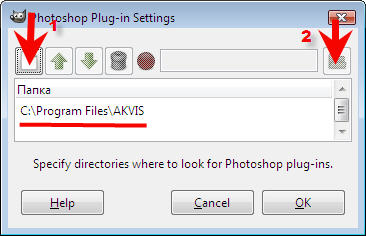
    Photoshop Plug-in settings in GIMP

    Select the "Add new path" icon (leftmost button) in the path list box that will open and navigate (rightmost button) to the installation directory of the plugin you want to register with GIMP.

    Add a new path to plugin

    Repeat this step for any plugin you would like to use in GIMP.

    Hint: You can copy all necessary plugins (8bf files) to a separate folder and add only this folder to GIMP.

    When done, you will get a message instructing you to close and re-start GIMP, so that the filter plugin can register the new filters. Comply.

    GIMP message
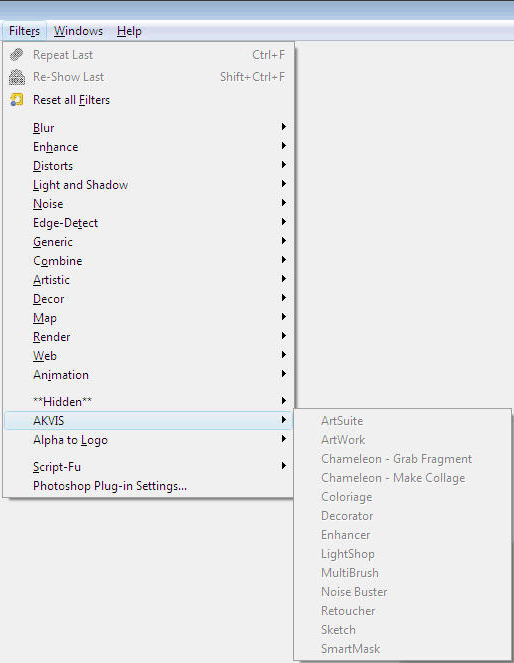
  • Step 5. After re-opening GIMP, you can now use the newly installed filters by selecting "Filters" in the menu.
    Plug-ins in GIMP


Bear in mind that not all AKVIS plug-ins are fully compatible with GIMP which works with selection in other way than Photoshop.
Please consult the table of compatibility of AKVIS plug-ins.

 
Tips and Tricks Tips and Tricks
Paint Shop Pro selection Tools Paint Shop Pro selection Tools
Paint Shop Pro layer transformation Paint Shop Pro layer transformation
Paint Shop Pro  rotation and flipping Paint Shop Pro rotation and flipping
Paint Shop Pro  changing image resolution Paint Shop Pro changing image resolution
Paint Shop Pro changing image size Paint Shop Pro changing image size
Photo-Paint selection Tools Photo-Paint selection Tools
Photo-Paint rotation and flipping Photo-Paint rotation and flipping
Photo-Paint image resolution Photo-Paint image resolution
Photo-Paint changing image size Photo-Paint changing image size
PhotoImpact installing plug-ins PhotoImpact installing plug-ins
GIMP adding Photoshop plug-ins GIMP adding Photoshop plug-ins


   Privacy Policy | Site Map | Search | English  | Français  | Deutsch  | Español  | Português  | Italiano  | 日本語  | Pусский  | © 2004-2008, AKVIS LLC. All rights reserved.