Oil Brush


AKVIS ニュースの購読を申し込むには, 電子メールアドレスを入力してください。
 
 
  プログラム     ダウンロード     サイバーショップ     チュートリアル     サポート     会社情報      お客様の部屋
en  fr  de  es  pt  it  jp  ru    
 

チュートリアル: AKVIS MultiBrush

Oil Brush


あいにく, このページは英語にだけ使用可能です。日本語のバージョンは遠からず出ります。
Attention! You can get a free licence for an AKVIS program by translating texts from English to Japanese.
Please contact us at team@akvis.com.

The Oil Brush was designed to imitate painting with an oil brush and paints strokes with a relief. The density of the stroke varies across the entire line. Press B to quickly access this tool.


The tool's parameters will be shown in a floating box over an image (by right-clicking the mouse) and also in the Settings Panel (only if this option is selected in Preferences).

To change a parameter, enter a numerical value in the box for that parameter and press Enter (Macintosh: Return) or move the slider.

  • Diameter (3-150). The maximum line width which can be obtained by the brush (in pixels).
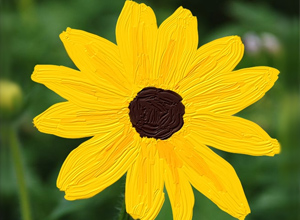
  • Relief (0-100). The prominence of stroke details. As this parameter is increased, the pattern left by the brush's hairs in the paint is more pronounced and the relief of strokes is stronger.

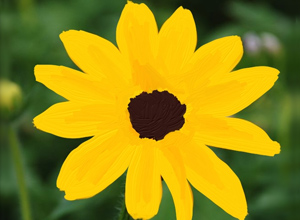
    Flat Strokes Raised Strokes
    Relief = 15 Relief = 70

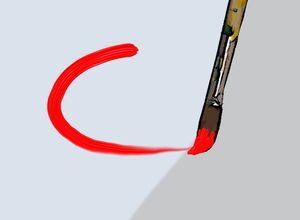
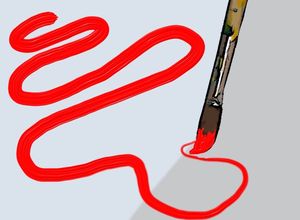
  • Paint Reserve (0-100). The length of painted lines. When the paint runs out, the brush stops painting on the surface and leaves a raised, faded stroke of paint.

    Short Stroke Long Stroke
    Paint Reserve = 10 Paint Reserve = 60

  • Color Mixing check box. This defines the state of the paint in when applied by the brush. When this check box is activated, paint strokes will mix together as if the paint is wet. If the check box is deactivated, the paint will behave as if it is drying, and brush strokes will not mix together.

    Drying Paint Wet Paint
    "Color Mixing" Check Box Deactivated "Color Mixing" Check Box Activated

Paint color is set through the Color/Swatches palettes. To choose a different color bring the cursor over the spectral bar (the cursor will take the shape of a pipette) and click on the desired color or double-click on the square and choose a color from the Select Color dialog. In some cases, selecting a color is more convenient than manually selecting the components of a color via the sliders.

 
操作方法 操作方法
   — ワークスペース — ワークスペース
   — 操作方法 — 操作方法
   — 新規ドキュメントの作成 — 新規ドキュメントの作成
   — 環境設定  — 環境設定
パレット パレット
   — ツールバー — ツールバー
   — カラーパレット — カラーパレット
   — スウォッチ — スウォッチ
   — ヒストリーパレット — ヒストリーパレット
   — レイヤーパレット — レイヤーパレット
   — チャンネルパレット — チャンネルパレット
標準ブラシ 標準ブラシ
   — カラーブラシ — カラーブラシ
   — 色鉛筆 — 色鉛筆
   — スプレーツール — スプレーツール
   — 消しゴム — 消しゴム
   — 履歴ブラシ — 履歴ブラシ
   — スタンプツール — スタンプツール
   — カメレオンブラシ — カメレオンブラシ
   — ぼかしツール — ぼかしツール
   — シャープツール — シャープツール
   — こするツール — こするツール
   — 覆い焼きツール — 覆い焼きツール
   — 焼き込みツール — 焼き込みツール
   — スポンジツール — スポンジツール
アートブラシ アートブラシ
   — 油絵用ブラシ — 油絵用ブラシ
   — ローラー — ローラー
   — フェルトペン — フェルトペン
   — チョーク — チョーク
   — 鉛筆(アーティスティック) — 鉛筆(アーティスティック)
   — スプレー(アーティスティック) — スプレー(アーティスティック)
   — 消しゴム(アーティスティック) — 消しゴム(アーティスティック)
Additional Tools Additional Tools
   — スポイト — スポイト
   — 手のひらツール — 手のひらツール
   — ズームツール — ズームツール
操作例 操作例


ページの先頭へ


   プライバシー | サイトマップ | Web サイトの検索    
   連絡先 | Twitter | Facebook | YouTube Channel    
| English  |Français  |Deutsch  |Español  |Português  |Italiano  | 日本語  |Pусский  | © 2004-2012 AKVIS. All rights reserved.