The Oil Brush Tool in AKVIS MultiBrush


Ingrese su email para suscribirse a la lista de AKVIS.
 
 
  Productos     Descargar     Tienda online     Tutorial     Apoyo técnico     Compañia      Área de clientes
en  fr  de  es  pt  it  jp  ru    
 

Tutorial: AKVIS MultiBrush

Oil Brush


Esta información está disponible solamente en inglés. La version en español aparecerá pronto.

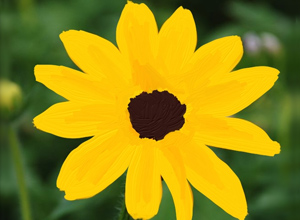
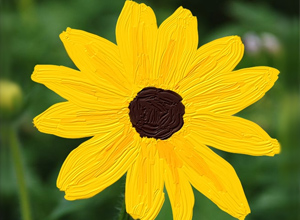
The Oil Brush was designed to imitate painting with an oil brush and paints strokes with a relief. The density of the stroke varies across the entire line. Press B to quickly access this tool.


The tool's parameters will be shown in a floating box over an image (by right-clicking the mouse) and also in the Settings Panel (only if this option is selected in Preferences).

To change a parameter, enter a numerical value in the box for that parameter and press Enter (Macintosh: Return) or move the slider.

  • Diameter (3-150). The maximum line width which can be obtained by the brush (in pixels).
  • Relief (0-100). The prominence of stroke details. As this parameter is increased, the pattern left by the brush's hairs in the paint is more pronounced and the relief of strokes is stronger.

    Flat Strokes Raised Strokes
    Relief = 15 Relief = 70

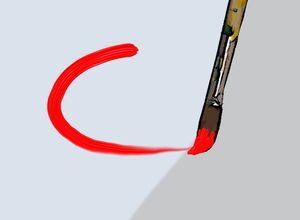
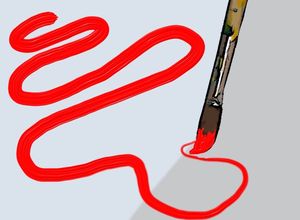
  • Paint Reserve (0-100). The length of painted lines. When the paint runs out, the brush stops painting on the surface and leaves a raised, faded stroke of paint.

    Short Stroke Long Stroke
    Paint Reserve = 10 Paint Reserve = 60

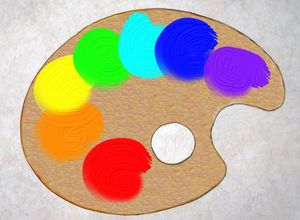
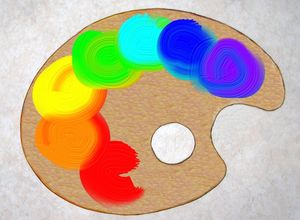
  • Color Mixing check box. This defines the state of the paint in when applied by the brush. When this check box is activated, paint strokes will mix together as if the paint is wet. If the check box is deactivated, the paint will behave as if it is drying, and brush strokes will not mix together.

    Drying Paint Wet Paint
    "Color Mixing" Check Box Deactivated "Color Mixing" Check Box Activated

Paint color is set through the Color/Swatches palettes. To choose a different color bring the cursor over the spectral bar (the cursor will take the shape of a pipette) and click on the desired color or double-click on the square and choose a color from the Select Color dialog. In some cases, selecting a color is more convenient than manually selecting the components of a color via the sliders.

 
Cómo funciona Cómo funciona
   — Área de trabajo — Área de trabajo
   — Utilizar el programa — Utilizar el programa
   — Crear una nueva imagen — Crear una nueva imagen
   — Opciones — Opciones
   — Teclas de atajo — Teclas de atajo
Paletas Paletas
   — Barra de herramientas — Barra de herramientas
   — Color — Color
   — Muestras — Muestras
   — Historia — Historia
   — Capas — Capas
   — Canales — Canales
Pinceles standard Pinceles standard
   — Pincel de color — Pincel de color
   — Lápiz de color — Lápiz de color
   — Aerosol — Aerosol
   — Borrador — Borrador
   — Pincel histórico — Pincel histórico
   — Támpon de clonar — Támpon de clonar
   — Pincel Camaleón — Pincel Camaleón
   — Desenfocar — Desenfocar
   — Enfocar — Enfocar
   — Dedo — Dedo
   — Aclarar — Aclarar
   — Oscurecer — Oscurecer
   — Saturación — Saturación
Pinceles artísticos Pinceles artísticos
   — Pincel al óleo — Pincel al óleo
   — Rodillo — Rodillo
   — Rotulador — Rotulador
   — Barra de tiza — Barra de tiza
   — Lápiz artístico — Lápiz artístico
   — Aerosol artístico — Aerosol artístico
   — Borrador artístico — Borrador artístico
Herramientas Herramientas
   — Cuentagotas — Cuentagotas
   — Mano — Mano
   — Zoom — Zoom
Ejemplos Ejemplos
   — El tercero está de más — El tercero está de más


volver arriba


   Política de privacidad | Mapa Web | Buscar    
   Contáctenos | Twitter | Facebook | YouTube Channel    
| English  |Français  |Deutsch  | Español  |Português  |Italiano  |日本語  |Pусский  | © 2004-2012 AKVIS. Todos los derechos reservados.