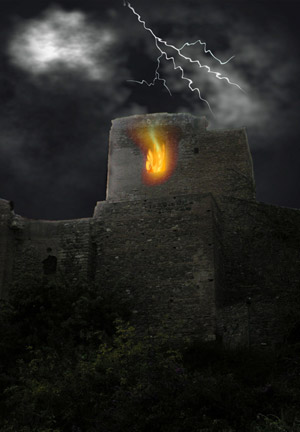
A fire in a castle
The example was made in the old version of AKVIS LightShop.
Read how to use the current version of the program.
The author of this example is Irina Shreiner.
Where do you prefer to be on a stormy day? I think many people would like to be at home with their close ones and friends...
Do you have any photos of the wild nature? You can create them using AKVIS Lightshop! For this it is necessary to select the photograph, which you want to change and create your work!
The example has been created in Adobe Photoshop and AKVIS LightShop Plugin.
- Passaggio 1. Open your original image in Adobe Photoshop.
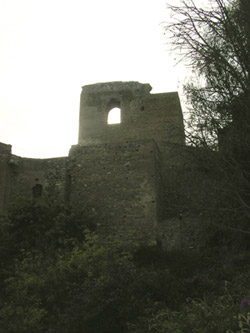
- Passaggio 2. Now we should crop our image to remove a tree. Use the Crop tool. Also we should remove the branches using the Stamp tool.
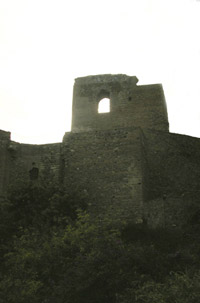 The sky must be changed to make the effect of the lightning storm.
- Passaggio 3. Create a new file. The size of the new file should be twice smaller than the original one.
- Passaggio 4. Call AKVIS Lightshop: from the main menu of your photo editor Filter -> AKVIS -> Lightshop.
Create a new preset: press the button New Preset in the Presets tab.
Press the button
 and choose the Blob element from the list. Press the button
  . The result will be shown in the Image Window. Change the parameters to get a cloud.
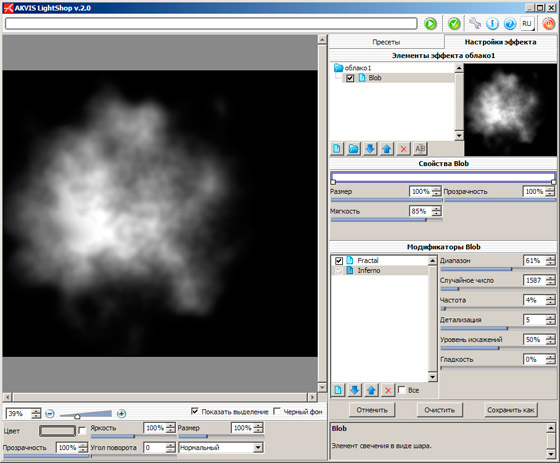
Press the button
 to apply the result and close the plugin window.
- Passaggio 5. One cloud is ready. To create more clouds just create a new layer and repeate the Passaggio 4. So our clouds look more naturally.
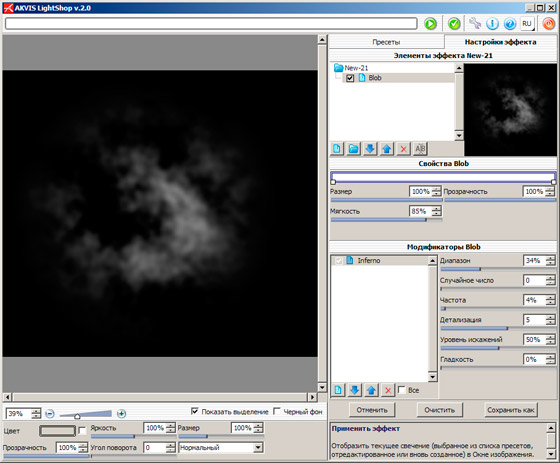
- Passaggio 6. Merge all layers to get the night sky.
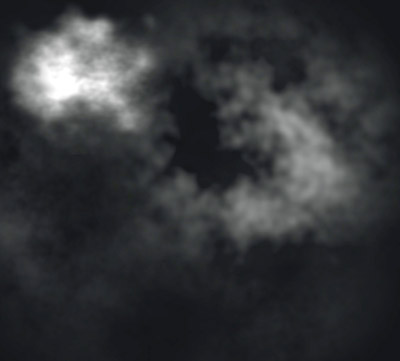
- Passaggio 7. Now we have to add the night sky to the original image. Copy the image of the sky and add to the image with the castle.
- Passaggio 8. Double click on the background layer with the castle and press the button Ok. Then change the layers order in the Layers window.
- Passaggio 9. Now let's work with the castle. Choose the Eraser tool and erase the sky. Then increase the contrast and reduce brightness (Image -> Ajustments -> Brightnes/Contrast). So instead of the day, we get a night.
- Passaggio 10. To create a fire effect we need to erase a background in the castle at the original image. Use the Eraser tool again.
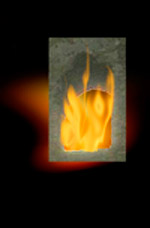
- Passaggio 11. Create a new layer and call AKVIS Lightshop. Choose the Sample №45 and draw a fire.
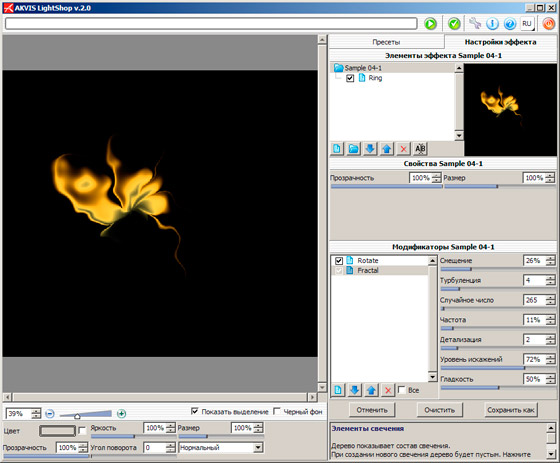
Press the button
to apply the result and close the plugin window.
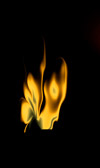
- Passaggio 12. Move the layer with the fire to make it under the original layer.
- Passaggio 13. Create one more layer and call AKVIS Lightshop again. Choose the Sample №4 and draw a new element. Merge these two layers.
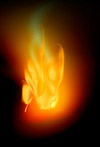
- Passaggio 14. Scale the image to to the window size. At the new layer make one more flame tip. Fire is ready!
- Passaggio 15. Now we need to create a lightning. Call AKVIS Lightshop and choose the Sample №46 and create two lightnings. Set the parameters for the first lightning: disable the whirpool modifier, as to the fractal modifier: amount – 8%, turbulence – 13, frequency – 10, detail – 3, harmonic scale – 50, smoothness – 41. Set the strip weidth = 21.
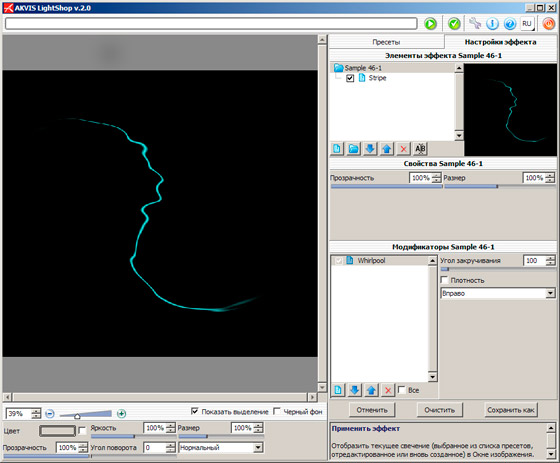
Now you can use the same preset, but change the strip weidth = 13, the fractal modifier: amount – 10%, turbulence – 12, frequency – 10, detail – 2, harmonic scale – 50, smoothness – 55. Twist the whirpool modifier to the right (100).
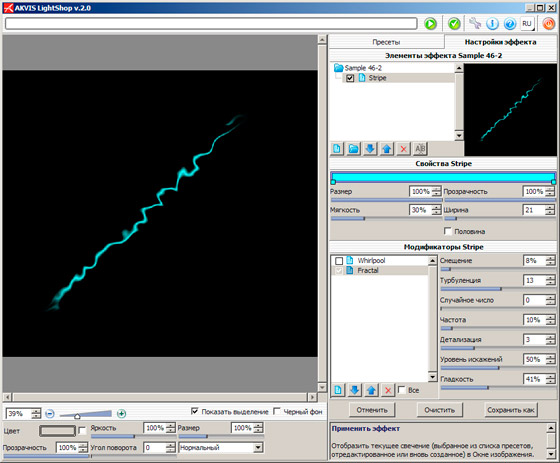
- Passaggio 16. Make several copies of the layers and change the shape and position of the light effects to get a lightning (Image -> Free Transform).
- Passaggio 17. Blur the walls of the castle using the Blur tool.
- Passaggio 18. Since we are the authors of our picture, then we decide that the moon shines to the left. Since the moon and lightning give uneven illumination, it is necessary "to darken" some sections in the photograph using the Burn tool. For example, the right upper angle of tower is too bright. "At night", it must be more darker.
- Passaggio 19. Merge all layers and save the result.
LightShop v. 8.1 - 10-giorni di prova gratuita

- Passaggio 2. Now we should crop our image to remove a tree. Use the Crop tool. Also we should remove the branches using the Stamp tool.