Cómo retocar una fotografía en 7 pasos
El autor de este tutorial es Andrey Shevchuk. Para retocar una fotografía de su álbum familiar, utilizó AliveColors y AKVIS Retoucher.
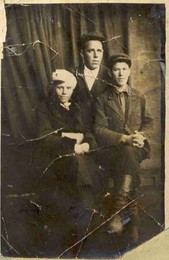
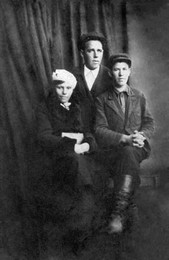
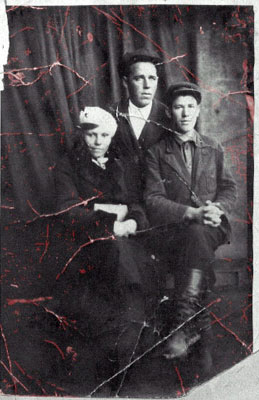
Aquí está la fotografía que Andrey decidió retocar. Llevar a cabo el retoque no demandó mucho tiempo, sólo requirió asiduidad y entusiasmo para obtener el mejor resultado posible.
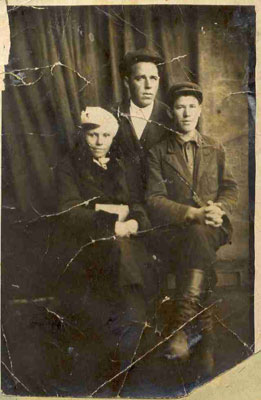
- Paso 1. La fotografía está borrosa y tiene un tinte amarillento. Por esta razón, primero debemos convertir la fotografía a una escala de grises e incrementar el contraste de la imagen.
Abra la imagen en AliveColors y seleccione Imagen -> Ajuste -> Niveles automático. Luego seleccione Imagen -> Ajuste -> Contraste automático. Si no se encuentra satisfecho con el resultado, puede realizar la corrección de los niveles de manera manual. Una vez que se haya llevado a cabo el primer paso, se habrá mejorado el contraste y se habrá conseguido que el tinte amarillento sea menos pronunciado.
Continúe con el siguiente paso: Imagen -> Ajuste -> Blanco y negro y, como resultado, la imagen se convertirá en una fotografía en blanco y negro.
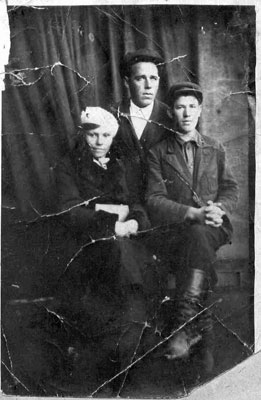
- Paso 2. Ya se ha realizado la mitad del trabajo, por lo cual será más fácil proceder. Removeremos algunos rasguños utilizando el plugin AKVIS Retoucher. Ábralo desde Efectos -> AKVIS -> Retoucher.
Seleccione los rasguños utilizando la herramienta Pincel de selección
 . La selección será resaltada con color rojo semitransparente.
Presione el botón
 y verá cómo desaparecen los rasguños.
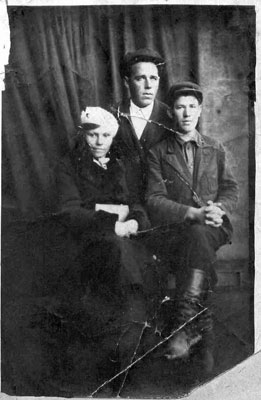
- Paso 3. Continuaremos con el retoque de la fotografía: retocaremos el marco, la esquina inferior derecha que está rota y los rasguños que se encuentran sobre las personas de la fotografía. Repetiremos estos dos pasos: seleccionar los defectos y comenzar el proceso de restauración.
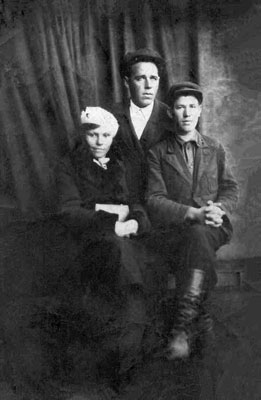
- Paso 4. Primero, utilizaremos la herramienta Pincel camaleón
 para restaurar el cuello de la camisa del hombre que se encuentra en el centro. No requerirá mucho tiempo.
- Ajuste el tamaño del pincel. Para llevar a cabo nuestra tarea, necesitaremos un pincel más pequeño, de 7 - 9 píxeles.
- Mantenga presionada la tecla Alt y haga clic con el botón izquierdo del ratón para seleccionar el sector del cuello de la camisa que se encuentra intacto. Dicho sector será utilizado como patrón para clonar. Clonaremos la línea y el área que se halla a su alrededor.
- Cuando haga clic sobre el área seleccionada manteniendo presionada la tecla Alt, el patrón será guardado en la memoria intermedia del plugin. Ahora, haga clic con el botón izquierdo del ratón (sin presionar la tecla Alt) en el sector donde debería aparecer el cuello de la camisa, y pegue el patrón seleccionado. Puede insertar el patrón cuantas veces quiera. Es posible cancelar la última acción combinando las teclas Ctrl+Z.
- Ahora, puede aclarar los colores de la camisa mediante la selección de un patrón de un sólo color para el cuello y pegando dicho patrón sobre las zonas dañadas.
Como resultado, obtendrá la siguiente imagen:

- Paso 5. En el paso anterior, vimos como clonar un sector de una imagen utilizando el Pincel camaleón . La peculiaridad de esta herramienta es que, cuando uno pega el patrón clonado, éste automáticamente se ajusta al color y a la textura del fondo.
Utilizaremos esta función para remover pequeños defectos y las imperfecciones de la superficie. Como resultado, podrá ver la siguiente imagen:
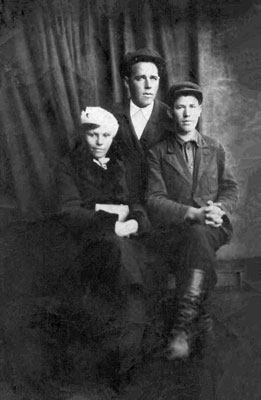
- Paso 6. En este paso, podrá conocer otra función del Pincel camaleón . El autor de esta tutoría la llama "emplastecido".
Luego de haber restaurado el sector de la imagen que se hallaba perdido, podremos observar que aún hay algunas imperfecciones en las zonas restauradas.
Clonaremos un patrón de textura lisa, que se encuentra a la derecha de las personas y lo utilizaremos para alisar el color del fondo. También haremos uso de esta técnica para remover los pequeños defectos que se encuentran en el traje del hombre que se halla de pie. Como resultado, obtendremos la siguiente fotografía:
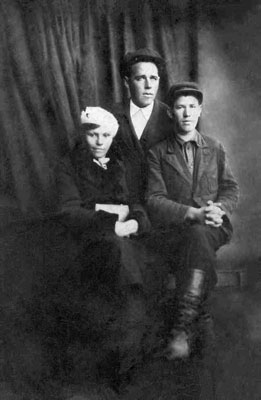
- Paso 7. En este paso, conocerá otra función de la herramienta Pincel camaleón : la reconstrucción de los detalles perdidos. A modo de ejemplo, trabajaremos con las cortinas. Podemos observar que los pliegues no alcanzan la parte superior de la fotografía. Por esta razón, haremos que la alcancen. Tomaremos como patrón de clonado aquellas partes de la cortina donde se observan los pliegues, y a estas ondulaciones las extenderemos poco a poco y con sumo cuidado hasta alcanzar la parte superior de la fotografía. Podemos incrementar el tamaño del pincel a 61 píxeles para realizar esta tarea.
También llevaremos a cabo la reconstrucción de la parte inferior izquierda de la cortina, empleando la misma técnica desarrollada anteriormente.
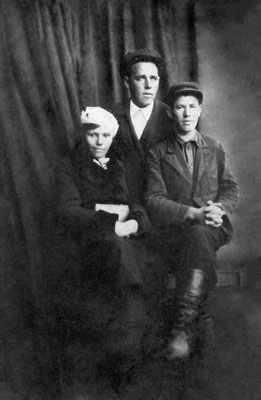
Los cambios se habrán introducido de una manera tan gradual que uno pensará que la fotografía siempre ha sido así. Pero si ubicamos la fotografía original junto a la restaurada, veremos que la imagen ha cambiado drásticamente, producto de un arduo trabajo.
Si se encuentra satisfecho con el resultado obtenido, presione el botón
 para aplicar la restauración y cerrar la ventana del plugin.
Retoucher v. 12.2 - Prueba gratuita de 10 días
