Graphic software for Windows Mac graphic software
Ingrese su email para suscribirse a la lista de AKVIS.
 
  
  Productos     Descargar     Tienda     Tutorial     Apoyo técnico     Compañia
en  fr  de  es  pt  it  jp  ru    
 

Tutorial: AKVIS Decorator

Snow Queen


Esta información está disponible solamente en inglés. La version en español aparecerá pronto.

The author of this example is Chantal Meus.

Do you remember fairy tales that your parents told you? You were engrossed to the world of magic, adventures and mystery, empathized with the favourite heroes and blamed the bad guys. But there are some heroes that are threaten and delight at the same time. Snow Quenn, beautiful and insidious, exquisite and cruel, is one of them. Using AKVIS Decorator we'll let us try to make from the usual girl mysterious, extraordinarily attractive Snow Queen.

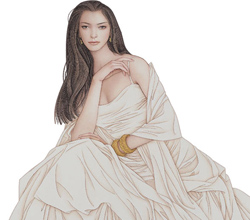
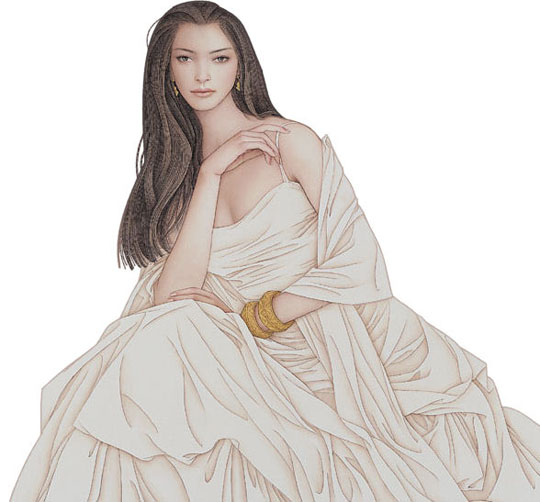
  • Step 1. Open the photo in your photo editor. You can use any photo editor compatible with AKVIS plugins.
    A photo of a girl
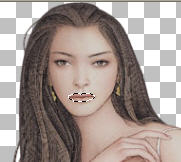
  • Step 2. Select the girl's lips using any selection tool. In Adobe Photoshop you can use the Lasso tool or the Quick Selection tool. Look at the image below.
    Select the girl's lips
  • Step 3. Call AKVIS Decorator from the main menu of Adobe Photoshop: Filter -> AKVIS -> Decorator.
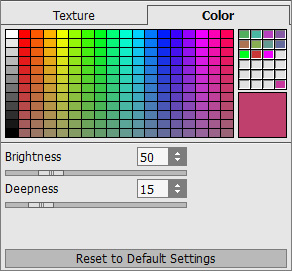
  • Step 4. Change the Color of the lips. To change the color you have to choose the Color tab and choose the necessary tint. The author used the carnation Color.

    Then change the Color parameters: Brightness = 50, Deepness = 15.

    Choose a Color
  • Step 5. Press the button Run to start the process. The result will be shown in the After tab.

    If you are satisfied with the result press the button Apply.

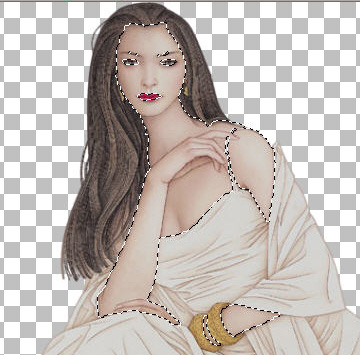
  • Step 6. Now select all parts of her body: a face, neck, hands and bust.
    Select her body
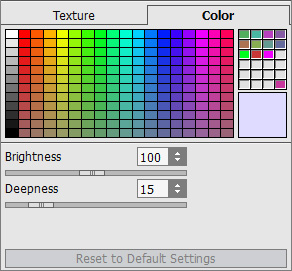
  • Step 7. Call AKVIS Decorator, go to the Color tab and choose the pale lilac Color at the Color Palette. Set the values of the parameters: Brightness = 100, Deepness = 15.
    Choose a Color
  • Step 8. Press the button Run, then press the button Apply to apply the result and return to your photo editor.
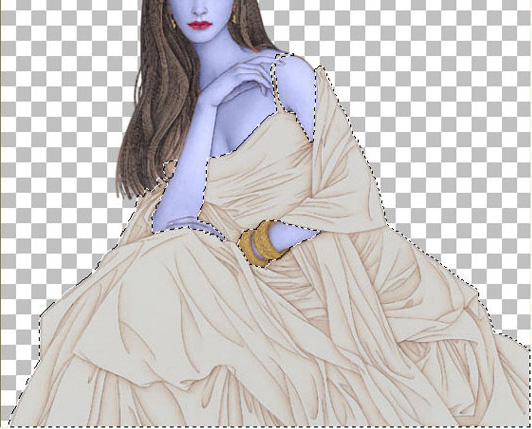
  • Step 9. Now we have to decorate her dress. Select het dress and the strap.
    Select her dress
  • Step 10. Call AKVIS Decorator, and choose the Texture tab.

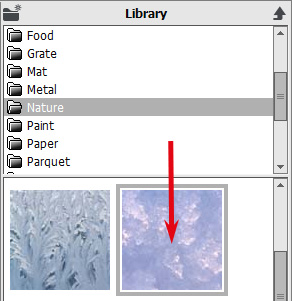
    A texture is chosen from the Texture Library. To open the Texture Library you should double-click with the left mouse button on the square with a texture. Choose the Nature texture.

    texture1

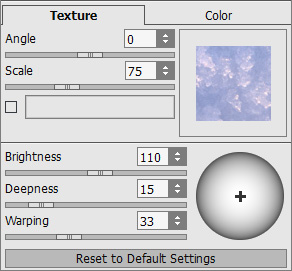
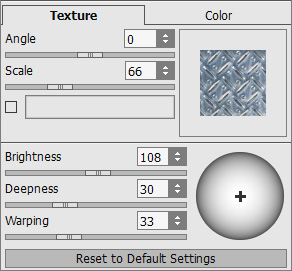
    Set the values of the parameters: Angle = 0, Scale = 75, Brightness = 110, Deepness = 15, Warping = 33.

    dress

    You should press the button Generate to apply the changes to the texture:

    Generate
  • Step 11. Press the button Run, to process your image and press the Apply to apply the result and close the plugin window.
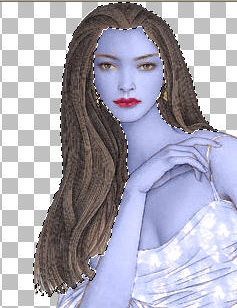
  • Step 12. Then you have to select her hair.
    select her hair

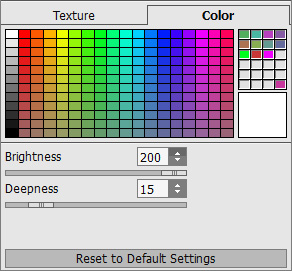
    Call AKVIS Decorator again, choose the Color tab and choose the white color at the Color Palette. Set the values of the parameters: Brightness = 200, Deepness = 15.

    choose the color for her hair

    Repeat the Step 11.

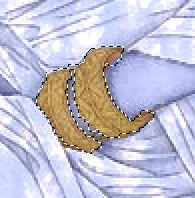
  • Step 13. Now you have to select her bracelets.
    Select her bracelets

    Call AKVIS Decorator one more time, choose the Color tab and choose the same color that you use for decorating her skin.

    Choose a color for her bracelets

    Repeat the step 11.

  • Step 14. Now we have to decorate the backgound of our image. The original image is on the transparent layer, but our texture can't be applied so we need to color the baground.

    Select all image except the girl's body. Then choose the Paint Bucket Tool tool and choose the white color, then press the left mouse button on the background and your backround will be white.

    Select the background
  • Step 15. Call AKVIS Decorator from the main menu. Choose the Texture tab and open the Texture Library and choose the necessary texture from the Nature folder.
    texture #2

    Set the values of the parameters: Angle = 0, Scale = 100, Brightness = 100, Deepness = 15, Warping = 33.

    Texture for the background

    Don't forget to repeat the Step 11.

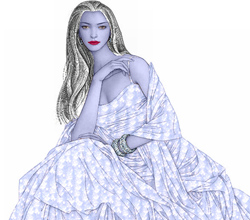
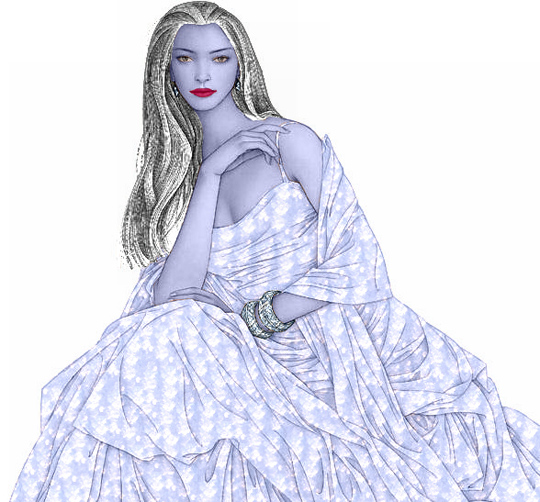
  • Step 16. Here we get the image of Snow Queen.
    Result
 
Cómo funciona Cómo funciona
Color y Textura de la Ropa Color y Textura de la Ropa
Diseño de interior Diseño de interior
Teteras para todos los gustos Teteras para todos los gustos
Visita extraterrestre Visita extraterrestre
Cambiar el traje Cambiar el traje


   Política de privacidad | Mapa Web | Buscar | English  |Français  |Deutsch  | Español  |Português  |Italiano  |日本語  |Pусский  | © 2004-2009, AKVIS Software Inc. Todos los derechos reservados.