Easter Eggs
The example was made in the old version of AKVIS Stamp.
Starting from version 4.0 the program is called AKVIS MultiBrush.
The tool used in this tutorial is now called the Chameleon Brush tool.
One popular Easter tradition is painting eggs. The egg is a symbol of new life and fertility. For centuries eggs have been colored and given as Easter gifts in different countries. Decorated eggs were exchanged by lovers, like valentines.
You can create your own Easter postcard with AKVIS Stamp and Corel Painter (or other image editor) in minutes.
Follow these simple steps:
- Take a photo of a basket filled with eggs.
We also need some pictures which will be a source for the eggs decoration. Spring is a time of colorful flowers. Let's use photos of tulips and a blooming cherry tree:


- Stamp is a great tool for object cloning; unfortunately it works with one picture at a time. To use our decoration images we have to put them into one layer.
First of all, you need to resize the canvas. Open the Canvas Size dialog. In Corel Painter you should select the menu item Canvas -> Canvas Size.... Add 400 pixels to the right. It should be big enough to place the flower image. Now we see the following image:

- Merge the layers (Layers -> Drop All).
- Call the AKVIS Stamp plugin (in Corel Painter: Effects -> AKVIS -> Stamp).
Select the Stamp tool and adjust the stamp size:

- Press the Alt key and use the mouse cursor to set the source point for cloning of the tulips.
Move the cursor to the point of the egg where you want to put the flower (or a bunch of flowers) and clone it by one stroke. Never mind if you do not clone the bunch of flowers in one step; if the check box Aligned is activated, you can proceed cloning at the point where you stopped.
- Press the button
 in the toolbar to apply the result of cloning and close the plugin window.
- Then you have to repeat these steps with another image (the cherry-tree).
- After that you should use the Crop tool to remove the unwanted area that was inserted earlier.
Now we have an image with amazing Easter eggs:
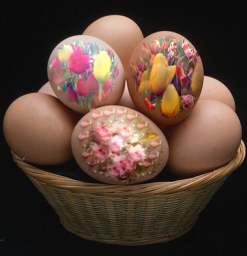
You can decorate other eggs and the background (or change the background by moving the basket into the new picture), and type a greeting text into your Easter card.
Happy Easter to you and your family!