Graphic plugins for Windows Mac graphic plugins  
Please enter your email to be kept posted on updates and discounts:
 
  
  Products     Download     Online Store     Tutorial     Support     About Company
en  fr  de  es  pt  it  jp  ru    
 

Tutorial: AKVIS Noise Buster

Reduce noise that appeared during image correction


When you correct a dark photo you will often notice that as you "shed light" upon its underexposed areas the noise in the areas shows up more abundantly. You can't do anything about it. You can only struggle with these inevitable consequences of exposure correction. Besides, they are not so difficult to cope with.

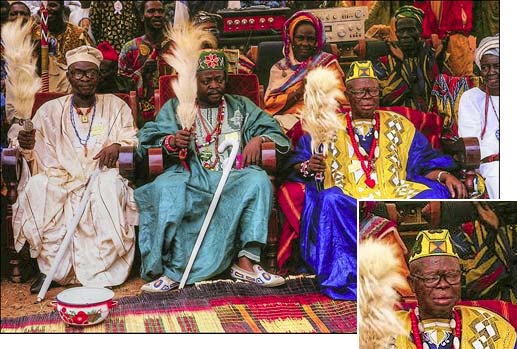
Let's take an underexposed photo and improve detail in the dark areas using AKVIS Enhancer. Pay your attention to the people in the background - their faces are hardly visible.
an underexposed photo

Open the photo in a photo editor compatible with the plug-ins AKVIS Enhancer and AKVIS Noise Buster.

Call the AKVIS Enhancer plug-in and adjust the settings.

AKVIS Enhancer settings

The photo is dark, therefore we improve detail mostly using the parameters Shadows and Lightness. We set the maximum value for the first parameter and a bit higher value for the second parameter.

The parameter Level of Detail sets the degree of detail revealing. The higher the value of the parameter, the sharper is the difference between pixels having different colors. You can see more details, but the noise gets clearer, too. Earlier it was hidden in the shade, but the increase in Level of Detail made it manifest.

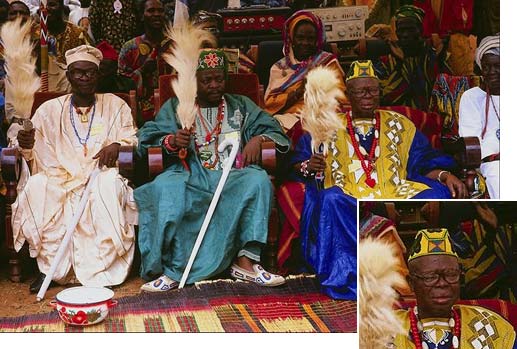
After the application of the plug-in with the above-mentioned settings the faces of the people in the background became visible, the noise became stronger too.

After AKVIS Enhancer

You can apply the AKVIS Noise Buster plug-in to get rid of the noise.

Call the plug-in and adjust the parameters.

We mostly see the color noise on the photo (green and red blots, especially manifest on the skin). To reduce the color noise adjust the parameters Noise Level and Smooth Level in the Color Noise section. Set new values for the Luminance Noise too: increase the parameters Noise Level and Smooth Level for the Luminance Noise and increase the value of the parameter Sharpen Edges.

Noise reduction parameters

After the filtration the color blots have disappeared and the skin looks smooth.

After the noise reduction

Let's compare one and the same fragment before and after the filtration: on the left is the original dark photo, in the middle - the result of image correction with AKVIS Enhancer, on the right - the result of noise reduction with AKVIS Noise Buster.

the original dark photo after detail improvement after noise reduction
 
How it works How it works
Cover Girl Cover Girl
Remove Moire on Scans Remove Moire on Scans
Color Noise Suppression Color Noise Suppression
ISO and Noise ISO and Noise
Reduce Noise on a Studio Photo Reduce Noise on a Studio Photo
Suppress noise on a rendered image Suppress noise on a rendered image
Noise reduction on a corrected photo Noise reduction on a corrected photo
Improve a Dark Photo + Remove Noise Improve a Dark Photo + Remove Noise
How to make your photo look better How to make your photo look better
Remove JPEG-Artifacts Remove JPEG-Artifacts


   Privacy Policy | Site Map | Search | English  | Français  | Deutsch  | Español  | Português  | Italiano  | 日本語  | Pусский  | © 2004-2008, AKVIS LLC. All rights reserved.