Changing Eye Color on a Photo in AKVIS MultiBrush


Please enter your email to be kept posted on updates and discounts:
 
 
  Products     Download     Online Store     Tutorial     Support     Company      Customer Room
en  fr  de  es  pt  it  jp  ru    
 

Tutorial: AKVIS MultiBrush

Changing Eye Color


AKVIS MultiBrush is not only a drawing tool, but a magical stylist, which can change your appearance with two strokes of a brush. In this tutorial we will share a secret of how to make a photograph "stand out", to make the subject in a portrait even more pleasing to the eye.

Each of us are born with a unique eye color. But girls like to experiment with different looks! It's not so difficult.

    Original Image Result
    Photo of a Girl After Processing With MultiBrush
  • Step 1. Open a photo in AKVIS MultiBrush.
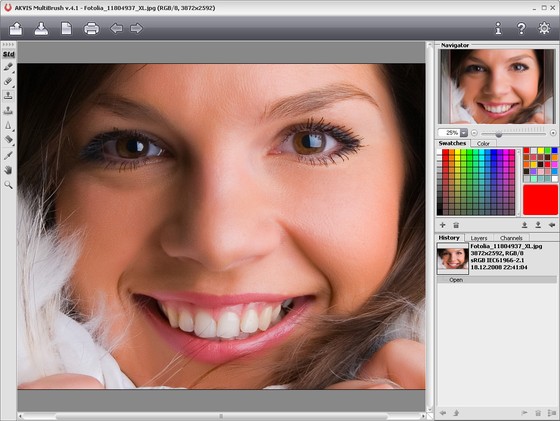
    Original Image
    Original Image
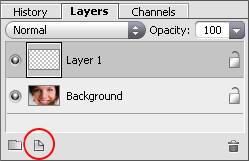
  • Step 2. Create a new layer above the image (with the button).
    Layers Palette
    Layers Palette
  • Step 3. Choose the Color Brush tool and paint the desired color over the iris.
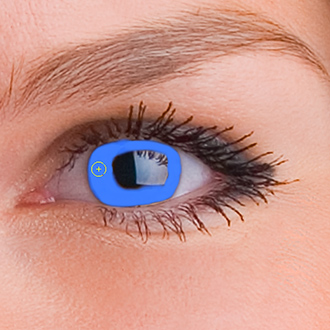
    Painting New Color
    Paiting New Color
  • Step 4. Under the settings for the Layers Palette, change the Opacity parameter for the top layer to between 20 and 30%.
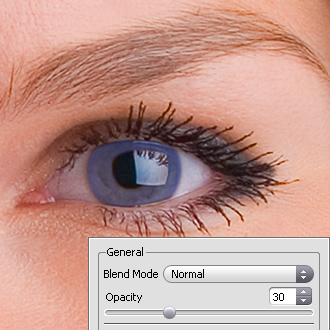
    Changing Opacity
    Changing Opacity

    Feel free to experiment, you can change eye color without buying expensive lenses:

    Blue Eyes Green Eyes
    Gray Eyes Violet Eyes

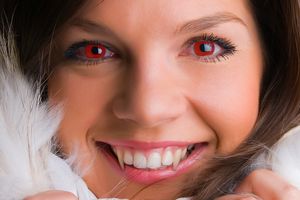
    Even something like this:

    Red Eyes
 
How It Works How It Works
   — Workspace — Workspace
   — How To Use The Program — How To Use The Program
   — Create New Image — Create New Image
   — Preferences — Preferences
   — Hot Keys — Hot Keys
Palettes Palettes
   — Toolbar — Toolbar
   — Color — Color
   — Swatches — Swatches
   — History — History
   — Layers — Layers
   — Channels — Channels
Standard Brushes Standard Brushes
   — Color Brush — Color Brush
   — Color Pencil — Color Pencil
   — Spray — Spray
   — Eraser — Eraser
   — History Brush — History Brush
   — Clone Stamp — Clone Stamp
   — Chameleon Brush — Chameleon Brush
   — Blur — Blur
   — Sharpen — Sharpen
   — Smudge — Smudge
   — Lighten — Lighten
   — Darken — Darken
   — Saturation — Saturation
Artistic Brushes Artistic Brushes
   — Oil Brush — Oil Brush
   — Roller — Roller
   — Felt-tip Marker — Felt-tip Marker
   — Chalk — Chalk
   — Artistic Pencil — Artistic Pencil
   — Artistic Spray — Artistic Spray
   — Artistic Eraser — Artistic Eraser
Additional Tools Additional Tools
   — Eyedropper — Eyedropper
   — Hand — Hand
   — Zoom — Zoom
Examples Examples
   — Changing Eye Color — Changing Eye Color
   — Selecting Lipstick — Selecting Lipstick
   — How To Enliven the Color of a Face — How To Enliven the Color of a Face
   — Figure Correction — Figure Correction
   — Portrait Editing — Portrait Editing
   — Odd Man Out — Odd Man Out
   — Alter Ego — Alter Ego
   — Removing Facial Shine — Removing Facial Shine
   — Photo Retouching — Photo Retouching
   — Removing an Object — Removing an Object
   — Visiting a Wildlife Park — Visiting a Wildlife Park


back to top


   Privacy Policy | Site Map | Search at AKVIS    
   Contact Us | Twitter | Facebook | YouTube Channel    
| English  |Français  |Deutsch  |Español  |Português  |Italiano  |日本語  |Pусский  | © 2004-2012 AKVIS. All rights reserved.