The Clone Stamp Tool in AKVIS MultiBrush


AKVIS ニュースの購読を申し込むには, 電子メールアドレスを入力してください。
 
 
  プログラム     ダウンロード     サイバーショップ     チュートリアル     サポート     会社情報      お客様の部屋
en  fr  de  es  pt  it  jp  ru    
 

チュートリアル: AKVIS MultiBrush

Clone Stamp


あいにく, このページは英語にだけ使用可能です。日本語のバージョンは遠からず出ります。
Attention! You can get a free licence for an AKVIS program by translating texts from English to Japanese.
Please contact us at team@akvis.com.

The Clone Stamp tool can clone a part of an image from one part and into another while maintaining the original color palette, shadows, textures, illumination and other characteristics of the cloned part. Press S to quickly select this tool.

To clone an object, first select the area to be cloned: do this by first holding down Alt (Option on Macintosh), and then clicking on the area from which the clone will be taken.

Once the reference point is defined, place the cursor over the area you wish to place the clone. Left-click to apply the clone. When you left-click a cross-shapped cursor will appear over the source image, identifying the original fragment.


The tool's parameters will be shown in a floating box over an image (by right-clicking the mouse) and also in the Settings Panel (only if this option is selected in Preferences).

To change the value of a parameter, enter a numerical value in the parameter's field and press Enter (Macintosh: Return) or adjust the slider.

  • Diameter (1-500). The maximum diameter of the source used for cloning (in pixels).
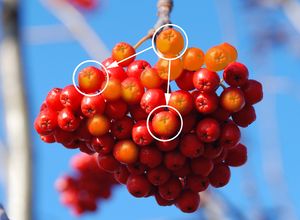
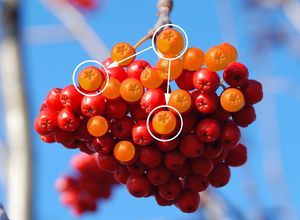
  • Hardness (0-100). The degree of blurriness of the fragment's edges. At higher values of this parameter, the less the fragment's border interacts with the background. At values near 100% the border between the fragment and the image is very distinct; at lower values the border between these areas will be smoother.
  • Cloning Red Berries With Stamp of the Same Diameter
    Soft Edged Brush Hard Edged Brush
    Hardness = 30% Hardness = 100%

  • Opacity (1-100). The opacity of the fragment in relation to the background. This parameter affects the opacity of the fragment where it is stamped: at lower values, the fragment is paler and its interaction with the background is greater.
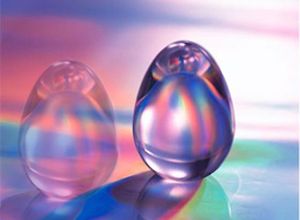
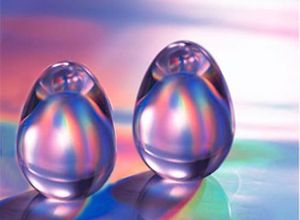
  • Cloning Glass Eggs (example by Gun Legler)
    Weak Opacity Strong Opacity
    Opacity of the Clone = 40% Opacity of the Clone = 100%

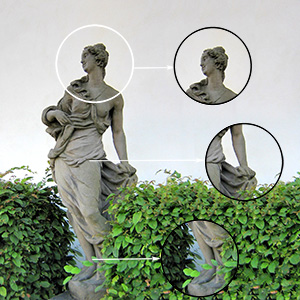
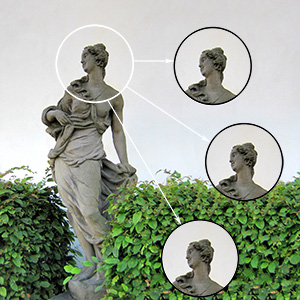
  • Check-Box Aligned. This sets how the fragment is cloned. When the check-box is activated, a single clone will be created using information from around the selected source: in this case each time the left mouse button is pressed a clone will be selected from the relevant area. When the check-box is not activated, each time the mouse button is released the cursor returns to the source area, and new clone fragments are created from this same area.

    Cloning Methods
    Continuous Clone Not Aligned
    Check-Box "Aligned" Activated Check-Box "Aligned" Not Activated

 
操作方法 操作方法
   — ワークスペース — ワークスペース
   — 操作方法 — 操作方法
   — 新規ドキュメントの作成 — 新規ドキュメントの作成
   — 環境設定  — 環境設定
パレット パレット
   — ツールバー — ツールバー
   — カラーパレット — カラーパレット
   — スウォッチ — スウォッチ
   — ヒストリーパレット — ヒストリーパレット
   — レイヤーパレット — レイヤーパレット
   — チャンネルパレット — チャンネルパレット
標準ブラシ 標準ブラシ
   — カラーブラシ — カラーブラシ
   — 色鉛筆 — 色鉛筆
   — スプレーツール — スプレーツール
   — 消しゴム — 消しゴム
   — 履歴ブラシ — 履歴ブラシ
   — スタンプツール — スタンプツール
   — カメレオンブラシ — カメレオンブラシ
   — ぼかしツール — ぼかしツール
   — シャープツール — シャープツール
   — こするツール — こするツール
   — 覆い焼きツール — 覆い焼きツール
   — 焼き込みツール — 焼き込みツール
   — スポンジツール — スポンジツール
アートブラシ アートブラシ
   — 油絵用ブラシ — 油絵用ブラシ
   — ローラー — ローラー
   — フェルトペン — フェルトペン
   — チョーク — チョーク
   — 鉛筆(アーティスティック) — 鉛筆(アーティスティック)
   — スプレー(アーティスティック) — スプレー(アーティスティック)
   — 消しゴム(アーティスティック) — 消しゴム(アーティスティック)
Additional Tools Additional Tools
   — スポイト — スポイト
   — 手のひらツール — 手のひらツール
   — ズームツール — ズームツール
操作例 操作例


ページの先頭へ


   プライバシー | サイトマップ | Web サイトの検索    
   連絡先 | Twitter | Facebook | YouTube Channel    
| English  |Français  |Deutsch  |Español  |Português  |Italiano  | 日本語  |Pусский  | © 2004-2012 AKVIS. All rights reserved.