Mejorar una fotografía para que se vea mejor
Este tutorial nos la envió Gordon Sisson, autor de dos tutoriales para AKVIS Coloriage (Historia de amor y La coloración de dibujos antiguos). Esta vez, el señor Sisson utilizó nuestro software de reducción de ruido (con un poco de ayuda de AKVIS Enhancer y de AKVIS Retoucher) para que esta fotografía se vea mejor. A continuación, Gordon comparte su opinión:
"Mientras probaba el nuevo plugin AKVIS Noise Buster AI, me encontré con esta fotografía de mí mismo. No es una buena imagen y parece que no vale la pena tratar de mejorarla. Pero como confío en AKVIS, lo intenté."
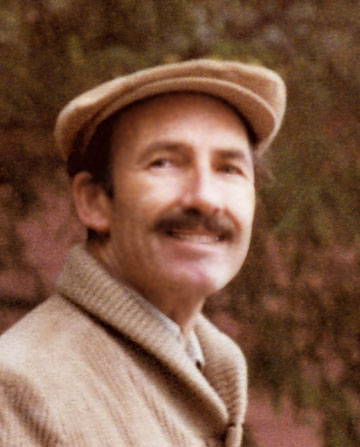
Por favor, compare la fotografía original con el resultado final:
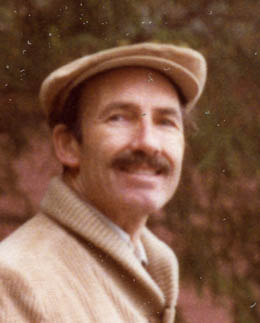
Antes
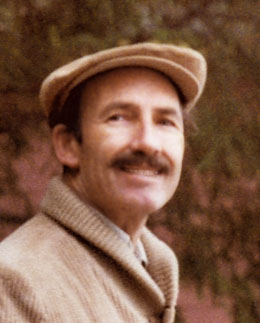
Después
- Paso 1. Escanee la imagen con una resolución óptica de 2500 dpi y con una profundidad de color de 48 bits.
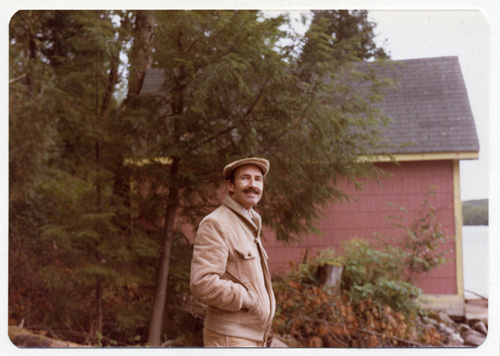
- Paso 2. Seleccione la zona que desee de la imagen escaneada y aumente su tamaño 5 veces.
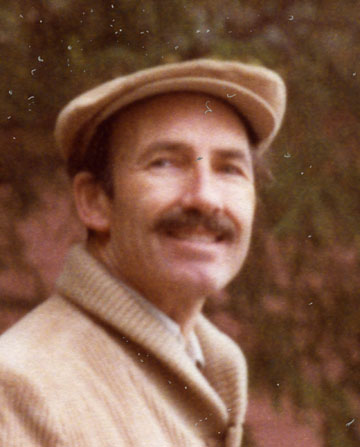
- Paso 3. Reduzca la resolución óptica a 400 dpi.
- Paso 4. Abra el plugin AKVIS Noise Buster AI (o utilice la edición standalone) y modifique la configuración a su gusto.
Desde la Ventana de vista previa, puede ajustar las correcciones para obtener un mejor resultado. Así logré obtener una mejoría, pero ahora estaba muy interesado y quería más.
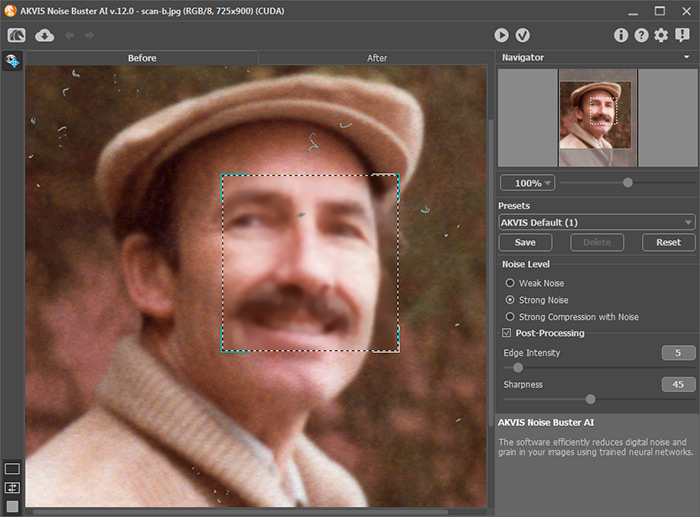
- Paso 5. Abra el programa AKVIS Enhancer (haga clic para leer más acerca del plugin AKVIS Enhancer).
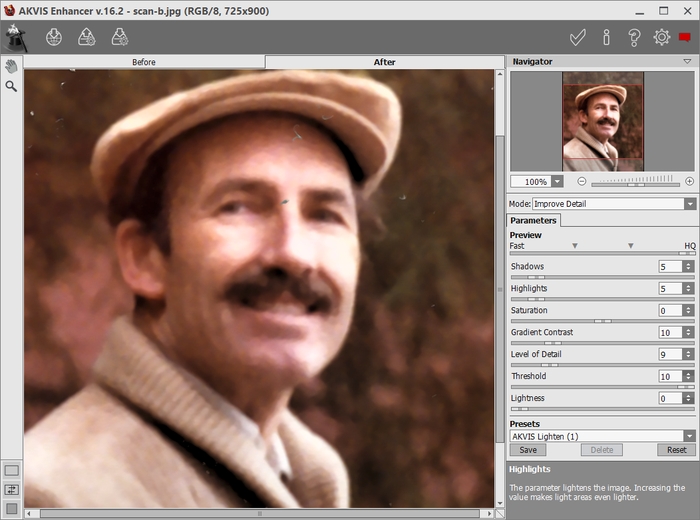
Con una gran pantalla y guías claras para el uso de la configuración, usted puede ajustar, con facilidad, la configuración de AKVIS Enhancer para obtener excelentes resultados.
La imagen mejoró al procesarla con el plugin AKVIS Enhancer, sin embargo aún luce difusa, de modo que utilice el plugin AKVIS Refocus AI y aplique una pequeña cantidad de foco.
Esto fue de gran ayuda, pero la imagen aún no se ve nítida. Por esta razón, regresé a Enhancer y, utilizando sólo el parámetro Nivel de detalle, y con un poco de ayuda del parámetro Luminosidad, mejoró notablemente la nitidez, el detalle y el color de la fotografía.
Puede ver que aún hay marcas no deseadas en esta vieja imagen. AKVIS Retoucher (un plugin para la restauración de fotografías) nos ayudará.
- Paso 6. Abra AKVIS Retoucher y elija el Pincel de selección
 para colorear las zonas que se deben corregir.
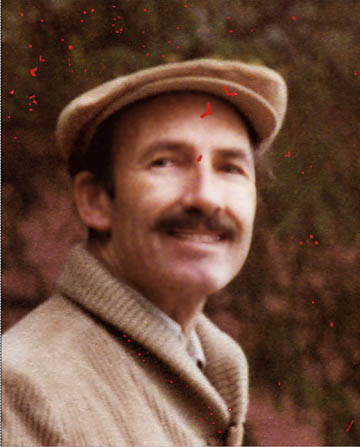
He aquí el resultado final:

Noise Buster AI v. 13.2 - Prueba gratuita de 10 días
