Un bajo relieve camboyano
El autor de este tutorial es Jean-Claude Grégoire.
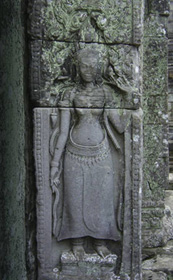 |
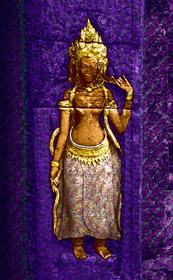 |
| Imagen original | Resultado |
Usted puede hacer este ejercicio utilizando las materiales que nosotros le damos. Baje el archivo archive "cambodian-bas-relief.zip" que contiene las imágenes.
Jean-Claude Grégoire utilizó AliveColors y AKVIS Decorator. Es su descripción:
"Escribí este tutorial con la intención de:
- Demostrar varias maneras de utilizar este maravilloso plugin con una única imagen;
- Mostrar cómo un ilustrador puede transformar una fotografía ordinaria en una imagen que podría ser utilizado para una cubierta de libro, una empaque de DVD, etc.
La imagen original es una fotografía de una piedra de bajo relieve en un templo en Angkor, Camboya. Me pareció que se veía un poco triste en sus colores verde-gris. Así que me decidí a alegrarla un poco con el plugin AKVIS Decorator."
Lea la descripción del proceso de la decoración:
Antes de aplicar este plugin, tendrá que hacer una selección de las partes de la imagen que desea decorar.
Antes de empezar un trabajo tan complejo, tendrá que pensar un poco en ello, o mejor probarlo en una versión reducida de la imagen (cuanto más grande es la imagen, más tiempo se requiere para el procesamiento). Elegí la segunda manera, lo que me hizo entender cuáles errores no debía cometer. Ahora le doy la mejor manera de manejar la decoración de este bajorrelieve.
- Paso 1. Abrí la imagen original en AliveColors.
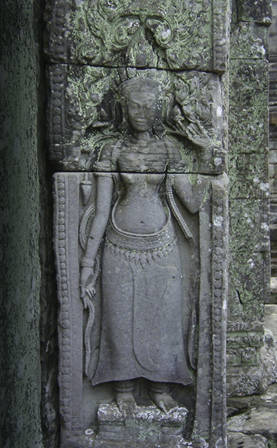
- Paso 2. Como voy a trabajar en varias partes seleccionadas de la imagen, es mejor empezar con las selecciones. La primera parte de la imagen a ser seleccionada es la mujer con el pinsel Selección rápida
 .
.
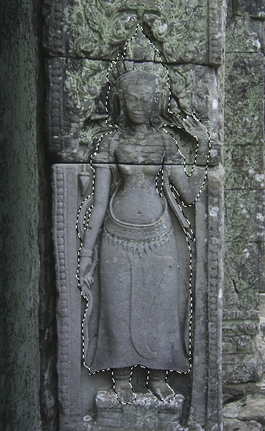
Ahora es importante guardar la selección con un nombre evocador, por ejemplo "señorita". (Nota: la selección guardada se convierte en la paleta de Selección).
- Paso 3. Intersect Alpha Channel with Selection y invertí la selección: Select -> Invert, guardé el resultado bajo el nombre "fondo". Continuando con Selección rápida , dividí la selección en otras dos, llamadas "fondo cercano" y "fondo lejano".
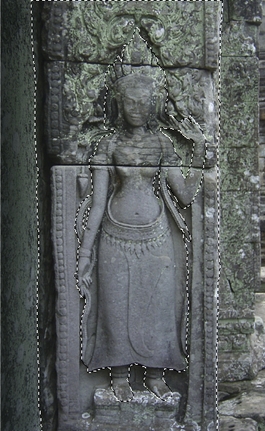
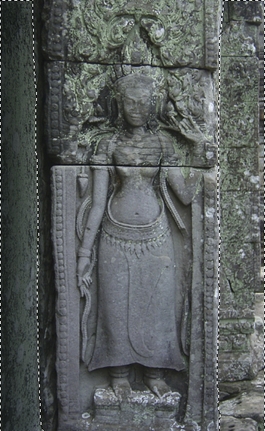
- Paso 4. Bajé la selección "señorita" y la dividí de la misma manera en tres partes llamadas "piel", "oro" (por las joyas doradas) y "falda". Guardé mi trabajo.
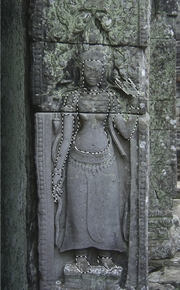
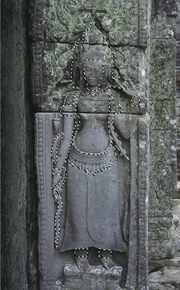
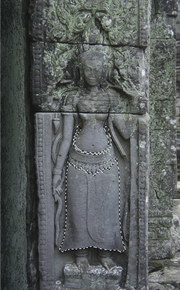
Como intento poner alguna decoración en cada parte de la imagen, pienso que la mejor manera de trabajar es empezar con la parte más distante del fondo, luego con la más cercana, luego con la piel, luego con la falda, y finalmente con las joyas doradas. Cada parte recibirá una decoración diferente del plugin.
- Paso 5. De repente tuve la tentación de ensayar texturas personales para el fondo – ¡solo por diversión!
Quería texturas que pudieran ocultar la textura del fondo de cierta manera. Así que tomé la foto de un banco cubierto de dibujos en un parque…
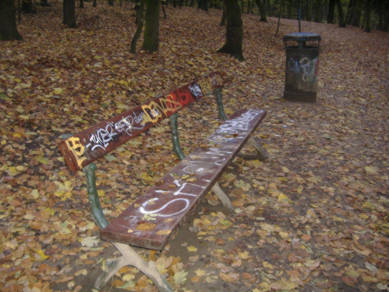
…y la recorté para obtener un pequeño cuadrado con hojas de otoño en el suelo. Reduje el resultado a una imagen de 100*100 pixeles, y luego cambié el color con una capa de ajuste Tono/Saturación con los valores: Tono -116; Saturación +57; Brillo 0.
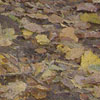
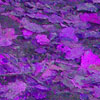
Guardé el resultado como "purper_autumn_leaves.JPG" a la máxima calidad (100), como un archivo JPEG, y lo puse en el directorio donde se guardan las texturas. Se puede crear esta carpeta en cualquier parte del disco, pero hay que recordar cómo llegar ahí.
- Paso 6. Luego recorté la misma foto otra vez, pero esta vez alrededor de las inscripciones en el banco. Reduje este cuadrado a una imagen de 100*100 pixeles y adicioné dos capas de ajuste.
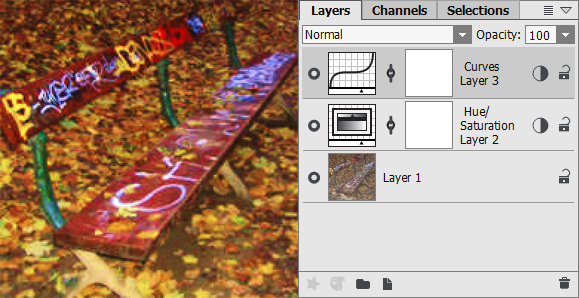
La primera fue de Tono/Saturación, con los siguientes valores: Tono +7, Saturación +55, Brillo 0. La segunda fue de Curvas, con los siguientes valores (Canal RGB únicamente): 0-0; 86-54; 180-204; 255-255.
Guardé el resultado como "graffiti_on_bench.JPG" a la máxima calidad en el folder de mis texturas personales.
- Paso 7. Ahora puedo empezar mi trabajo de decoración. Seleccionando del menú el comando Layers -> Duplicate en el teclado para duplicar la imagen de fondo. Trabajaré en esta nueva capa, de manera que pueda devolverme fácilmente en caso de error. Activo el duplicado, que llamo fondo lejano. Cargo la selección "fondo lejano". Llamo el plugin AKVIS Decorator (menu principal: escojo Efectos -> AKVIS -> Decorator).
Voy a la Biblioteca de texturas (doble clic en botón izquierdo en el cuadrado con una textura debajo en la pestaña "color"), doy clic en el botón
 y selecciono mi textura personalizada "graffiti_on_bench.JPG". No conservo los valores por defecto, bajando el Brillo a 73, y modificando la posición de la fuente de luz.
Doy clic en el botón
 para aplicar la textura escogida a la parte seleccionada de la imagen. Como se trata de una imagen grande, el proceso toma algunos minutos. Luego veo el resultado en la pestaña Después.
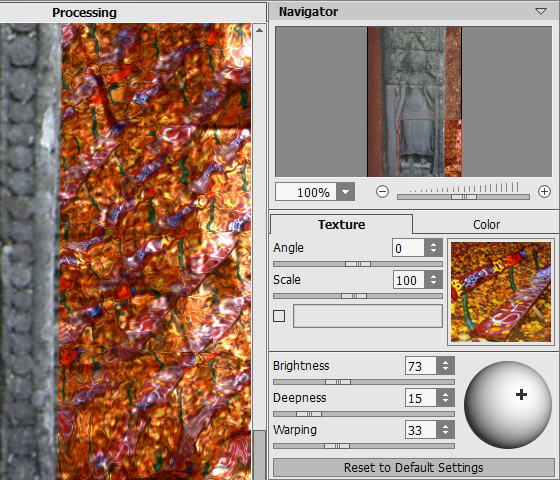
Como estoy satisfecho con el resultado, doy clic en el botón
 que aplica el resultado a la imagen y cierra el plugin. Digito Ctrl+D para deseleccionar la imagen.
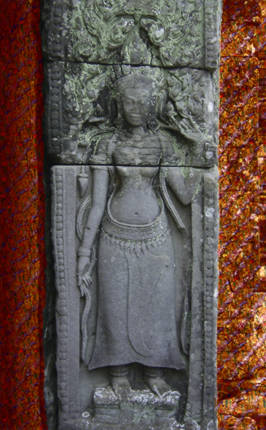
- Paso 8. Duplico la capa fondo lejano y renombro este duplicado como fondo cercano. Cargo la selección "fondo cercano". Llamo el plugin AKVIS Decorator.
Voy a la Biblioteca, doy clic en el botón
, y selecciono mi textura personalizada "purper_autumn_leaves.JPG". Bajo el Brillo a 39, y modifico la posición de la fuente de luz.
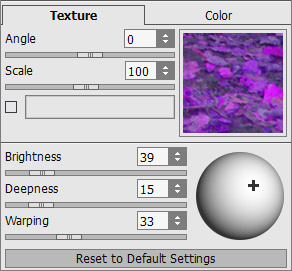
Doy clic en el botón
. Estoy satisfecho con el resultado. Doy clic en el botón para aplicar el resultado a la imagen uy cerrar el plugin. Digito Ctrl+D para deseleccioanr la imagen.
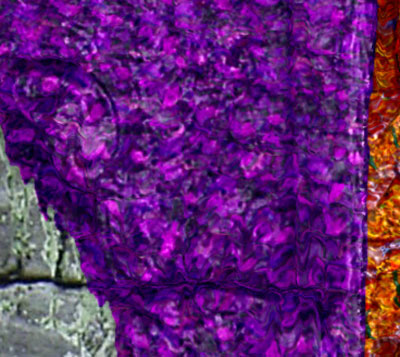
- Paso 9. Seleccionando Layers -> Duplicate y llamo el duplicado piel. Decido darle una textura de madera a la piel de la mujer. Cargo la selección de la piel. Llamo el plugin AKVIS Decorator.
Abro la Biblioteca y hago diferentes ensayos con varias texturas de madera y varios ajustes hasta que encuentro mi solución.
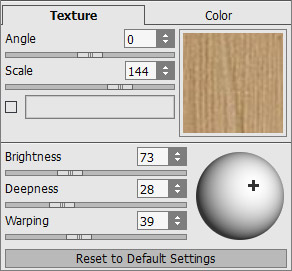
Doy clic en el botón
. Estoy satisfecho con el resultado. Doy clic en el botón para aplicar el resultado a la imagen y cerrar el plugin. Digito Ctrl+D para deseleccionar la imagen.
- Paso 10. Otra vez, seleccionando Layers -> Duplicate y llamo el duplicado falda. Cargo la selección de la falda. Llamo el plugin AKVIS Decorator.
Abro la Biblioteca y escojo una textura de tela con flores blancas y un fondo rosado. Cambio los valores de la siguiente manera:
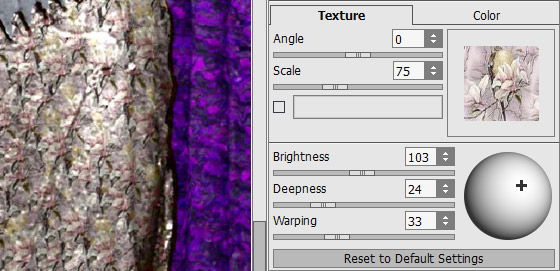
Pongo a correr el plugin y finalmente lo aplico.
- Paso 11. Voy a trabajar en las joyas dorados de la señorita. Duplico la capa de trabajo otra vez y llamo este duplicado oro. Cargo la selección "oro", llamo el plugin AKVIS Decorator otra vez, y selecciono una textura metálica, parecida a monedas de oro, pero el color es demasiado cobrizo (muy rojo). Así que decido reemplazarlo por un color más amarillo. Activo la casilla cerca del rectángulo de color y una nueva ventana aparece, donde escojo el color RGB: 255,217,0 y cierro la ventana con un clic en "OK".
Modifico los valores bastante, hasta obtener un brillo metálico – es decir, incrementando Brillo y Profundidad.
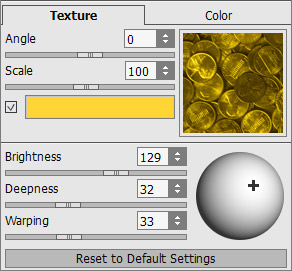
Corro y aplico el plugin.
La siguiente imagen muestra el resultado y todas las capas. Borro las capas intermedias que ya no necesitamos. (Recuerde: ¡las conservé para estar seguro, en caso de error!)
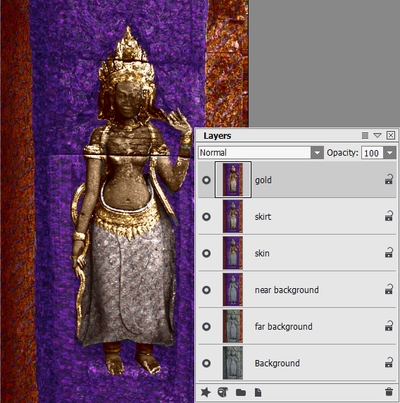
- Paso 12. No estoy completamente satisfecho con mi imagen. Pero recuerde, conservé todas mis selecciones como canales alfa, así que puedo modificar fácilmente la apariencia de cada parte. Después de muchos intentos y errores, escogí esta manera: aplicar 3 capas de ajuste Tono/Saturación en ambos fondos y en la Señorita.
El truco es muy fácil. Así es como se puede hacer:
Bajo la selección "fondo lejano". En el menú principal, escojo Capas -> Nueva -> Capa de ajuste -> Tono/Saturación, y consigo una capa de ajuste limitada al fondo lejano. De la misma manera, consigo una capa de ajuste para el fondo cercano y otra para la Señorita.
Escojo los siguientes valores para estas capas de ajuste:
1. La señorita:
- Tono: 0
- Saturación: +30
- Brillo: +52. Fondo lejano:
- Tono: -104
- Saturación: -5
- Brillo: -103. Fondo cercano:
- Tono: -7
- Saturación: -10
- Brillo: 0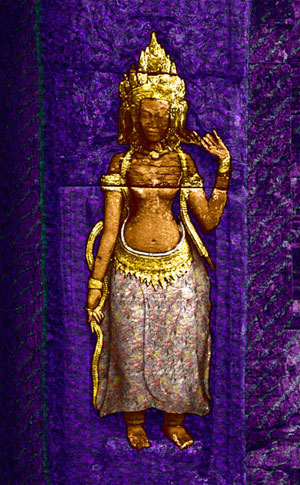
¿No tiene la sensación de que la foto original sin vida se ha transformado en una imagen de un objeto decorativo precioso en el escaparate de una tienda de antigüedades? Esta es la magia de AKVIS Decorator.
Decorator v. 9.1 - Prueba gratuita de 10 días
