Artistic Pencil あいにく, このページは英語にだけ使用可能です。日本語のバージョンは遠からず出ります。 Attention!
You can get a free licence for an AKVIS program by translating texts from English to Japanese.
Please contact us at team@akvis.com.
The Artistic Pencil draws lines with sharp boundaries and applies ink smoothly (without relief). Press P to quickly access this tool.
The tool's parameters will be shown in a floating box over an image (by right-clicking the mouse) and also in the Settings Panel (only if this option is selected in Preferences). To change the setting for a parameter, enter a numerical value in its box and press Enter (Macintosh: Return) or move the slider.
-
Diameter (Diameter) (3-50). The maximum width of a line drawn by the tool (in pixels).
-
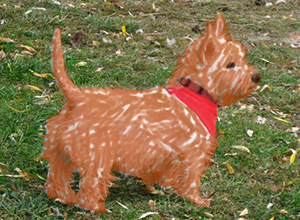
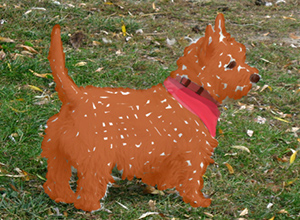
Fill (0-100). The lead's density in a single pencil stroke. When strokes are drawn over one another, they becomes denser. At lower values of this parameter, the color of applied strokes is weaker. When the parameter is set to 100%, the pencil draws strokes in the full density of the chosen color.
|
|
| Fill = 10 |
Fill = 80 |
-
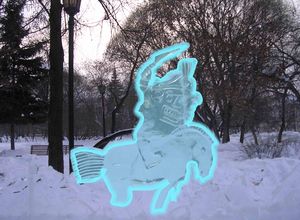
Tilt (0-100). Imitates a pencil's tilt: pressure on one edge of the line is weakened. The stronger the pencil's tilt, the greater the difference between edges.
| Stroke of Artistic Pencil |
|
|
| Tilt = 30 |
Tilt = 80 |
The pencil's color is set in the Color/Swatches palettes. To choose a different color bring the cursor over the spectral bar (the cursor will take the shape of a pipette) and click on the desired color or double-click on the square and choose a color from the Select Color dialog. In some cases, selecting a color is more convenient than manually selecting the components of a color via the sliders.
|