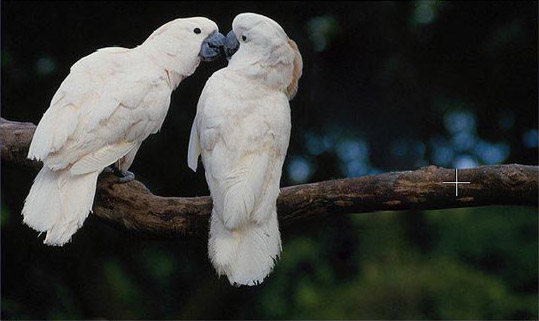
Il terzo incomodo
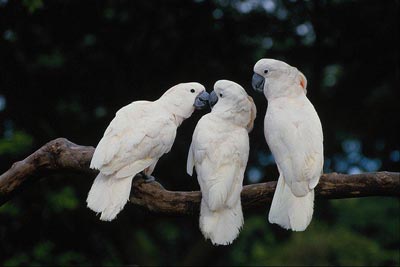
Andremo a rimuovere il pappagallo che indiscretamente punta gli occhi sulla coppietta che si sta baciando. E’ presto fatto perchè lo sfondo è sfumato e non ha dettagli evidenti, l'unica cosa che richiede un certo sforzo è la ricostruzione del ramo su cui il pappagallo è aggrappato.
 |
 |
-
Passaggio 1. Aprire la fotografia nel programma di grafica (ad esempio, Photoshop) e lanciare il plugin AKVIS MultiBrush:
in Adobe Photoshop selezionare Filtro -> AKVIS -> MultiBrush,
in Corel (Jasc) Paint Shop Pro selezionare Effetti -> Plugins -> AKVIS -> MultiBrush;
in Corel Photo-Paint selezionare Effetti -> AKVIS -> MultiBrush.E' possibile anche utilizzare la versione standalone di MultiBrush, il metodo di lavoro è analogo e il risultato è identico.
-
Passaggio 2. Useremo la modalità Clonazione artistica dello strumento Pennello camaleonte
 per rimuovere il pappagallo.
In questa modalità è possibile modificare la dimensione del pennello e selezionare punti diversi di clonazione dall'immagine.
Selezionare il Pennello camaleonte
nella Barra degli strumenti e attivare la casella Clonazione artistica nel Pannello impostazioni. Il programma non fonde il frammento clonato con lo sfondo fino a quando non si esce dalla modalità.
-
Passaggio 3. Iniziare a rimuovere il pappagallo sostituendolo con dei frammenti adeguati dell’immagine. Clonare il ramo.
Selezionare il punto di partenza premendo Alt (Opzione su Mac) e clicando sul ramo a destra del pappagallo.
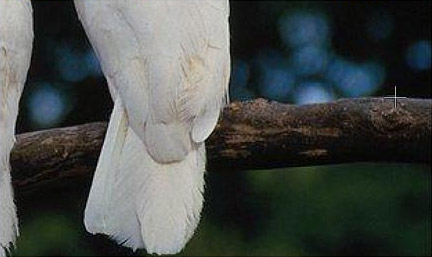
-
Passaggio 4. Disegnare una linea sulla coda ed il ramo verrà copiato in questo posto.
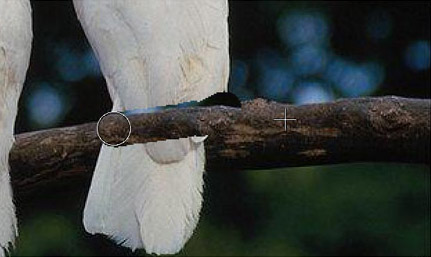
Selezionare un nuovo punto di partenza, inferiore all’altro, e continuare completando la ricostruzione del ramo.
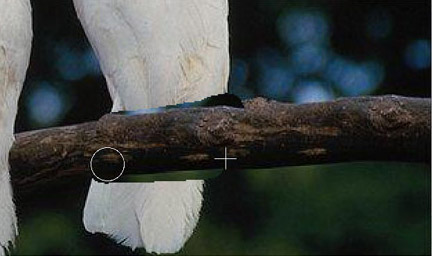
-
Passaggio 5. Rimuovere la parte inferiore della coda selezionando il punto di partenza sullo sfondo verde.
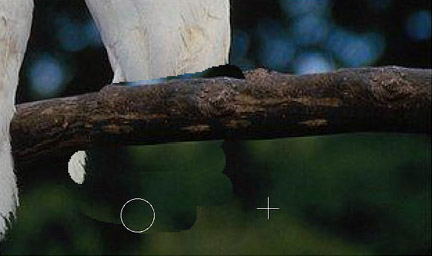
Se durante la clonazione viene fatto un errore si può rimediare usare il pulsante
 per annullare l'operazione.
-
Passaggio 6. Eliminare la parte superiore del pappagallo usando un frammento a destra sopra il ramo.
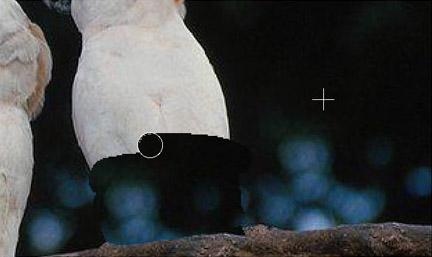
-
Passaggio 7. Ritoccare le lievi imperfezioni del ramo con il timbro. Il pappagallo è stato rimosso, il ramo ripristinato, ma i margini della zona clonata sono ancora visibili.
Per risolvere questo problema premere il pulsante
 ed iniziare il processo di elaborazione, in questo modo il programma fonde i margini della zona clonata con lo sfondo.
Il pappagallo troppo curioso è scomparso senza lasciare traccia.