Toys on the Grass
The author of this tutorial is Roman Lunin.
Most of us remember a favourite toy from our childhood. We wanted to have toys different from others. Using AKVIS Decorator we can make this dream come true... at least on a photo.
In this tutorial we are going to change the color and the texture of the pillow to make it look like grass.
- Step 1. Open a photo in AKVIS Decorator.
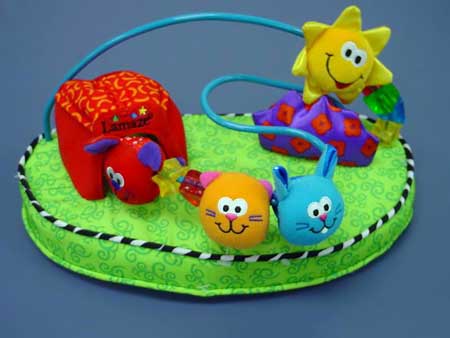
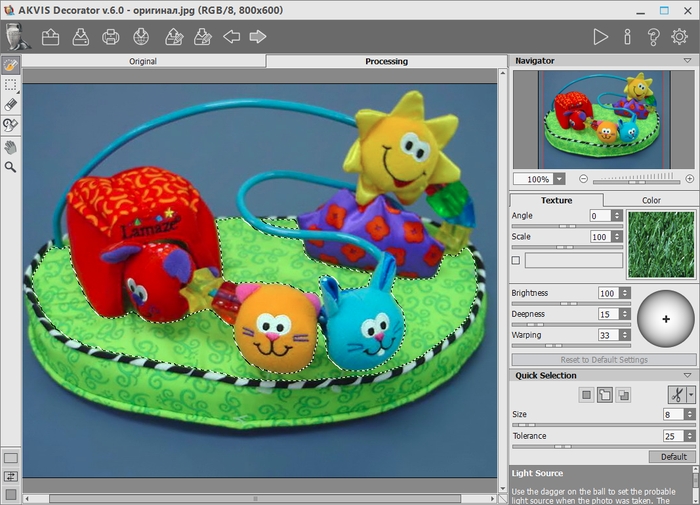
- Step 2. Select the upper part of the pillow. You can use any selection tool. The selection must be like this:
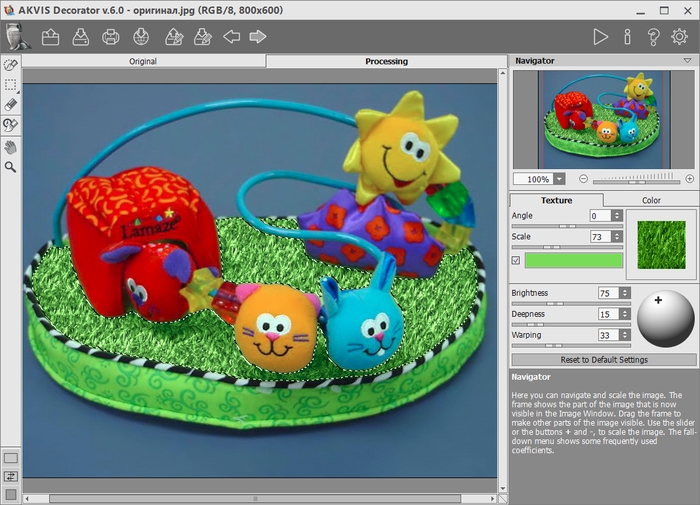
- Step 3. Choose a suitable texture from the texture Library (double click with the left mouse button on the box with a texture). Double click with the left mouse button on the suitable texture from the Nature folder.
If you don’t like the color of the texture you can change it. To change the color of a texture you should first activate the check-box near the color plate, then click on the plate and choose a color from the Select Color dialog. Besides, it is possible to choose a color from the original image. For this purpose left-click on any point of the original image keeping the Ctrl key pressed (⌘ on Mac).
If you want you can change other parameters. The author changed the values of Scale and Brightness.
- Step 4. Press the button
 to apply the texture to the selected object. The result is shown in the Processing tab.
- Step 5. Press the button
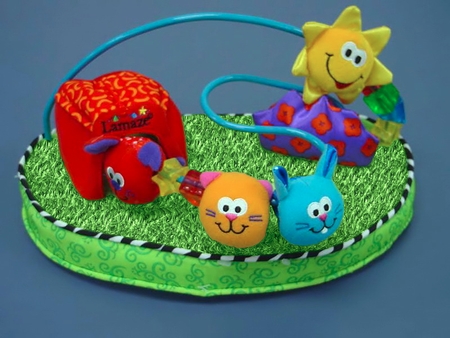
 to save the result. Now the small creatures sit on the grass.
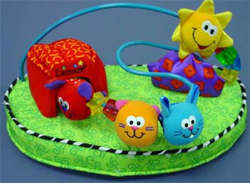 |
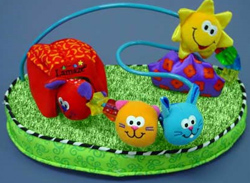 |
| Original image | Result |
Decorator v. 9.1 - 10-giorni di prova gratuita
