Efectos de luz
AKVIS LightShop le permite crear efectos de luz increíbles.
El panel Efectos ofrece una serie de efectos de luz listos para usar (presets) que se puede aplicar sin cambios o modificar. Al principio puede entrenarse con los efectos de luz disponibles y luego crear sus desarrollos exclusivos.
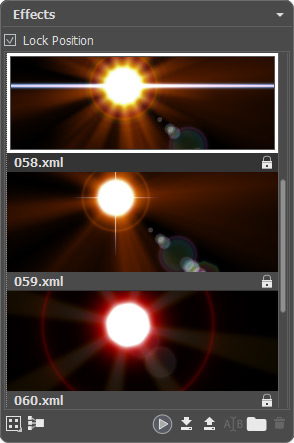
Panel Efectos
Usted puede utilizar los siguientes botones ubicados en la parte inferior del panel Efectos:
Para personalizar los efectos vistos en el panel, haga clic en  y elija entre las opciones (iconos grandes o pequeños).
Para contraer todos los grupos, use este botón  .
.
Para aplicar el efecto elegido a una imagen, haga doble clic en él o utilice el icono  situado en la parte inferior del panel. Para aplicar todos los efectos a la misma posición y con el mismo tamaño que se definen con la herramienta Transformar
  , active la casilla de verificación Bloquear posición en la parte superior del panel.
Para guardar un nuevo efecto, haga clic en  y especifique el grupo y el nombre.
Para importar un efecto para el programa, haga clic en  y seleccione un archivo xml.
Para crear un nuevo grupo, haga clic en  .
.
Para cambiar el nombre de un efecto o un grupo, haga clic en  o arrastre el efecto a este icono.
Para quitar el efectos/grupo elegido, haga clic en  . También puede arrastrar el efecto al icono o utilizar la tecla Supr (Delete).
Nota: No se puede sobrescribir, quitar o cambiar el nombre de los efectos señalados con  - estos son efectos de luz desarrollados en AKVIS.
Todos los comandos están también disponibles con un clic derecho en el panel.
Lea más sobre el uso del panel Efectos.
Eche un vistazo a los efectos de luz AKVIS listos para usar disponibles en el programa:
                                                                                                                                                     |
LightShop v. 8.1 - Prueba gratuita de 10 días
