Retacería
La autora de este tutorial es Chantal Meus.
La retacería es una de las formas más antiguas de la costura. Durante 3000 años, se ha utilizado esta técnica para decorar el hogar. La técnica de la retacería ha ganado mucha popularidad en todo el mundo. ¿Le gustaría aprenderla? Utilice AKVIS Decorator para crear varios diseños para su futura retacería.
Chantal nos ofreció su trabajo. Utilizó AliveColors, pero se puede trabajar con cualquier otro editor fotográfico que sea compatible con AKVIS Decorator.
 |
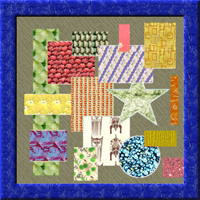 |
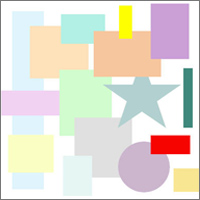
| Imagen original | Resultado |
- Paso 1. Cree un nuevo archivo definiendo el Contenido de fondo: Blanco. También defina la Anchura y Altura en 400 píxeles.
- Paso 2. Seleccione un área rectangular con la herramienta Selección rectangular
 .
.
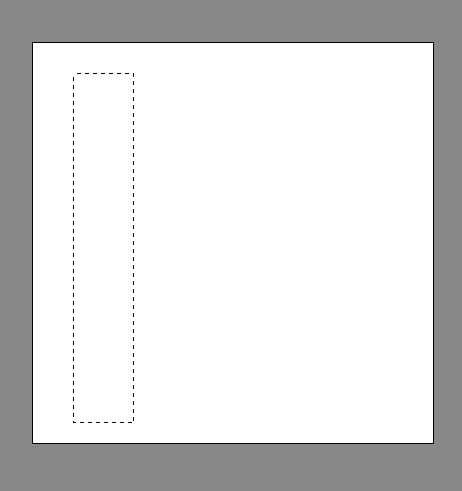
- Paso 3. Pinte la superficie del rectángulo de color azul utilizando la herramienta Bote de pintura
 .
.
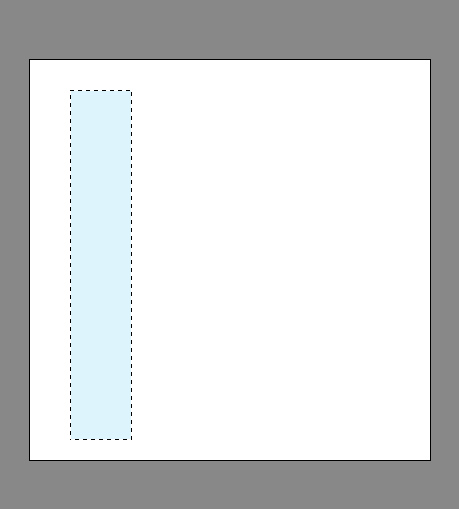
- Paso 4. Anule la selección del área del rectángulo seleccionando herramienta Selección rectangular y posteriormente, haga clic con el botón izquierdo del ratón sobre el fondo blanco.

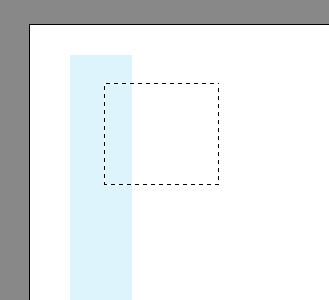
- Paso 5. Con la herramienta Selección rectangular seleccione un área cuadrada.
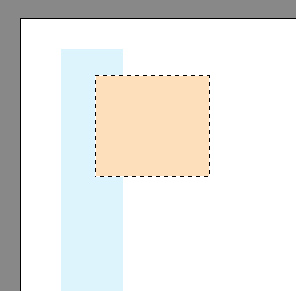
- Paso 6. Con la herramienta Bote de pintura pinte el área del cuadrado de color rosa.
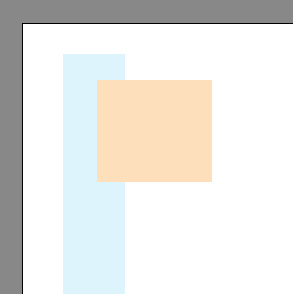
- Paso 7. Anule la selección del cuadrado presionando las teclas Ctrl+D.
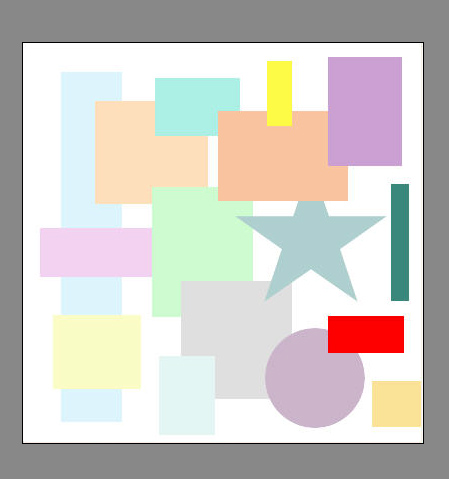
- Paso 8. Luego añada otras formas al lienzo. Para ello utilice cualquier herramienta de selección; por ejemplo, la herramienta Selección elíptico
 . Es mejor que utilice diferentes colores para cada una de las formas. Aquí está el resultado:
- Paso 9. Seleccione la herramienta Varita mágica
 y elija el primer rectángulo.
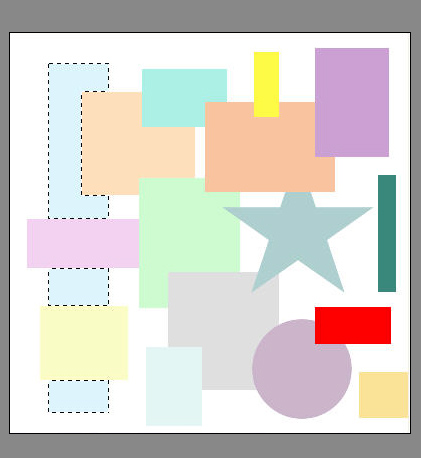
- Paso 10. Abra el programa AKVIS Decorator desde el menú principal de AliveColors: Efectos -> AKVIS -> Decorator.
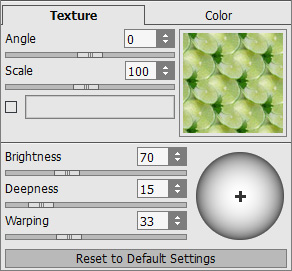
Elija la pestaña Textura y abra la Biblioteca de texturas haciendo clic doble con el botón izquierdo del ratón en el cuadro textura. Haga clic doble con el botón izquierdo del ratón sobre la textura que sea de su agrado. Establezca el valor de los parámetros a su gusto.
- Paso 11. Presione el botón
 para procesar la imagen. El resultado se mostrará en la pestaña Tratamiento.
Si se encuentra satisfecho con el resultado, presione el botón
 para aplicar los cambios y cerrar la ventana del plugin.
- Paso 12. Seleccione otra forma utilizando la herramienta Varita mágica .
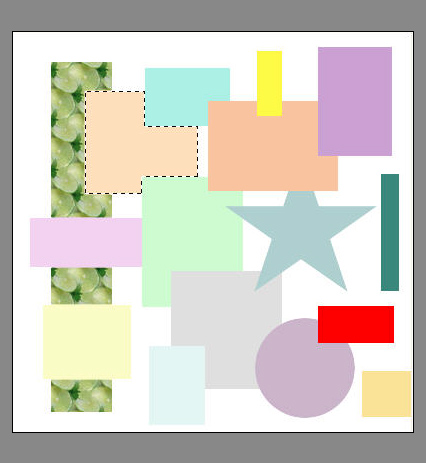
- Paso 13. Abra nuevamente AKVIS Decorator. Seleccione una textura de la Biblioteca de texturas. Cambie el valor de los parámetros a su gusto.
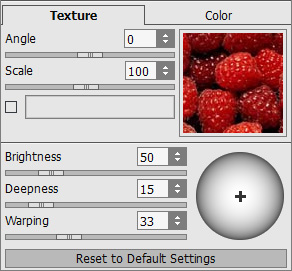
- Paso 14. Haga clic en el botón para procesar la imagen. Para aplicar los cambios haga clic en el botón y la ventana del plugin se cerrará.
- Paso 15. Para decorar las otras formas, repita los pasos anteriores.
- Paso 16. Seleccione el fondo utilizando la herramienta Varita mágica .
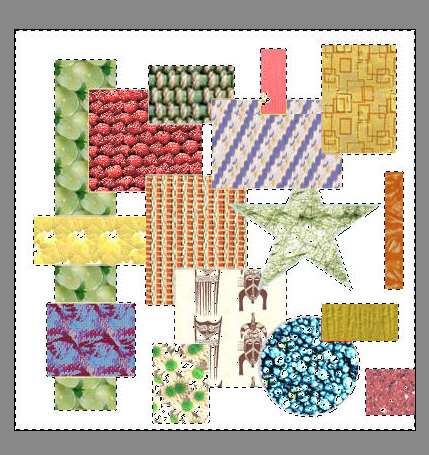
- Paso 17. Abra AKVIS Decorator. Seleccione una nueva textura de la Biblioteca de texturas. Establezca el valor de los parámetros a su gusto.
La autora de este tutorial utilizó una textura de la carpeta Metal y estableció los siguientes valores:
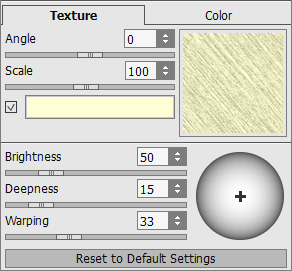
Presione el botón
para procesar la imagen. El resultado se mostrará en la pestaña Tratamiento. Si se encuentra satisfecho con el resultado, presione el botón para aplicar los cambios y cerrar la ventana del plugin.
- Paso 18. Puede añadir un marco a la imagen. Incremente el tamaño del lienzo desde el comando Imagen -> Tamaño de lienzo en el menú de AliveColors y establezca el valor que sea necesario. La autora añadió un marco de 40 píxeles.
- Paso 19. Seleccione su marco utilizando la herramienta Varita mágica ubicada en la Barra de herramienta de AliveColors, y píntelo de color rojo con la herramienta Bote de pintura .
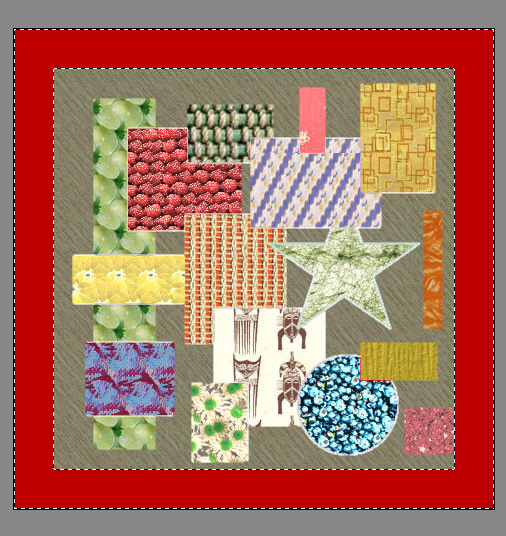
- Paso 20. Abra AKVIS Decorator. Vaya a la pestaña Textura y elija una textura de la Biblioteca de texturas.
La autora utilizó una textura de la carpeta Tinte empleando la configuración por defecto:
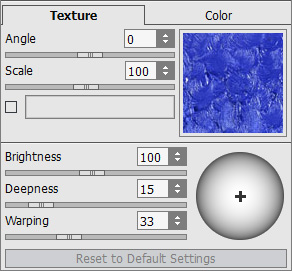
Repita el Paso 11. No anule la selección.
- Paso 21. Ahora hagamos que el marco sea más realista.
Copie el marco seleccionado en una nueva capa utilizando el comando Capas -> Nueva -> Capa vía copiar. Cambie el estilo de la capa con el comando Capas -> Estilo de capa -> Relieve. Establezca los parámetros como más le guste.
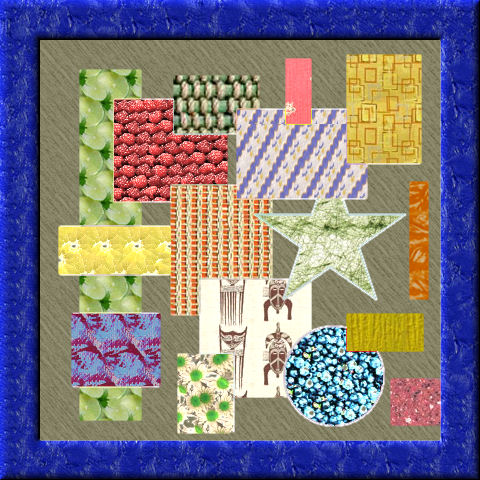
- Paso 22. Y aquí ha conseguido una hermosa imagen moderna enmarcada.
Decorator v. 9.1 - Prueba gratuita de 10 días
