Graphic software for Windows Mac graphic software
AKVIS ニュースの購読を申し込むには, 電子メールアドレスを入力してください。
 
  
  プログラム     ダウンロード     サイバーショップ     チュートリアル     サポート     会社情報
en  fr  de  es  pt  it  jp  ru    
 

チュートリアル: AKVIS MultiBrush

Color Palette


あいにく, このページは英語にだけ使用可能です。日本語のバージョンは遠からず出ります。
Attention! You can get a free licence for an AKVIS program by translating texts from English to Japanese.
Please contact us at team@akvis.com.

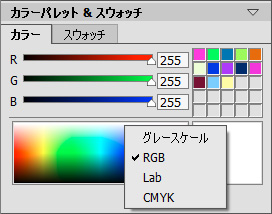
The current color selected in the Color palette is displayed on a large corner square. Left-clicking on the square opens the standard dialog Select Color. Right-clicking on the same box opens a menu of available color modes: grey tones (Grayscale), RGB, CMYK and Lab.

Color Modes
Color Modes

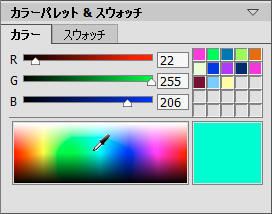
By moving sliders or entering numerical values into the fields, one can change the individual color values of the selected color. At the bottom of the palette is a small spectral bar - bringing the cursor over this will cause it to take the form of an eyedropper. To choose a color just click the eyedropper on the bar.

Color Palette
Color Palette

The squares at the top right area of the palette are used to store frequently used colors. To add a color, double-click the left mouse button on a box and then select a color from the color dialog. To change the main color to that in a box, left-click on a box. To remove the color from a box, right-click on it.

 
操作方法 操作方法
   — ワークスペース — ワークスペース
   — 操作方法 — 操作方法
Palettes Palettes
Brushes Brushes
Tools Tools
操作例 操作例


   プライバシー | サイトマップ | Web サイトの検索 | English  |Français  |Deutsch  |Español  |Português  |Italiano  | 日本語  |Pусский  | © 2004-2009, AKVIS Software Inc. All rights reserved.