Colorazione selettiva: sfilata di fiori
Nel tutorial Colorazione selettiva di una foto B&N abbiamo mostrato come colorare alcune parti dell’immagine con AKVIS Coloriage AI, anche qui andremo a colorare solo alcune aree ma vi mostreremo altre caratteristiche del programma.
-
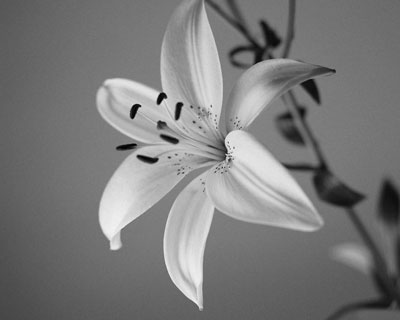
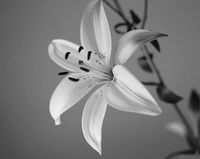
Passaggio 1. Aprire un’immagine in B&N in AKVIS Coloriage AI. Qui abbiamo la foto di un giglio.
-
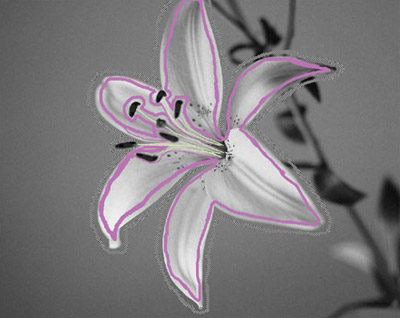
Passaggio 2. Andremo a colorare solo il giglio, è per questo che prima bisognerà usare lo strumento Matita conserva colore
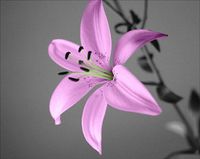
 e tracciare un profilo intorno al fiore per preservare l’area che dovrà rimanere intatta. Quindi selezionare un colore lilla dalla tavolozza Colori e delineare internamente i petali del giglio con lo strumento Matita
  , poi scegliere un colore verde chiaro per gli stami e disegnare una sottile linea in ciascuno di essi.
-
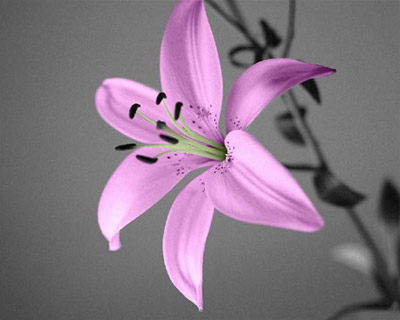
Passaggio 3. Avviare il processo di colorazione premendo su
 , il giglio colorato apparirà nella scheda Dopo.
-
Passaggio 4. Salvare il risultato... ma aspetta, non chiudere la finestra del programma prima di aver imparato alcuni accorgimenti che ti aiuteranno ad utilizzare AKVIS Coloriage AI in modo efficiente.
Prima di tutto, è possibile salvare i tratti disegnati in un file separato. È utile quando si desidera modificare la foto successivamente, oppure se si deve interrompere il lavoro prima di averlo terminato. Per fare questo premere su
 , salvare il file e chiudere il programma. Quando si riprende successivamente questa foto, aprendo AKVIS Coloriage AI, è possibile caricare i tratti salvati per questa immagine con il tasto
  e continuare il lavoro.
In secondo luogo, è possibile cambiare il colore dei tratti con un clic del mouse. Basta selezionare un nuovo colore, attivare lo strumento Tubetto
 nella barra degli strumenti e fare clic sul tratto che si desidera modificare. Se invece si vogliono ricolorare diversi tratti aventi lo stesso colore, è possibile attivare lo strumento Tubetto magico
  e cliccare su uno qualsiasi di essi, tutti verranno ricolorati contemporaneamente.
Qui abbiamo usato lo strumento Tubetto magico
per ricolorare i petali del giglio di giallo.
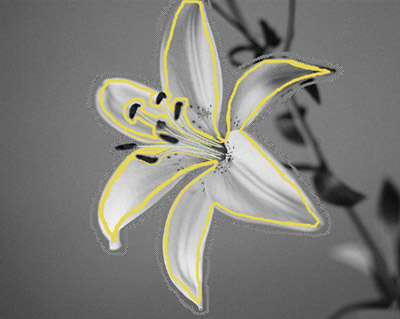
Premere su
per ottenere un giglio giallo.
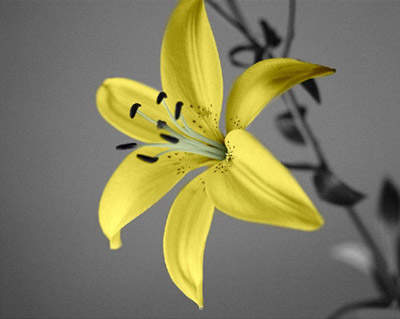
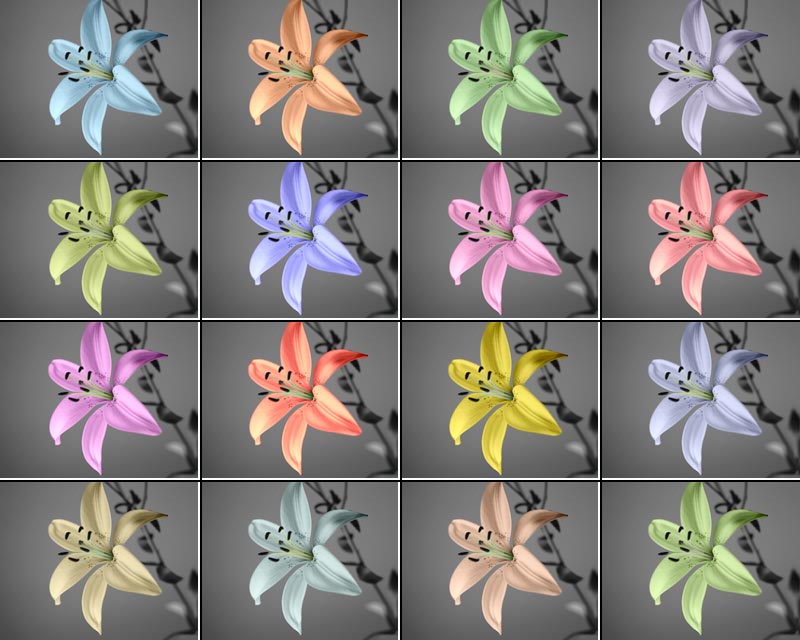
E' molto facile cambiare colore ad un fiore o a qualsiasi altro oggetto, ottenendo tutte le varianti che si desiderano…e questo con un semplice clic del mouse.
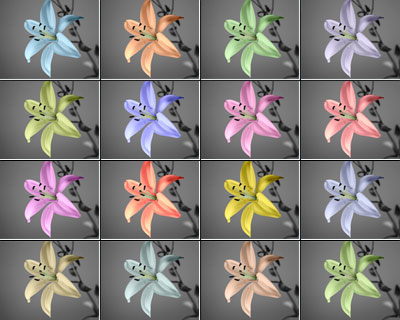 Cliccare qui per vedere l’immagine ingrandita.
Coloriage AI v. 15.7 - 10-giorni di prova gratuita
