Working With Old Algorithm.
In the Sketch tab you can adjust the parameters for the photo-to-sketch conversion. There are two parameter fields: Effects and Strokes.
Note: Only the Coloration parameter allows you to see the changes immediately as you move the slider. When you change other parameters, you have to press the Run button to have the image processed once again with the new settings.
Effects:
Watercolor. The Watercolor effect allows creating watercolor drawings. The parameter accepts values between 0 and 50. By default it is set to 0 which corresponds to a pencil drawing. As you move the slider to the right (that is, increase the value of the parameter) the strokes get blurred, contrast and detail get weaker, as if the strokes were drawn on wet paper. The higher the value of the parameter, the stronger the effect.
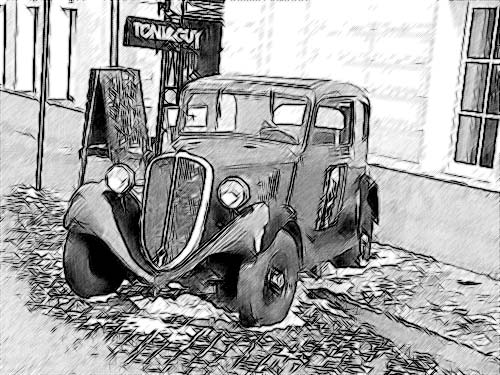
|
| Watercolor = 10 |
Charcoal. The parameter changes the drawing technique from a fine pencil drawing to charcoal. The higher the value of the parameter, the more it looks like the charcoal technique.
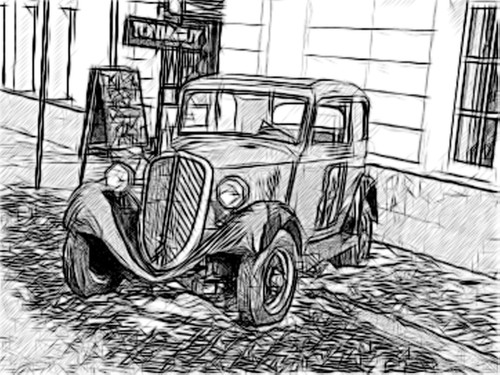
|
| Charcoal = 7 |
Coloration. The effect allows adding color to a drawing provided the original image contained color information. By default the value is set to 0, which corresponds to a graphite pencil sketch. As you move the slider to the right, the drawing gets colors from the original image. If at the same time the parameter Watercolor has a value higher than 0, the sketch looks like a water color drawing. The parameter Coloration accepts values between 0 and 100. The default value is 0; it means that the pencil sketch is not mixed with the original image. As you move the slider to the right the drawing acquires colors from the original image.
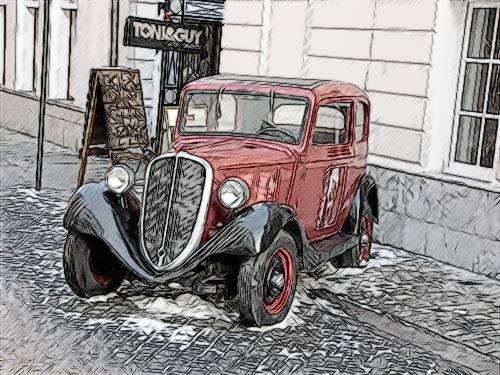
|
| Coloration = 40 |
Strokes:
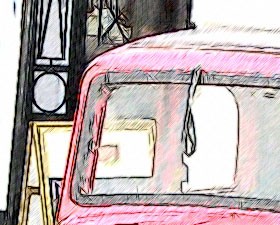
Color Pencil. When the check-box is enabled, the program imitates a color pencil drawing. When the check-box is disabled, the strokes are black.
|
|
|
| The check-box "Color Pencil" is enabled | The check-box "Color Pencil" is disabled |
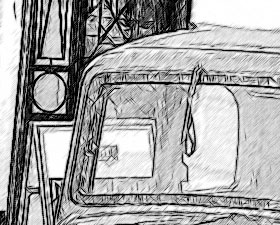
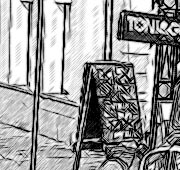
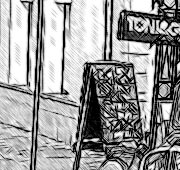
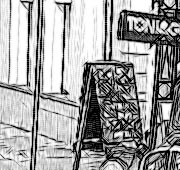
Angle. The parameter Angle sets the pitch angle of the strokes when hatching a uniform area (an area that does not contain edges and intensity swings). By default the strokes in such areas are drawn at a 45 degree angle. The parameter has values between 0 and 180 degrees; the step is 5 degrees.
|
|
|
| Angle = 45 | Angle = 135 | Angle = 90 |
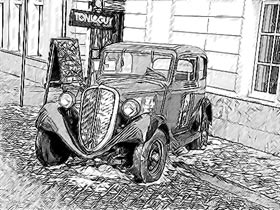
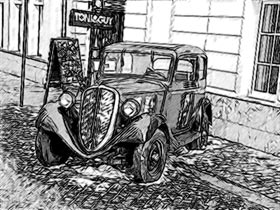
Stroke Thickness. The parameter sets the stroke size. If you reduce the value of the parameter the strokes on the picture get thinner and harder, if you increase the value the strokes get wider and blurred on edges.
|
|
| Stroke Thickness = 5 | Stroke Thickness = 9 |
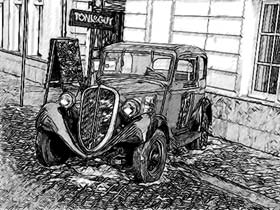
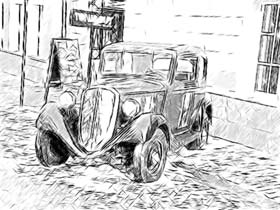
Min Length/Max Length. The parameter sets a range within which the stroke length can vary. There are two sliders to define the range borders: the left slider sets the minimum length, the right slider sets the maximum length. The resulting sketch will be made up of strokes that fall within this range.
If you reduce the minimum length, the number of strokes and the detail of the image increase. Visually the drawing gets darker. If you increase the value of the minimum length, the number of strokes reduces (the strokes shorter than the set minimum do not get drawn). Visually the image gets lighter and neater.
If you increase the maximum length, the hatching gets less uniform. The higher the value of the parameter, the longer strokes can be drawn on the picture. However, a too high value may worsen the precision of the hatching.
|
|
| Min Length/Max Length=1/4 | Min Length/Max Length=8/16 |
Midtones Intensity. The parameter defines the intensity of the midtone strokes, as if drawn with different pressure. As you move the slider to the left, the midtone strokes fade - get dim and blurred. As you move the slider to the right the midtone strokes get thicker and more intensive.
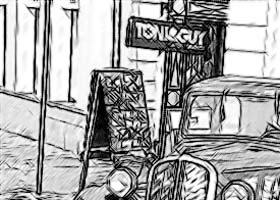
|
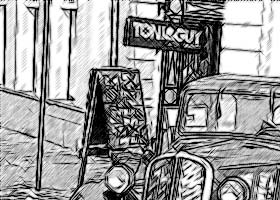
|
| Midtones Intensity = 1 | Midtones Intensity = 10 |
Midtones Hatching. The parameter defines the level of hatching in the midtone areas. If you want to reduce hatching move the slider to the left.
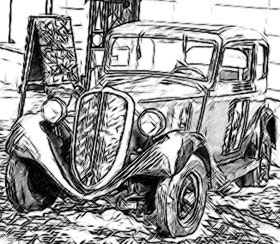
|
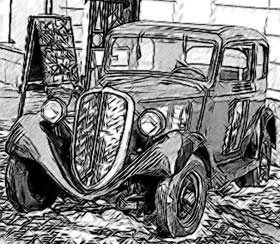
|
| Midtones Hatching = 1 | Midtones Hatching = 100 |
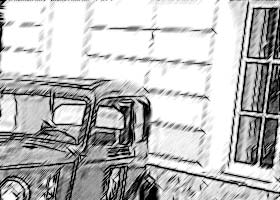
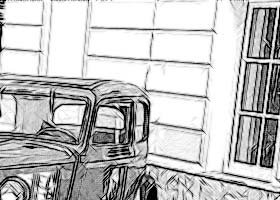
Sharpen. The parameter regulates the sharpness of the objects' edges on an image. The lower the parameter, the more edges are defined by hatching rather than by lines. If you want to emphasize the edges, increase the value of the parameter.
|
|
| Sharpen = 0 | Sharpen = 100 |
Sketch v. 28.1 - Free 10-day Trial
