Restauração de um daguerreótipo
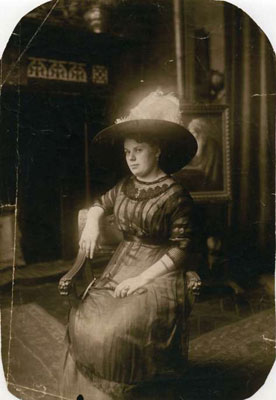
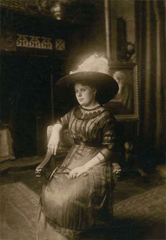
A foto nos foi nos enviada por Oleg Rakhimov. É um daguerreótipo de parente seu tirada em 1893.
- Passo 1. Abra a fotografia em AKVIS Retoucher. Podemos dizer, que este daguerreótipo foi sabiamente preservado até nossos dias, por isso vai exigir muito pouco retoque: apenas se esconder alguns arranhões e "crescer" os cantos.
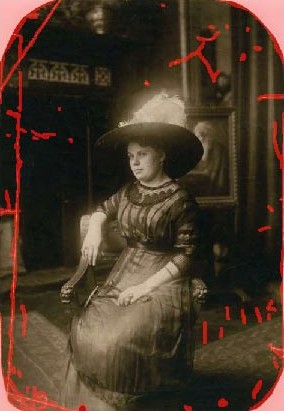
- Passo 2. Antes da foto poder ser retocada, todas as suas áreas danificadas devem ser selecionadas. Primeiro aumente a imagem, para ser mais fácil de ver, mesmo os mais pequenos arranhões, e selecioná-los usando o Pincel de seleção
 . Aos poucos pintar sobre os arranhões e áreas faltantes da imagem.
- Passo 3. Pressione
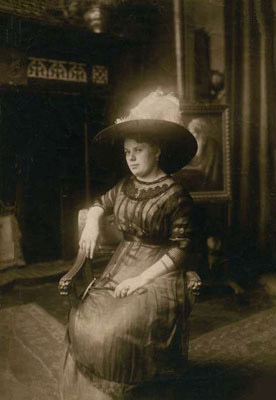
 para iniciar o processo de retoque, e ele vai se tornar evidente: as áreas vermelhas em destaque desaparecem, junto com o dano debaixo delas.
Aqui está o resultado, após o processo de retoque completo.
Retoucher v. 12.2 - Teste gratuito 10 dias
