Nova imagem bonita: removendo tatuagens
O autor desse tutorial é Tammy Russotto. Ela diz que os programas da AKVIS fazem a edição muito mais rápida e mais fácil. É ainda mais divertido. Pratique e esteja certo que em pouco tempo você estará um experto.
Neste caso a autora deseja usar um retrato para enviar para sua família e ela decidiu remover as tatuagens. O modelo na imagem é a irmã de 25 anos de Tammy, Tiffany.
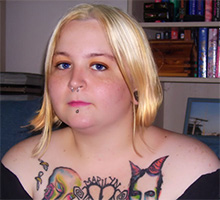
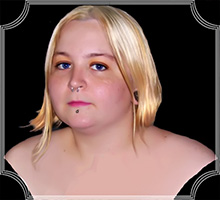
Por favor, siga estas etapas:
- Passo 1. Abra a imagem em seu programa de edição com o comando Arquivo -> Abrir.
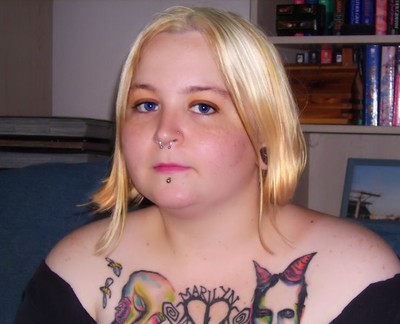
Foto original da irmã - Passo 2. Usando a ferramenta Seleção retangular
 selecione as áreas a serem retocadas.
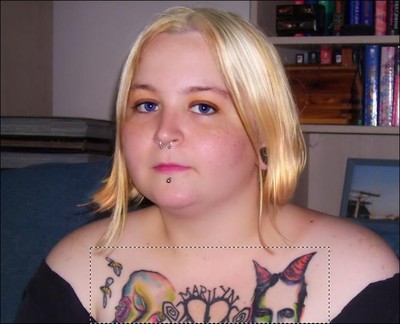
Selecione as tatuagens - Passo 3. Então chame o plugin AKVIS Retoucher: Efeitos -> AKVIS -> Retoucher.
A área selecionada será exibida com uma cor vermelha transparente.
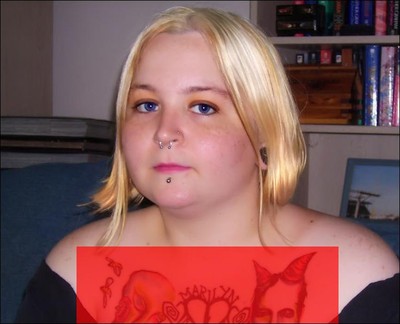
Área Selecionada é exibida com a cor vermelha - Passo 4. Clique em
 para começar o processo de retoque e você verá como a área selecionada é removida.
- Passo 5. Quando ele terminar, clique em
 para salvá-lo e voltar ao programa de edição. Se existir áreas que precisem ser retocadas, repita as instruções acima.
- Passo 6. Agora chame o plugin AKVIS SmartMask pelo comando Efeitos -> AKVIS -> SmartMask.
Escolha o modo Auto. Usando o Lápis manter área
 vá apenas ao interior da parte da imagem que você deseja manter. Depois usando Lápis eliminar área
  contorne da área que você quer retirar.
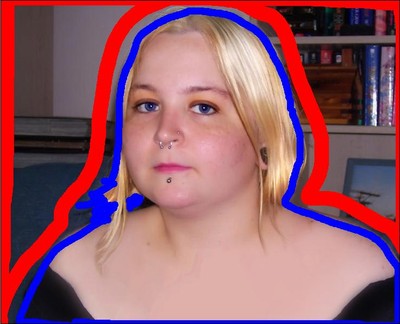
Desenho dos contornosClique no botão seta
para processar a imagem.
- Passo 7. Escolha o lápis verde
 e aumente o valor do parâmetro do Tamanho. Pinte sobre as áreas difíceis com o lapis verde. Depois clique em para ter um fundo limpo.
- Passo 8. Clique no botão
 para abrir a janela de diálogo Selecionar cor e escolha uma nova cor de fundo.
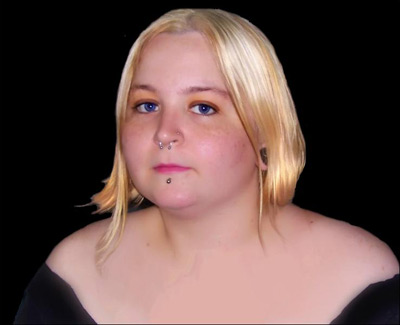
Plano de fundoSe você não quiser adicionar o sua nova cor de fundo ainda ou já estão feitas clique no botão de marca
para salvar e retornar ao seu programa editor.
- Passo 9. Abra o plugin AKVIS ArtSuite para adicionar uma moldura: Efeitos -> AKVIS -> ArtSuite.
Neste tutorial a autora escolheu a Moldura artística em branco. A largura da moldura foi mudada de modo a caber na imagem.
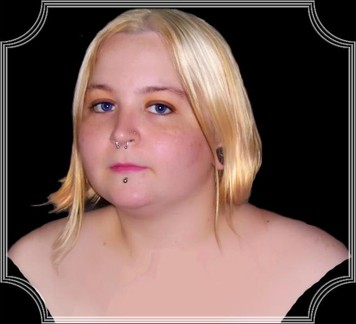
Escolha uma moldura - Passo 10. Depois de conseguir o quadro que você queria, clique no botão para aplicar a moldura na imagem e voltar ao programa de edição.
Retoucher v. 12.2 - Teste gratuito 10 dias
