Como corrigir os artefatos usais de uma imagem .JPG ruim
O tutorial seguinte foi criado por Philippe Gregoire.
Atenção! O tutorial foi criado com a versão anterior do algoritmo Noise Buster. Da versão 12.0 o programa usa redes neurais treinadas para remover ruídos. Você pode ver o efeito de Noise Buster AI aqui.
Para se livrar do ruído e pixelização, Philippe usou AKVIS Noise Buster. Agora um programa gratuito e especializado para remoção de artefatos jpeg está disponível — AKVIS Artifact Remover AI.
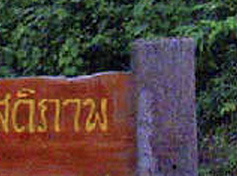 |
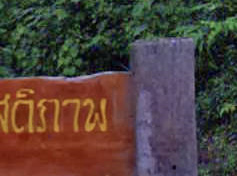 |
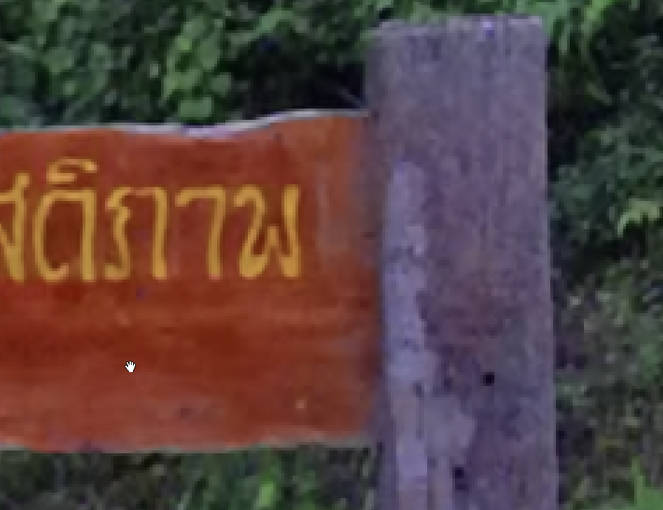
| Fragmento antes da filtragem: Foto ruidosa |
Fragmento depois de filtrado: Foto melhorada |
Philippe escreveu:
Sou um pintor digital Belga de 41 anos, vivendo em Bruxelas.
Venho trabalhando há alguns anos com o Photoshop, e outros programas gráficos, especificamente Poser e Corel Painter.
Algumas semanas atrás um amigo me falou sobre um plugin chamado AKVIS Noise Buster que poderia me ajudar com meus problemas de ruído.
Para meu trabalho, sempre começo com fotos que eu mesmo tiro, e também com uma quantidade de digitalizadas. Minha dificuldade maior é melhorar a qualidade das fotos e imagens digitalizadas, principalmente porque as imagens digitalizadas tem sempre uma grande quantidade de ruído, especialmente as feitas a partir de copias. Fotos tiradas em condições ruins de luz também tem muito ruído. A única solução que tinha no Photoshop era usar o Borrão Gaussiano e então Máscara de Nitidez nas minhas fotos originais.
Vivia lutando com o filtro de Ruído do PS para remover o ruído remanescente. Mas o ponto principal de todas ferramentais que possa experimentar é que você sempre perde nitidez e detalhes da foto ao final.
Aí experimentei AKVIS Noise Buster, e na minha primeira tentativa, fiquei imediatamente maravilhado. Ela suaviza minhas imagens sem perda de nitidez. Por exemplo, em uma vista próxima de uma imagem, pode-se ver toda imperfeição da pele, AKVIS Noise Buster transforma em uma imagem onde o assunto é suave e jovem, preservando a nitidez dos olhos, lábios e outros detalhes.
Algumas vezes temos um arquivo de imagem .jpg muito ruim.
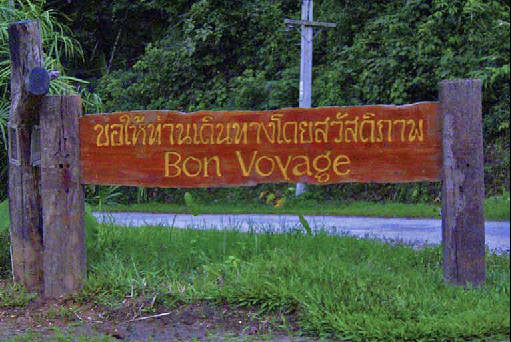
A primeira vista não parece tão mal, mas aumentando um pouco, vê-se o desenho apichelado tipicamente quadrado encontrado nas imagens .jpg ruins.
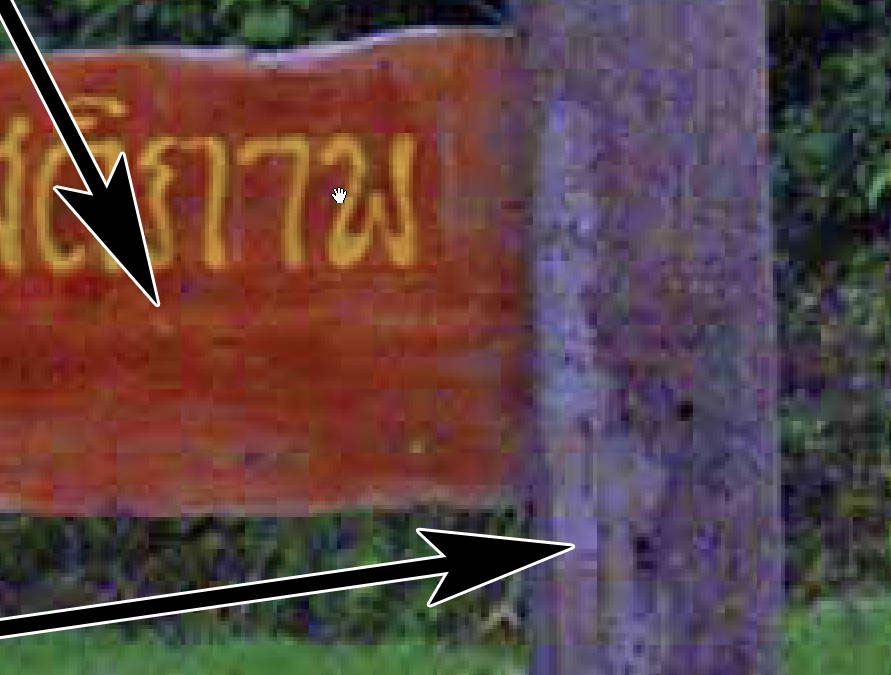
Aí é quando o plugin AKVIS Noise Buster se torna muito útil.
- Passo 1. Carregue o arquivo .jpg no AliveColors. Chame o plugin AKVIS Noise Buster (tem só que escolhe-lo no Menu Principal Efeitos -> AKVIS -> Noise Buster).
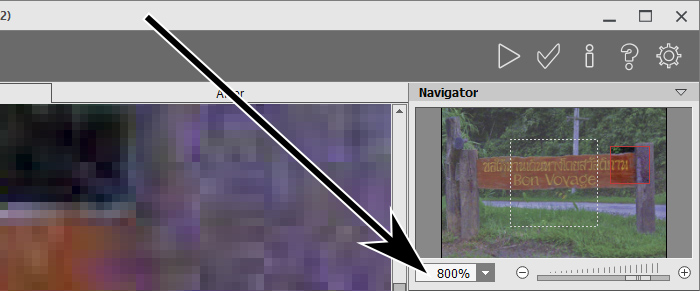
- Passo 2. No Navegador, empurre o controle deslizante para a direita até ver claramente os artefatos .jpg na janela principal.
- Passo 3. Use Filtragem automática.
- Passo 4. Selecione uma área na janela principal onde possa ver facilmente as diferenças entre as partes da imagem processada e não processada.
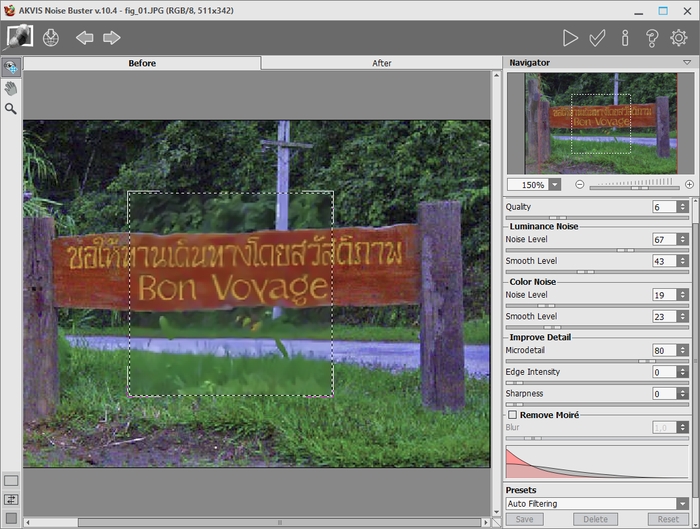
- Passo 5. Se gostar do resultado na janela de visão previa, clique no botão
 e examine sua imagem de novo na janela do plugin AKVIS Noise Buster.
- Passo 6. Se estiver feliz com o resultado, então clique no botão
 para aplicar as mudanças.
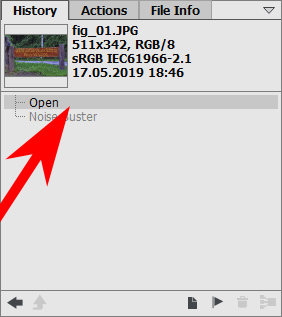
- Passo 7. Agora você pode experimentar o plugin com definições mais poderosas. Vá para a paleta Historia e clique no primeiro estado da historia.
- Passo 8. Chame o plugin AKVIS Noise Buster de novo e escolha definições mais poderosas.
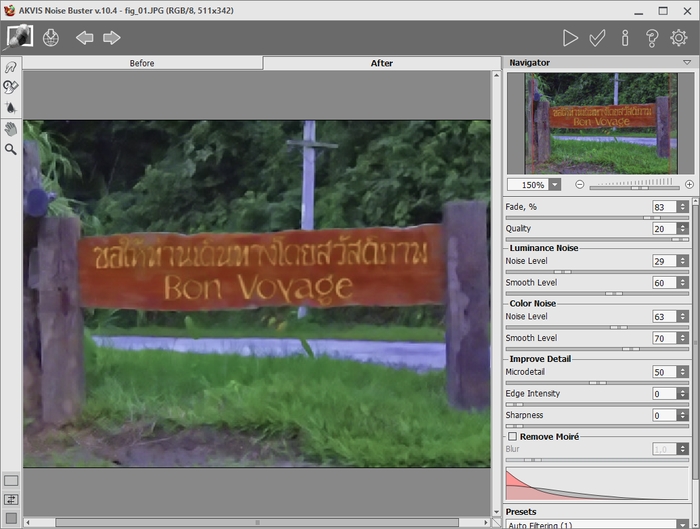
Clique nos botões
e novamente e irá obter uma imagem mais corregida. Pode ser que ache esta ter sido corrigida demais.
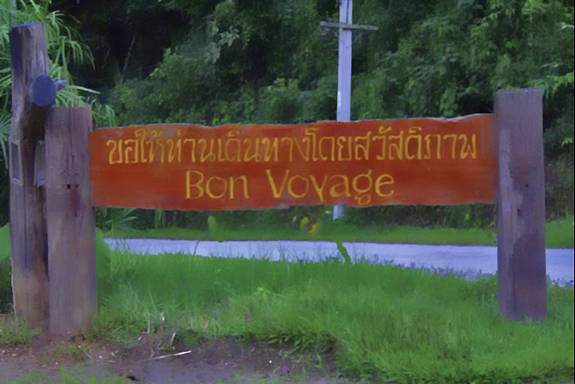
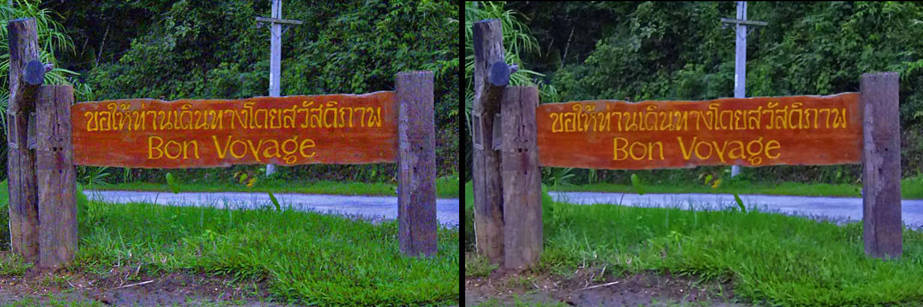
- Passo 9. Comparando a imagem original com a primeira versão corrigida,
Você vê que a correção é boa em algumas partes da imagem (os morões e a tabuleta) e forte demais nas outras partes (arvores, grama...).
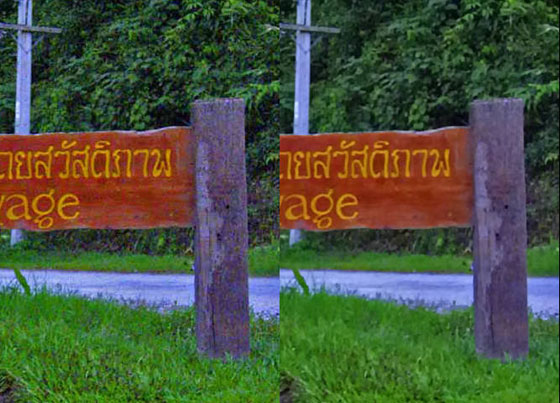
A solução é isolar essas partes das outras.
- Passo 10. Faça a seleção das partes a serem corrigidas. A melhor maneira é Pincel de seleção
 .
.
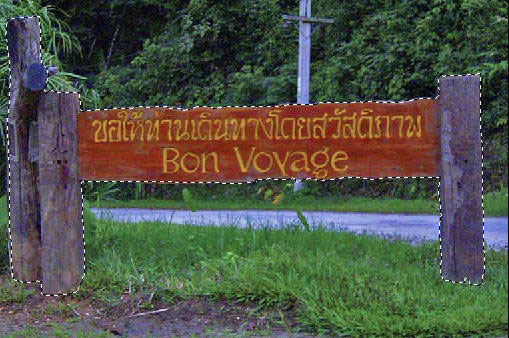
- Passo 11. Então aperte Ctrl+J no teclado e obterá uma cópia das partes selecionadas em nova camada.
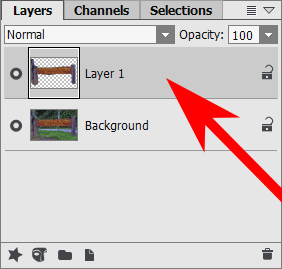
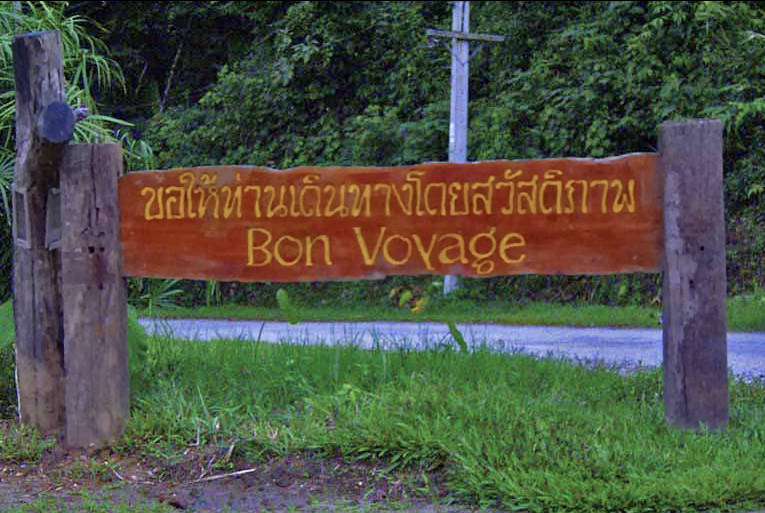
- Passo 12. Aplique o plugin AKVIS Noise Buster (como descrito antes) somente na camada 1 e irá obter uma excelente imagem, onde os morões e a tabuleta estão corregidos e a grama permanece perfeita.
Noise Buster AI v. 13.2 - Teste gratuito 10 dias
