Visitando um parque de animais selvagens
O autor deste tutorial é Gordon Sisson. Sr. Sisson usou a versão autônoma em uma máquina Mac Pro. Muitas vezes, quando em férias, as pessoas pedem a um estranho que passa para tirar uma fotografia do grupo com sua câmara.
Antes das câmaras digitais, eles não iriam ver a imagem até muitos dias depois. Muitas vezes, o resultado era menos do que maravilhoso. Aqui está um exemplo de pessoas que visitam um parque de animais selvagens. Nem tudo está perdido - tem AKVIS MultiBrush para o resgate!
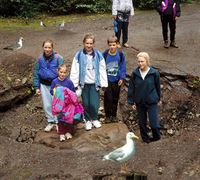 |
 |
Antes de trabalhar a foto, salve a imagem como PNG.
-
Passo 1. Dê inicio a AKVIS MultiBrush. Clique no botão
 no canto superior esquerdo e abra a fotografia.
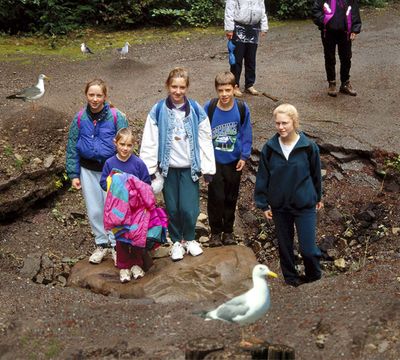
Pessoas de visita a um parque -
Passo 2. Selecione o Clone
 na Barra de ferramentas e marque Alinhado da caixa no Painel de ajustes. Com Alinhado marcado, o seu ponto de origem seguirá você ao clonar, removendo elementos indesejados na fotografia. Escolha um tamanho de pincel de diâmetro, médio, macio (Dureza ou seja, 0), Opacidade alta para uma impressão densa da área clonada.
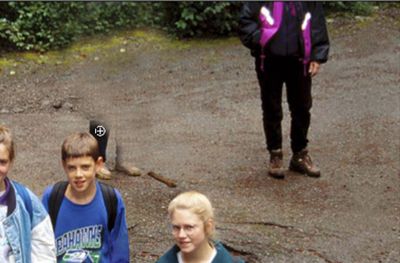
Opte por um ponto de origem clicando em um ponto, para começar a remover os objetos indesejados. Com traços horizontais largos, elimine o rapaz de camisa branca.
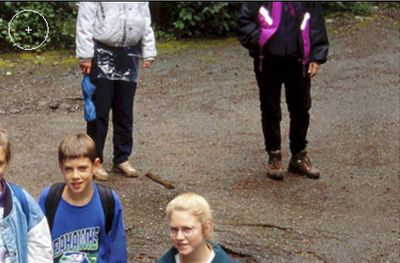
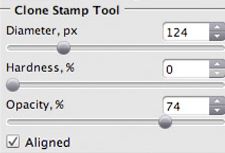
Quando você chegar perto da figura restante no centro da imagem, desmarque Alinhado e ajuste o pincel menor para o trabalho de perto. Você pode ampliar a imagem com a janela de Navegador (ou usando a ferramenta Zoom). Para fazer esta clonagem de perto mais fácil.
Desmarcando Alinhado permite que o ponto de origem permaneça na mesma posição, enquanto fornece a cor e textura corretas.
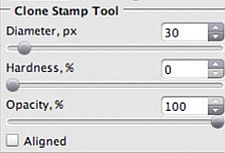
Repita o procedimento de clonagem até a segunda figura indesejada esteja desaparecida. Lembre-se, se você fizer um movimento que você não gosta, você simplesmente clica no botão
 para voltar com muitos passos, como desejar. Este programa AKVIS é tão versátil e fácil, você pode usar a ferramenta Clone para retocar qualquer parte do novo plano, e ninguém vai perceber que figuras estranhas estiveram sempre lá.
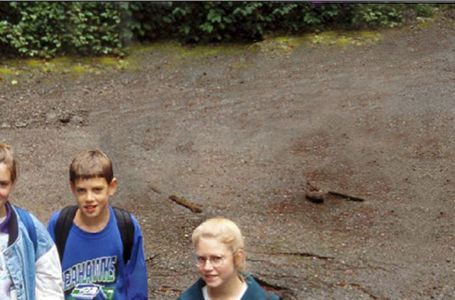
Depois de Clone -
Passo 3. Agora esse instantâneo é uma imagem real. Mais um detalhe, a encantadora gaivota no primeiro plano está tão perto da câmera que fica fora de foco. Nós podemos aguça-lo com MultiBrush:
- Com o controle deslizante de escala, aumentar a gaivota até quase preencher a Janela da imagem.
- A partir da Barra de ferramentas ao lado esquerdo, selecione a ferramenta Nitidez
 .
.
- Defina os seguintes parâmetros do pincel no Painel de ajustes:
-
Tamanho = 27;
Dureza = 73;
Contraste = 60;
Raio = 2.3.- Com cuidado o pássaro e seus pés até ficarem em foco como o resto da fotografia.
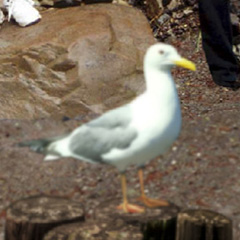
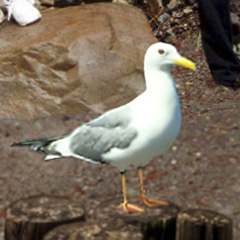
-
Passo 4. Clique no botão
 e salvar a fotografia final para o desktop.
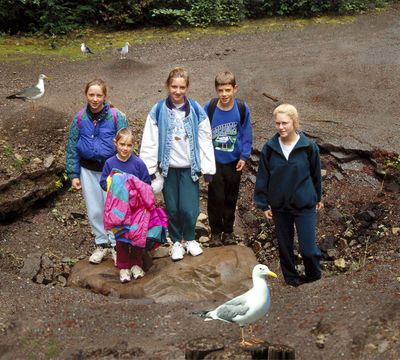
Resultado
