Brinquedos na grama
O autor deste tutorial é Roman Lunin.
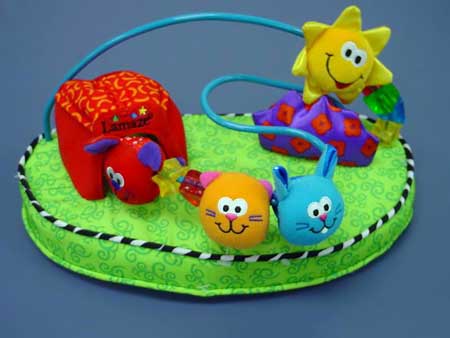
A maioria de nós se lembra de um brinquedo favorito de nossa infância. Queríamos ter brinquedos diferentes dos outros. Usando o AKVIS Decorator nós podemos fazer esse sonho se tornar realidade... pelo menos em uma foto.
Neste tutorial nós vamos mudar a cor e a textura da almofada para fazê-la parecer com grama.
- Passo 1. Abra a foto com o AKVIS Decorator.
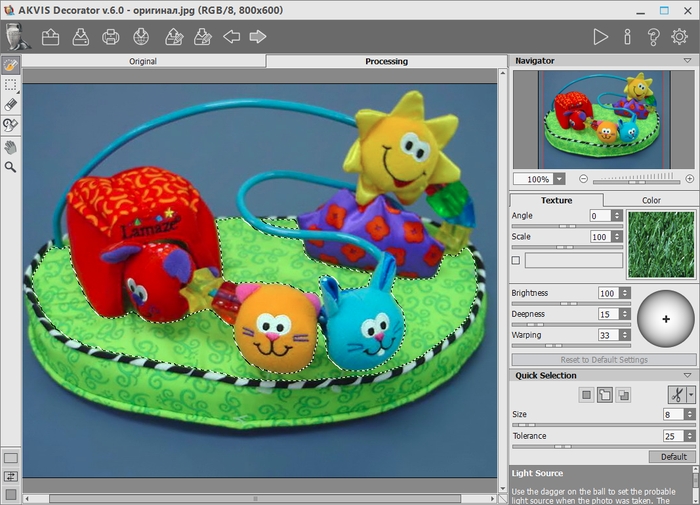
- Passo 2. Selecione a parte superior da almofada. Você pode usar qualquer ferramenta de seleção. Esta seleção deve parecer como isso:
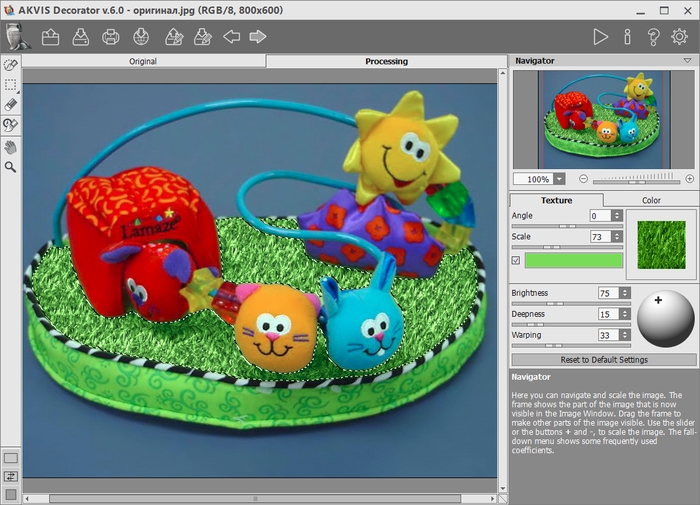
- Passo 3. Escolha a textura adequada da Biblioteca de textura (duplo clique com o botão esquerdo do mouse na caixa com a textura). Duplo clique com o botão esquerdo do mouse na textura adequada da pasta Natureza.
Se você não gosta da cor da textura que você pode mudá-la. Para alterar a cor de uma textura que você deve primeiro ativar a caixa de seleção perto da placa da cor, em seguida, clique na placa e escolha uma cor na caixa de diálogo Selecionar cor. Além disso, é possível escolher uma cor na imagem original. Para esse efeito, clique com o botão esquerdo em qualquer ponto da imagem original mantendo pressionada a tecla Ctrl (⌘ no Mac).
Se você desejar, você pode mudar outros parâmetros. O autor mudou o valor da Escala e Brilho.
- Passo 4. Pressione o botão
 para aplicar a textura no objeto selecionado. O resultado é mostrado na aba Processamento.
- Passo 5. Pressione o botão
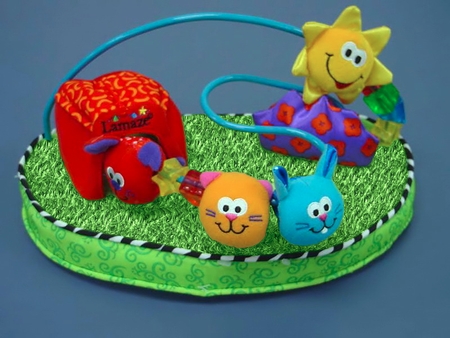
 para salvar o resultado. Agora as pequenas criaturas estão sentadas na grama.
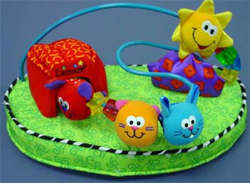 |
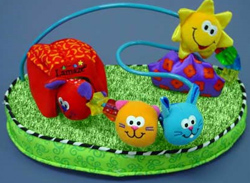 |
| Imagem original | Resultado |
Decorator v. 9.1 - Teste gratuito 10 dias
