William Gladstone: Colorir uma foto no Paint Shop Pro
Este tutorial de colorização nos foi enviado por David Kelly. David também apresenta o tutorial como um eBook executável (disponível para download no fim da página).
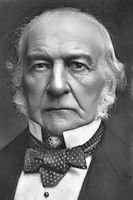
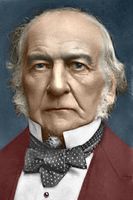
Até recentemente, se desejasse colorir fotos preto e branco digitalizadas um bom conhecimento prático da qualidade da imagem editando programa tais como Paint Shop Pro, Photoshop, etc. eram necessários. Agora, contudo, com a introdução do plug-in AKVIS Coloriage colorir digitalmente ficou bastante fácil, consome menos tempo, e com muito mais diversão!
O plug-in AKVIS Coloriage é de preço acessível, fácil de usar peças de programas que integra em sua imagem existente editando programa adicionando novos traços e aumenta sua funcionalidade.
Aqui você verá como o plug-in AKVIS Coloriage foi usado em conjunto com o Paint Shop Pro 9 para criar uma versão colorida de uma foto editada do original em preto e branco.
Abaixo está a foto em tom sépia original foi editada usando o Paint Shop Pro 9. Outro plug-in AKVIS MultiBrush, também foi usado durante o trabalho de edição. Esta é a ferramenta de clonagem similar ao Photoshop Healing Tool.
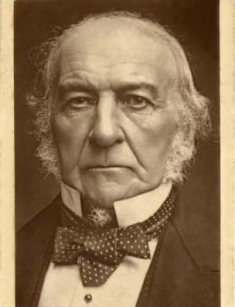
Imagem 01 - William Gladstone
Copyright © Roger Vaughan
Abaixo esta a mesma fotografia mostrada na imagem 01 depois dela ter sido editada usando o Paint Shop Pro 9 em conjunto com o plug-in AKVIS MultiBrush.
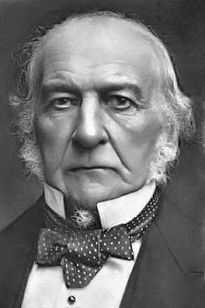
Imagem 02
Esta seção contém uma breve explicação como o plug-in AKVIS Coloriage foi usado para criar uma versão colorida de uma fotografia preto e branco. Imagem 02.
Primeiro a foto foi aberts no Corel Paint Shop Pro 9.
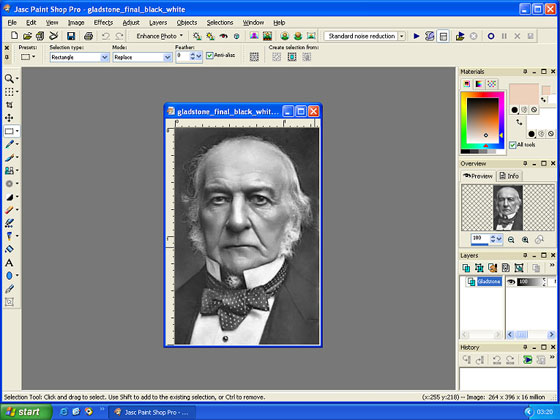
Imagem 03 - Àrea de trabalho do Paint Shop Pro 9
O plug-in AKVIS Coloriage estava então carregada via Paint Shop Pro 9 menu Efeitos -> Plugins –> AKVIS –> Coloriage (Effects -> Plugins -> AKVIS -> Coloriage).
A ferramenta Lápis  foi usada para desenhar contornos coloridos entre todas as seções da foto usando cores selecionadas da seção Biblioteca de cores. Estas são conhecidas como “traçados”.
A área de trabalho com a foto e seus traçados coloridos é mostrado abaixo. A foto traçada pode ser salva como .strokes arquivo. Esta pode ser carregada novamente e usada com a mesma foto para edições subsequentes.
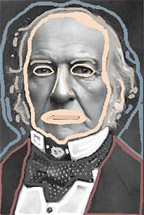
Imagem 04
Depois da versão de todos os traçados terem sido completamente coloridos a foto original pode se vista clicando se o botão  . Se OK, os traçados podem ser agora salvados. O efeito colorido foi então aplicado na imagem clicando Aplicar o botão
  localizado acima no lado direito. A área de trabalho mostrando a nova versão colorida Depois pode ser vista abaixo.
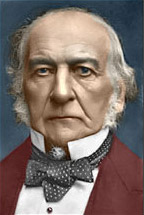
Imagem 05
Imagem 06 é a fotografia preto e branca original restaurada e a imagem 07 mostra a versão completada AKVIS Coloriage v2.0 colorida.
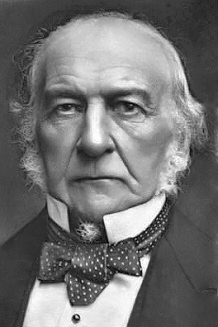
Imagem 06
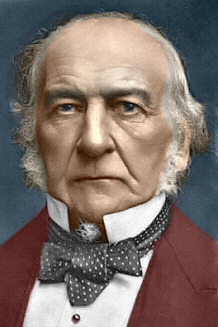
Imagem 07
Para qualquer um com interesse em colorir imagem digital que possua uma imagem compatível com programa de edição, o AKVIS Coloriage plug-in é um daqueles que “deve ter” add-ons que você não deve ficar sem, e não precisa ser um perito em imagem digital para usa - lo com sucesso.
Como no caso da maioria das fotografias que são digitalmente coloridas as cores usadas são subjetivas. Para fazer a escolha fácil da cor correta o plug-in AKVIS Coloriage. Inclui a seção Biblioteca de cores com catorze categoria de cores; Pessoas, Grama, Folhas, Madeira, Pedras, tijolos, céu, nuvens, água, Metais, Papeis, Terra, e Tecidos.
As cores também podem ser selecionadas usando o plug-in “Cores” gráficas.
Como este artigo dá só uma muito breve visão geral do plug-in AKVIS Coloriage, para ler maiores detalhes de instrução de uso por favor clique aqui.
Coloriage AI v. 15.7 - Teste gratuito 10 dias
