Papel da Área de Trabalho com um animal domestico
Este tutorial foi apresentado por Olga Podryadchikova. Ela decidiu criar um papel de parede para a área de serviço da foto de seu animal de estimação. Ela processou a foto no AliveColors usando o plug-in AKVIS Coloriage.
-
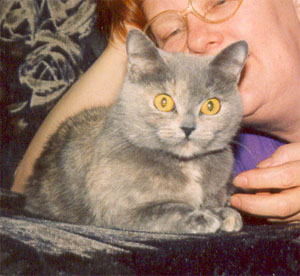
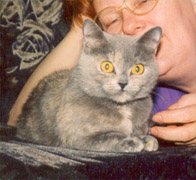
Passo 1. Escolha uma foto apropriada e abra-a em seu editor de foto.
-
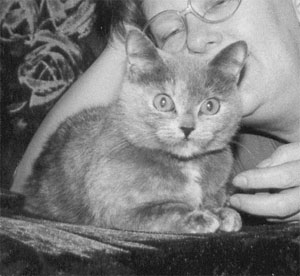
Passo 2. Aplique o comando Image -> Adjustment -> Black & White para descartar a cor informada.
-
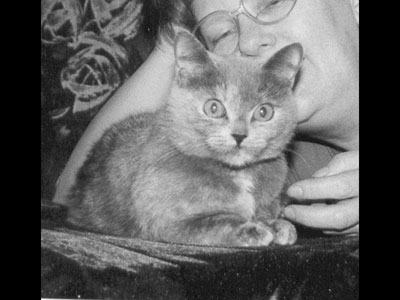
Passo 3. Como nós vamos criar o papel de parede para a área de trabalho nós poderíamos ajustar dimensões apropriadas para a foto, por exemplo, 800*600 px. Primeiro mudamos o tamanho da imagem com o comando Image -> Image Size, então aumente a largura da imagem com o comando Image -> Canvas Size.
-
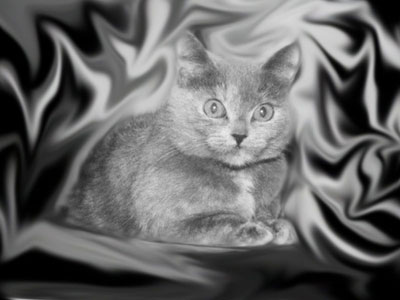
Passo 4. Selecione Smudge Tool da Barra de ferramentas e esparrame o fundo em volta do gato em ondulações. Quanto mais ondulado você fizer melhor aparecerá o resultado.
-
Passo 5. Agora chame o plug-in AKVIS Coloriage (Effects -> AKVIS -> Coloriage) e comece a colorir a foto.
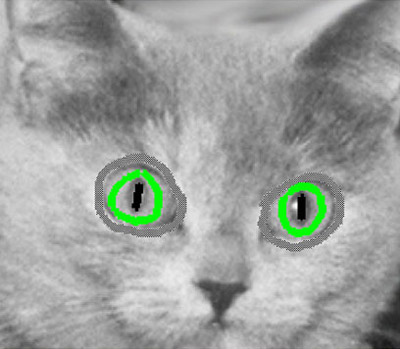
Primeiro adicione a cor nos olhos do gato. Com este fim contorne-os com o Lápis manter cores
 (para prevenir que a cor dos olhos não se espalhe para outras partes da imagem) então desenhe um contorno verde dentro de cada olho do gato e traçados preto dentro das pupilas.
Para fazer aplicação de pequenos traçados mais fáceis, aumente a escala da imagem e reduza o tamanho da pincel da ferramenta Lápis
 .
.
-
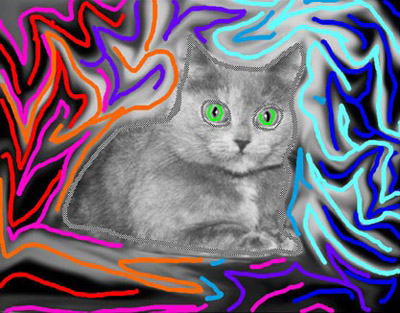
Passo 6. Agora mova o colorido do fundo. Primeiro nós deveríamos desenhar um contorno no interior do gato com o Lápis manter cores porque pretendemos deixar o gato cinza.
Comece aplicando traçados coloridos no fundo. Para obter um fundo especial tente desenhar traçados junto com ondulações e linhas. Leve em conta que preta e saturada cores (vermelho, azul, violeta, etc.) olhe melhor para o fundo preto enquanto para um fundo claro deveria escolher cores brilhantes e claras (verdes, amarelo, e azul).
-
Passo 7. Quando pronto, pressione o botão
 e veja o resultado na aba Depois.
Se não ficar contente com o resultado, você pode voltar para a aba Antes e editar a forma e a cor dos traçados. Os botões na Barra de ferramentas lhe permite:
- apagar traçados com a ferramenta Borracha
 ;
;
- desenhe novo traçado com a ferramenta Lápis;
- repita o colorido em traçados separados usando a ferramenta Tubo ou colore de novo todos os traçados de uma só cor com a ferramenta Tubo mágico
  .
.
Salve os traçados em arquivos separados
 e preencha os traçados previamente salvos com o botão
  .
.
-
Passo 8. Quando estiver satisfeito com o resultado, pressione o botão
 para aplicar o resultado e feche a janela do plug-in.
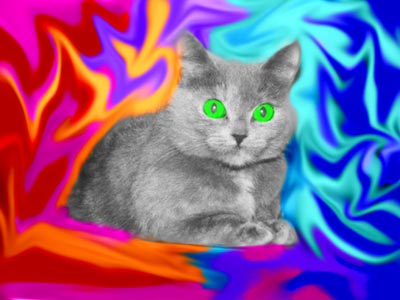
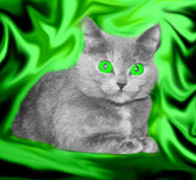
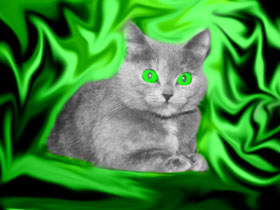
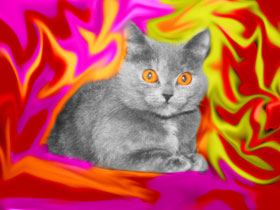
Como resultado vemos um gato com olhos verdes em frente a um fundo especial e tudo isso leva apenas alguns minutos! Você pode brincar além para conseguir versões diferentes.
Coloriage AI v. 15.7 - Teste gratuito 10 dias
