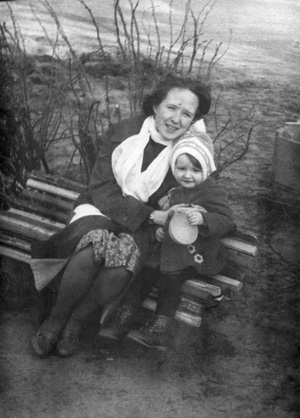
Photo retouching
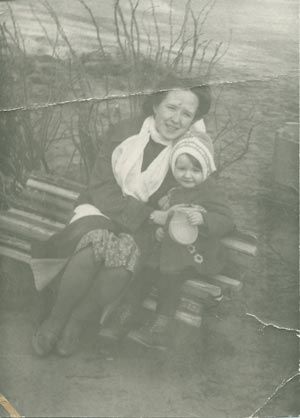
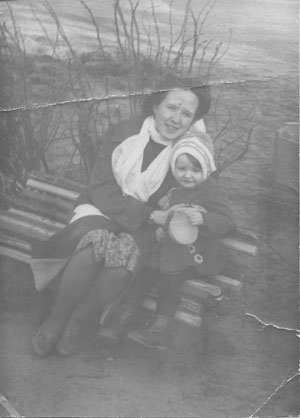
In the following example we will retouch a degraded image covered with stains.
We work with the plugin version of AKVIS MultiBrush in Adobe Photoshop and use the Chameleon Brush tool wchich removes scratches and stains in the most natural way.
 |
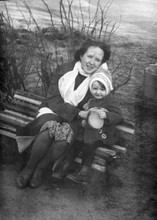 |
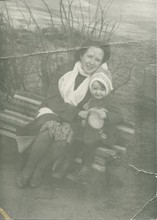
First of all we will use Adobe Photoshop tools to apply tone correction, then we will apply the AKVIS MultiBrush plug-in to remove scratches and creases.
-
Step 1. Let's start with the command Image -> Adjustments -> Desaturate that will remove the yellowish tint.
-
Step 2. The image is in grey tones. It needs black and white colors to improve tonal quality. We will use the Levels command to correct it.
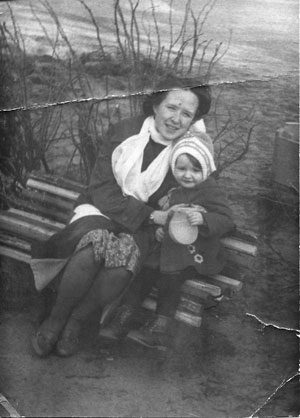
Let's open the Levels dialogue box, and select the command Image -> Adjustments -> Levels. We will drag the sliders below the histogram to the histogram's edges: we move the black slider to the right to 79, we move the white slider to the left to 224.
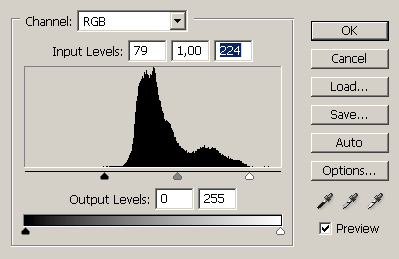
Having pressed the button OK in the Levels dialogue box, we will see the following image:
-
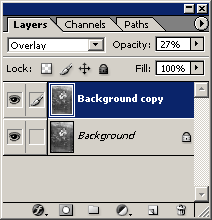
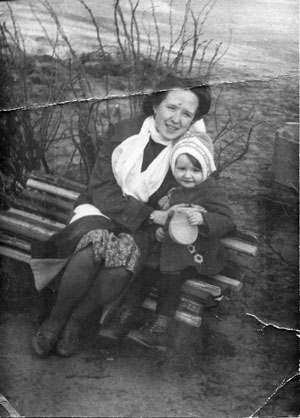
Step 3. Let's make the tones of the picture more intense. First, we will create a copy of the layer by dragging this layer to the button Create a New Layer in the lower part of the Layers palette. Then, we will choose the Overlay mode and set the Opacity of the layer to 27%.
-
Step 4. Now we can proceed to the defects removal. After the tone correction the scratches and creases have become more pronounced and we can detect and remove them with ease.
We call the plug-in AKVIS MultiBrush by selecting the command AKVIS -> MultiBrush from the menu Filter.
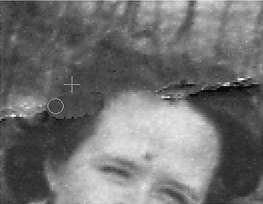
In the AKVIS MultiBrush window select the Chameleon Brush tool
 and clone the intact areas to the damaged ones.
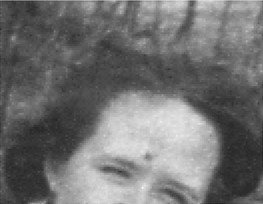
These 4 simple steps allowed us to retouch the photo in a few minutes: