Graphic software for Windows Mac graphic software  
AKVIS ニュースの購読を申し込むには, 電子メールアドレスを入力してください。
 
  
  プログラム     ダウンロード     サイバーショップ     チュートリアル     サポート     会社情報
en  fr  de  es  pt  it  jp  ru    
 

チュートリアル: AKVIS Retoucher

Lioness in a Cage: Remove Iron Rods


あいにく, このページは英語にだけ使用可能です。日本語のバージョンは遠からず出ります。

The plug-ins AKVIS Retoucher and AKVIS Stamp are efficient for photo restoration tasks. They can be applied to restore old damaged photos or to remove a date stamp or an unwanted object, like a finger that covered the lens when shooting or an irrelevant object that spoils the shot.

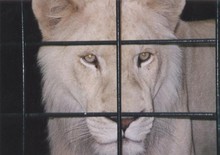
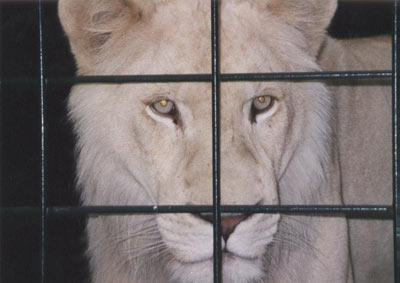
This tutorial illustrates the second case: we will use AKVIS Retoucher and AKVIS Stamp to remove the cage rods from the photo below.

Lioness in a Cage
  • Step 1. Open the image in your photo editor.

    You can apply the plug-ins and repeat the tutorial with one of the following photo editing software: Adobe Photoshop, Corel Photo-Paint, Paint Shop Pro, Ulead PhotoImpact, ACD Photo Editor or Macromedia Fireworks.

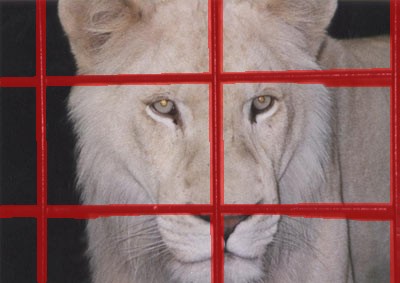
  • Step 2. Select the rods with any selection tool. Do not forget to select the shades as well.

    Every photo editor has its own selection tools, use the one you like.

    Select the rods
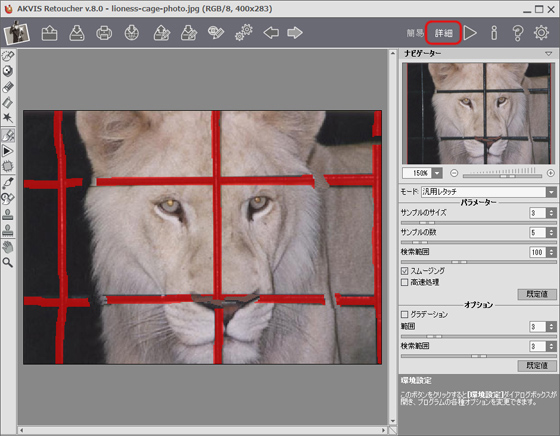
  • Step 3. Call the plug-in AKVIS Retoucher by selecting the command AKVIS -> Retoucher from the menu Filter (Effects) of your photo editor. You will see the plug-in's program window; the selected area will be highlighted in red.
    AKVIS Retoucher: plugin window
  • Step 4. Start the retouching process by pressing the button Start the retouching process in the toolbar. The red mask disappears giving place to restored areas.
    retouching process
  • Step 5. When the retouching process is over, press the button Apply the retouching result.
    the retouching process is over

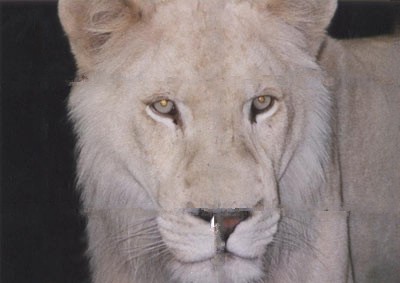
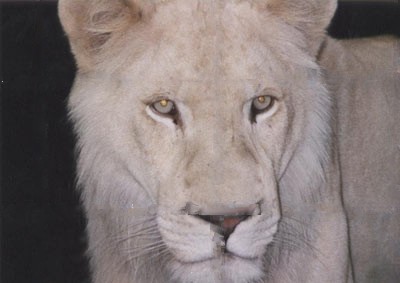
    The result is not completely satisfying: Retoucher spared us the time that we could spend on removing the rods manually, but it failed to restore the nose and the hair is not even.

    After AKVIS Retoucher
  • Step 6. We will touch up the photo with the plug-in AKVIS Stamp.

    AKVIS Stamp is a cloning tool similar to Healing Brush Tool of Adobe Photoshop.

    AKVIS Stamp does not only clone an image fragment but also adjusts the "patch" to the background - smoothes its edges and adapts its colors to the new environment. Read more about the plug-in AKVIS Stamp here.

    Call AKVIS Stamp by selecting the command AKVIS -> Stamp from the menu item Filter (Effects).

    AKVIS Stamp: program window

    You can use the plug-in AKVIS Stamp for photo restoration: replace the damaged areas with other fragments from the same image. Set the source for cloning with the left click keeping the key Alt (Option in Macintosh) pressed. Then just draw over the "seams" on the hair of the lioness with the Stamp tool.

    cloning with AKVIS Stamp
  • Step 7. When all the areas are retouched, apply the result by pressing the button apply the result in the plugin's program window.
    the retouching process is over
  • Step 8. We didn't use AKVIS Stamp for restoration of the lioness's nose. It's better to use for this purpose the standard cloning tool that you can find in the Toolbar of your photo editor. In Adobe Photoshop you can use Clone Stamp Tool, in Paint Shop Pro - Clone Brush, in Corel PHOTO-PAINT - Clone Tool, in Macromedia Fireworks - Rubber Stamp Tool.

    The difference between the standard cloning tool and AKVIS Stamp is that the first clones an area as it is, while AKVIS Stamp adjusts the "patch" to the background making the cloning seamless. As for the nose of the lioness, one should use the standard cloning tool to keep the edges of the nose clear; AKVIS Stamp would make it smear.

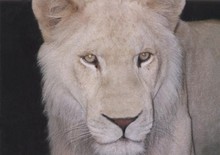
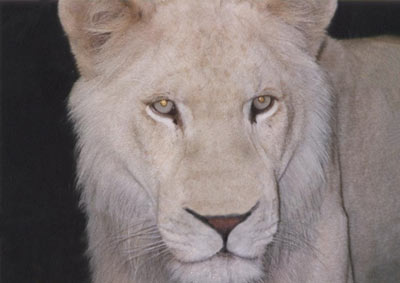
    Here is the final photo of the lioness: the rods are removed.

    Lioness: the cage is removed


操作方法 操作方法
古い写真の修復 古い写真の修復
日付の消去 日付の消去
赤ちゃんの写真の修復 赤ちゃんの写真の修復
古い家族写真 古い家族写真
人物写真の修復 人物写真の修復


   プライバシー | サイトマップ | Web サイトの検索 | English  | Français  | Deutsch  | Español  | Português  | Italiano  | 日本語  | Pусский  | © 2004-2008, AKVIS Software Inc. All rights reserved.