Historical photo: a gypsy band
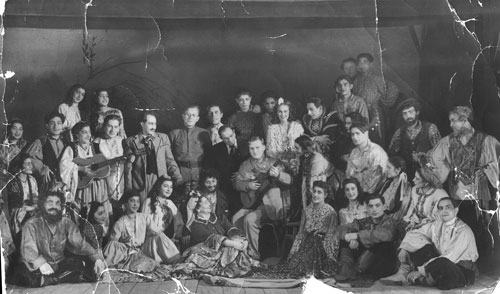
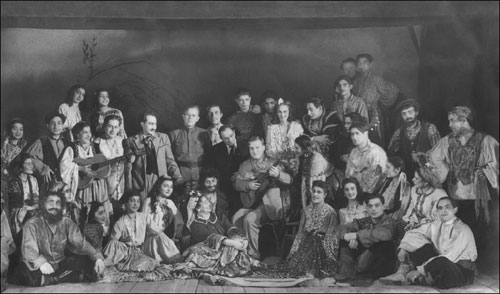
Here is an archive photo of a gypsy band. The photo is badly damaged and is covered with numerous scratches and folds; the edges are jagged.
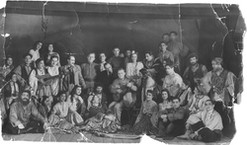
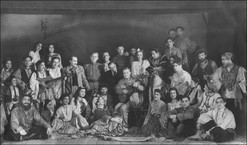
We should note that the photo has a historical value as it reflects the culture of a nation. The gypsies lead a nomadic life and their photos are quite rare. Here we can see gypsy costumes and musical instruments. We should keep the photo for future generations.
However, with time, archive photos do not get any better. That's why they are being digitized. In this case one can apply up-to-date image processing technologies to enhance the old images.
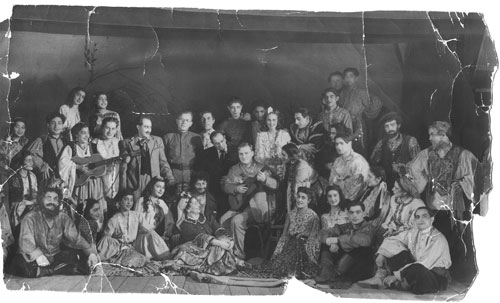
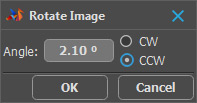
First of all we should prepare the photo for retouching. We open the scanned photo in AliveColors (or other photo editors). We rotate the image by calling the command Image -> Transform Image -> Rotate by... and entering the value of 2,1° CCW (counterclockwise).
Then we cut off the parts of the image that do not contain any useful information. For this purpose we take the Crop tool  or press the key C on the keyboard. Select the part of the image that should be kept and press Enter. The parts of the image outside the selection will be removed.
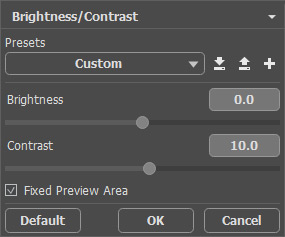
Now, it's time to improve the photo's contrast. We'll do it in the following way. We call the command Adjustment -> Brightness/Contrast from the menu Image and enter 10 in the Contrast field.
Call the Retoucher plug-in. Choose AKVIS -> Retoucher from the Effects menu.
In Retoucher select the areas to be retouched using the Selection Brush  .
.
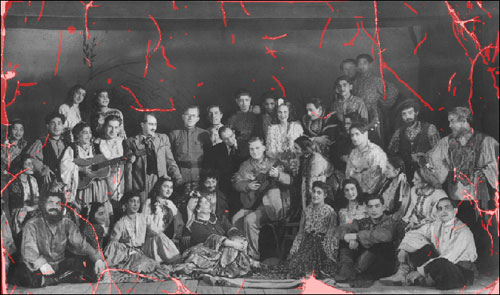
To start restoring the selected areas, press  . The selected areas are highlighted in red. During the restoration process, the red "shading" disappears, replaced by areas with a restored texture.
After the plug-in has finished, no more selected areas remain. Press  to apply the restoration to the image.
The Retoucher plug-in's window closes, and the photograph is returned to AliveColors.
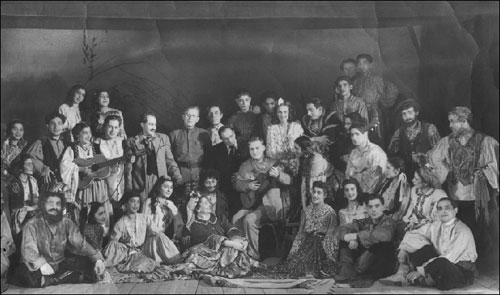
The plugin did a good job. However, we still see some imperfections, for example, a slight difference of the background in the areas of the former folds. They can be retouched with the tools of AliveColors: Blur  , Smudge
  , Clone Stamp
  , etc.
When the retouching process is over, we get the following photo:
Retoucher v. 12.2 - 10日間の評価期間
