Removing Tattoos
The author of this tutorial is Tammy Russotto. She writes that the AKVIS programs make editing so much quicker and easier. It's even more fun. Make sure to practice and in no time you will be zipping through your edits with no problem.
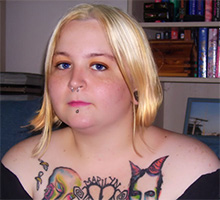
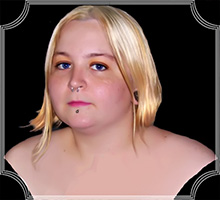
In this case the author wanted to make a portrait to be used to send to family and she decided to remove the tattoos. The model in the image is Tammy's 25 year old daughter, Tiffany.
Please follow these steps:
- Step 1. Open image in your editing program by the command File -> Open.
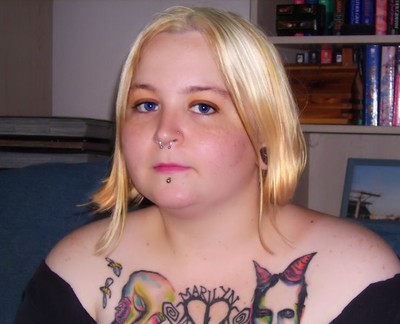
Original photo of a daughter - Step 2. Using the Rectangular Selection tool
 select the areas to be retouched.
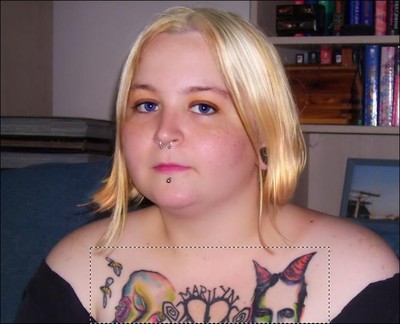
Select the tattoos - Step 3. Then call up the AKVIS Retoucher plugin: Effects -> AKVIS -> Retoucher.
The selected area will be displayed with a transparent red color.
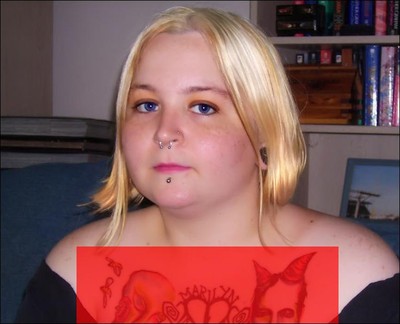
Selected area displayed with a red color - Step 4. Click on
 to begin the retouching process and you can watch as the selected area is removed.
- Step 5. When it's done click on
 to save it and return to editing program. If there are other areas that need to be retouched repeat the above instructions.
- Step 6. Now call up the AKVIS SmartMask program by the command Effects -> AKVIS -> SmartMask.
Choose Auto mode. Using the Keep Area Pencil
 go just inside the part of the image you want to keep. Then using the Drop Area Pencil
  outline the area you want to get rid of.
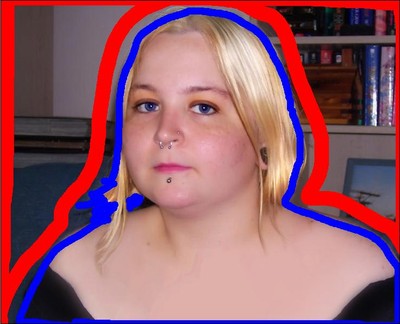
Draw contoursClick on the arrow button
to process the image.
- Step 7. Choose the Transition Area Pencil
 and increase its size. Outline the silhouette's edges. Then click on to have a clear background.
- Step 8. Click on the button
 to open the dialog Select Color and choose new background color.
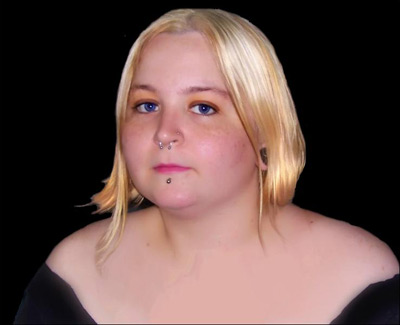
Fragment on new backgroundIf you don't want to add your new background yet or are done click on the checkmark button
to save and return to your editing program.
- Step 9. Open AKVIS ArtSuite plug-in to add a frame: Effects -> AKVIS -> ArtSuite.
In this tutorial the author has chosen the Artistic Frame in white. The frame width was changed so that it will fit the image.
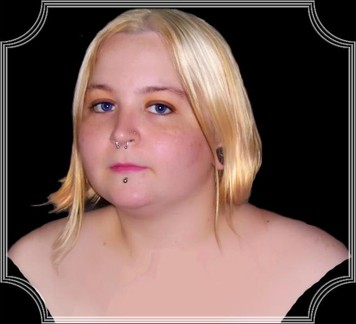
Choose a frame - Step 10. Once you have achieved the frame you want, click on the checkmark button to apply the frame to the image and return to editing program. If you feel there are any tweeks to be made go ahead and do it and then save a beautiful new image.
Retoucher v. 12.2 - 10日間の評価期間
