Graphic software for Windows Mac graphic software
AKVIS ニュースの購読を申し込むには, 電子メールアドレスを入力してください。
 
  
  プログラム     ダウンロード     サイバーショップ     チュートリアル     サポート     会社情報
en  fr  de  es  pt  it  jp  ru    
 

チュートリアル: AKVIS Enhancer

Smart Correction Mode in Standalone edition


あいにく, このページは英語にだけ使用可能です。日本語のバージョンは遠からず出ります。
Attention! You can get a free licence for an AKVIS program by translating texts from English to Japanese.
Please contact us at team@akvis.com.

スマートコレクション (Smart Correction mode) - このモードは、明暗のある領域の明るさを訂正することでイメージのトーン訂正のために使用されます。結果としてイメージ全体の印象が変わってきます。変更は、イメージ全体、または訂正のために選択した色に属したイメージの一部で行われます。

Source image Result
Source image Result

A comparison of Enhancer and Smart Correction Modes can be found here.


To process an image in this mode, follow these steps:

  • Step 1. Launch AKVIS Enhancer.

  • Step 2. Open the original image. Do this by clicking on the button in the Control panel and select the required file in the Open dialog box. AKVIS Enhancer supports the following formats: JPEG, TIFF, BMP, and PNG.

    Source image
  • Step 3. Choose Smart Correction Mode in the Settings panel.

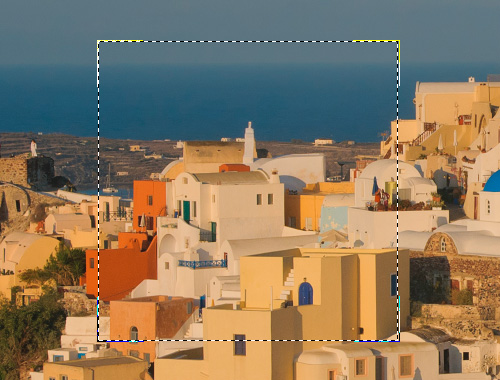
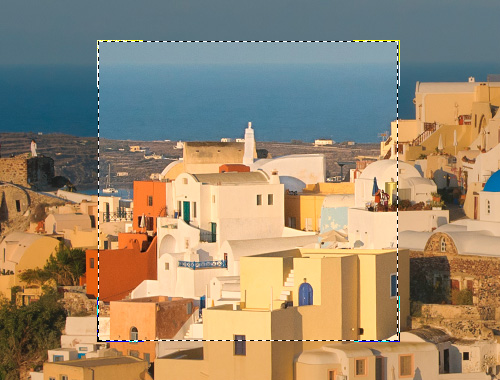
    The processed part of the image appears in the Preview Window on the After tab. This part is processed with the current settings.

    Preview Window is a box with a boundary composed of a "running" dotted line, which shows the result of image processing based on changes made to the settings (by default in this mode all settings are set to 0, so at first the image in the preview window will be the raw (unprocessed) image). This square can be easily dragged and dropped to another part of the image (click and hold the left mouse button) or redrawn (double click) over any part of the image. In this way you can analyze other parts of the image.

    Preview Window

    By left-clicking on any point of the image outside of the Preview window, you can temporarily switch to the Before tab and compare the original image with the result in the preview window. You can switch between the tabs by pressing the Tab button.

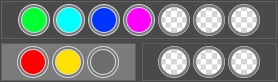
  • Step 4. Choose the colors to be corrected. To do this use the Color Set. The original set consists of seven colors. There are two additional sets below it, each consisting of three cells. You can move colors from the core set into these cells. By dragging colors you can have from one to three sets of colors. To switch from one color set to another click on it with the left mouse button. The chosen color set is highlighted in grey.

    Color Sets

    The Color Indicator makes it easier to form a color set.

    Color Indicator

    From one to three color components are automatically chosen for each point on an image. When you move the cursor over the image, the Color Indicator displays the color components of the corresponding point. The Color Indicator helps select more precisely the color set for editing this area.

  • Step 5. Adjust parameter values. The parameters for each color set are regulated separately. The selected color set is highlighted in grey:

    Radius. This parameter accepts values from 0 to 60 and determines the size of the area to be analyzed. After analysis new color and brightness information is assigned to the point, which is used to assign the point to one of the color sets. Then the point is processed further.

    Shadows. The default value of this parameter is 0 and 60 and dark areas are not corrected. As the parameter's value is increased, dark areas become lighter, and details there become more discernible. Objects in dark silhouettes become more like they were when photographed.

    Highlights. By default the value of this parameter is 0 and light areas are not corrected. As the value of the parameter is increased, light areas become darker, contrast increases, and objects stand out more while the picture overall has more volume and appears more accurate.

    user's settings

    Note:    

    For colors that do not belong to the main set, the application of the parameters is mixed. For example, if the colors red and yellow are in different sets, then correction for the color orange will fall within both color sets.

  • Step 6. To process the image press the button.
    Processing the image
  • Step 7. If needed, you can correct the image further in the Post Processing tab.
  • Step 8. If you like the new settings of the Options and Post Processing parameters, you can save them as a preset and use them later. To save the settings, enter a name for the preset into the Presets field and press the button Save.

    Next time you launch the program, these settings will be used by default. To return to the initial settings of the program, click on Reset.

    To process the image with a certain preset, select this preset from the drop-down list. The image will be automatically processed with the preset's settings.

    To delete a preset, select it from the list and click on the button Delete.

  • Step 9. Save the processed image into a file. Click on in the Control panel to open the Save As dialog box. Enter a name for the file, define its format (JPEG, TIFF, BMP or PNG) and select the destination folder.

  • Step 10. It is possible to print the image.
  • Step 11. Close AKVIS Enhancer by clicking on .

 
操作方法 操作方法
AKVIS Enhancer プラグイン AKVIS Enhancer プラグイン
   — ワークスペース — ワークスペース
   — Enhancerモード
 — Enhancerモード
   — Focusモード
 — Focusモード
   — Smart Correctionモード — Smart Correctionモード
   — バッチ処理 — バッチ処理
AKVIS Enhancer スタンドアロン (+HDR) AKVIS Enhancer スタンドアロン (+HDR)
   — ワークスペース — ワークスペース
   — Enhancerモード
 — Enhancerモード
   — Focusモード — Focusモード
   — Smart Correctionモード — Smart Correctionモード
   — 連続した写真の処理(HDRモード) — 連続した写真の処理(HDRモード)
   — HDRIとは? — HDRIとは?
   — 後処理 — 後処理
操作例 操作例
   — 街路 — 街路
   — 庭で遊ぶ子供 — 庭で遊ぶ子供
   — 高地の風景(HDR) — 高地の風景(HDR)
   — 大型トラック — 大型トラック
   — 古代都市 — 古代都市
   — シカ — シカ
   — 教会 — 教会


   プライバシー | サイトマップ | Web サイトの検索 | English  |Français  |Deutsch  |Español  |Português  |Italiano  | 日本語  |Pусский  | © 2004-2009, AKVIS Software Inc. All rights reserved.