Desktop Wallpaper with a Pet
This tutorial has been submitted by Olga Podryadchikova. She decided to create desktop wallpaper out of a photo of her pet.
She processed the photo in AliveColors using AKVIS Coloriage AI plug-in.
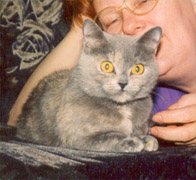 |
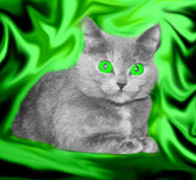 |
-
Step 1. Choose an appropriate photo and open it in your photo editor.
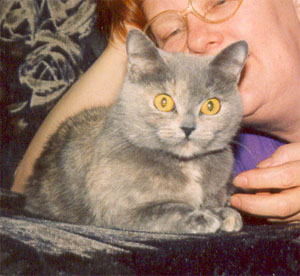
-
Step 2. Apply the command Image -> Adjustment -> Black & White to discard the color information.
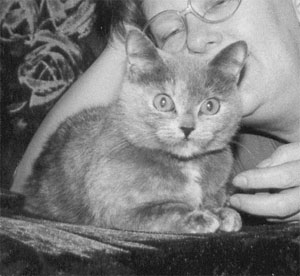
-
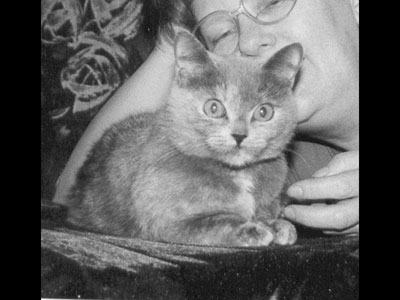
Step 3. As we are going to create desktop wallpaper we should set appropriate dimensions for the photo, for example, 800*600 px. First we change the image size with the command Image -> Image Size, then increase the image width with the command Image -> Canvas Size.
-
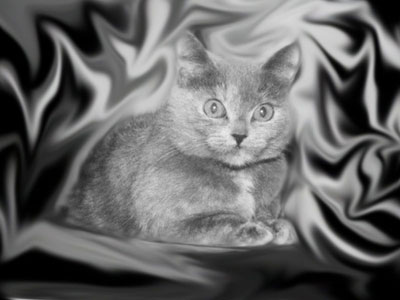
Step 4. Select Smudge Tool from the toolbar and spread the background around the cat in curls. The more curls you make, the better the result will look.
-
Step 5. Now call the plug-in AKVIS Coloriage AI (Effects -> AKVIS -> Coloriage AI) and start colorizing the photo.
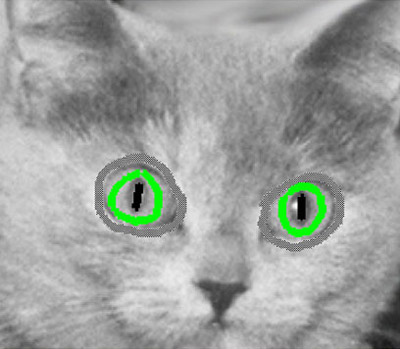
First add color to the cat's eyes. For this purpose outline them with Keep Color Pencil
 (to prevent the color of the eyes from spreading to other parts of the image), then draw a green outline inside both eyes of the cat and black strokes inside of the pupils using the Pencil tool
  .
.
To make application of small strokes easier, increase the image scale and reduce the brush size of the Pencil tool.
-
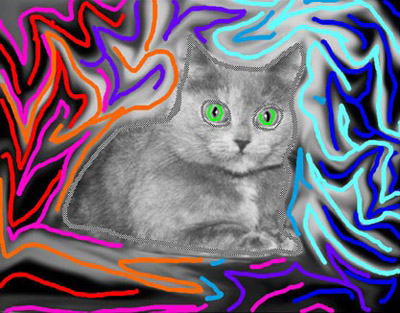
Step 6. Now move on to the background colorization. Firt we should draw an outline within the cat with Keep Color Pencil because we intend to leave the cat gray.
Start applying color strokes to the background. To get a fancy background try to draw strokes along the curls and lines. Take into account that dark and saturated colors (red, blue, violet, etc) look better on a dark background while for a light background you should choose bright and light colors (green, yellow, blue).
-
Step 7. When ready, press the button
 and see the result in the After tab.
If you are not satisfied with the result, you can go back to the Before tab and edit the shape and color of the strokes.
The buttons in the Toolbar allow you to:
- erase strokes with Eraser tool
 ;
;
- draw new strokes with Pencil tool;
- re-color separate strokes using Tube tool or re-color all strokes of one color with Magic Tube tool
  .
.
You can save the strokes in a separate file
 and load previously saved strokes with the button
  .
.
-
Step 8. When you are satisfied with the result, press the button
 to apply the result and close the plug-in's window.
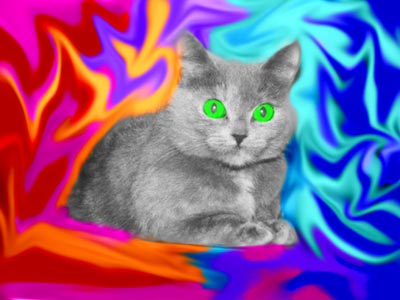
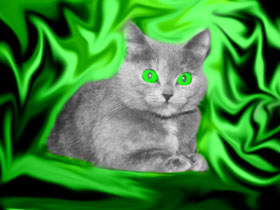
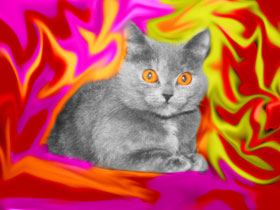
As a result we see a green-eyed cat against a fancy background and it all took us only a few minutes! You can play further to get different versions.
Coloriage AI v. 15.7 - 10日間の評価期間
