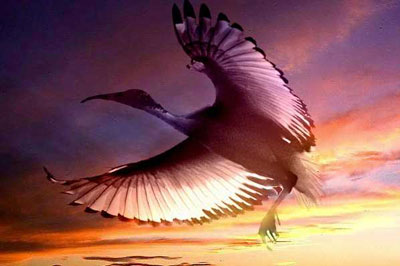
Bird in the sky
Now the technique of using AKVIS Chameleon is different, but the result will be the same.
Consult the article "Blend mode" to get the same result with the new version. In the older versions (before v.5.0) this mode was called Snapshot and applied automatically right after you launch the plugin from the menu Filter.
The author of the tutorial is Gun Legler. You are welcome to see her wonderful works at her Art Gallery.
The photo collage has been created in Jasc Paint Shop Pro 7.
The author combined a color picture and a black and white image.
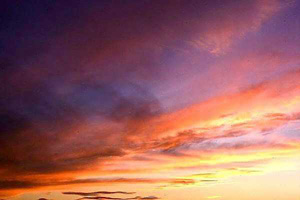
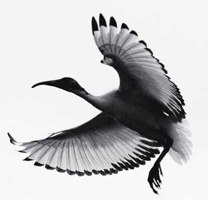
First of all we select the background of the black and white image using Magic wand and invert the selection. The idea behind is that it is easier to select a homogeneously colored area than the bird. If we invert the selection, it is the bird that becomes selected. Then we copy the bird by calling the command Edit - Copy.
Take a snapshot of the photo with the sky by selecting the command AKVIS - Chameleon (Take Snapshot) from the menu Effects.
Having taken the snapshot, paste the bird into a new layer of the photo of the sunset sky.
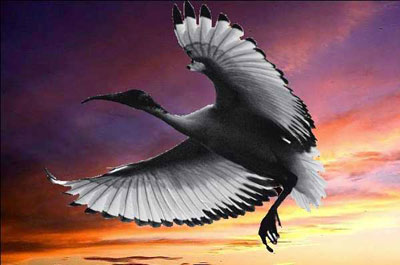
Before you start AKVIS Chameleon you should select the bird once again. The easiest way to select the bird is to use the Magic wand and invert the selection. Having selected the bird, merge the layers.
Now you can launch the Chameleon Plugin Effects -> AKVIS Chameleon (Use Snapshot).
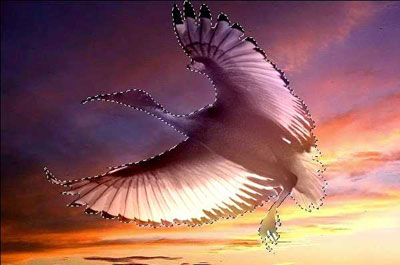
The black and white bird became colored. To touch up the photo collage you can reduce the brightness of the bird to -20 and increase the contrast to 15 (Adjust -> Brightness and Contrast).
Now, you can remove the selection and your photo collage is ready.
Chameleon v. 12.1 - 10日間の評価期間

