Leonessa in gabbia: rimozione delle sbarre di ferro
AKVIS Retoucher è molto efficiente durante le attività di restauro fotografico. Può essere utilizzato per il ripristino di vecchie foto danneggiate o per eliminare qualsiasi oggetto indesiderato come: una data, un dito accidentalmente posizionato sull’obiettivo o qualunque altra cosa che compromette la bellezza dell’immagine.
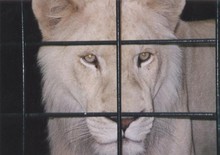
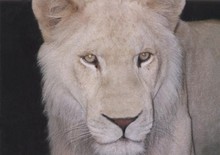
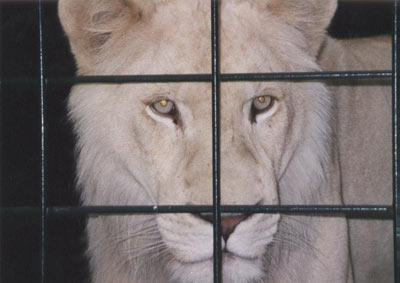
In questo esempio considereremo l’uso di AKVIS Retoucher per rimuovere le sbarre della gabbia dalla foto qui sotto.
- Passaggio 1. Aprire l'immagine in AKVIS Retoucher.
Selezionare le sbarre utilizzando lo strumento Pennello selezione
 , senza dimenticare le ombre o i riflessi.
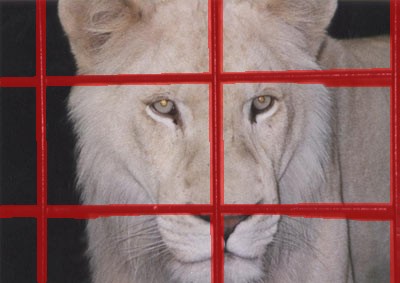
- Passaggio 2. Dopo aver avviato il processo di ritocco premendo
 le zone rosse scompariranno, e con esse le sbarre della gabbia, portando a questo risultato:
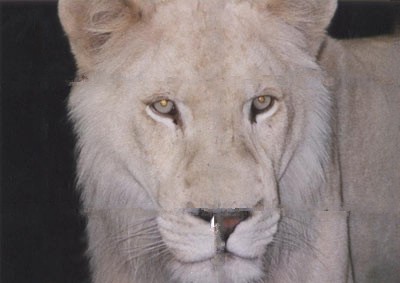
- Passaggio 3. Dal momento che i passaggi con lo sfondo non sono convincenti, l'immagine deve essere elaborata con maggior precisione. Quindi premere
 per annullare l'azione precedente. Passare alla modalità Avanzata e selezionare lo strumento Ritocco lineare
  . Disegnare alcuni tratti più luoghi attraverso le zone che si desidera ripristinare:
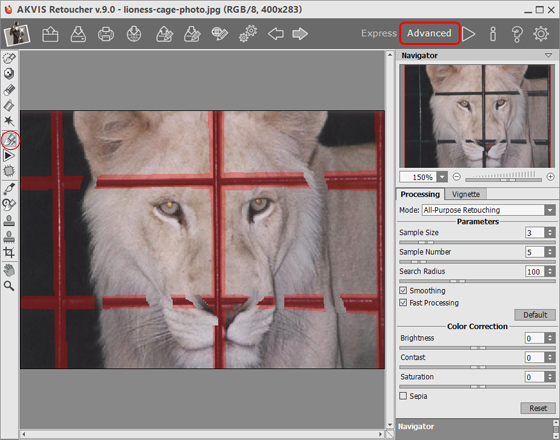
Elaborare l'immagine premendo
.
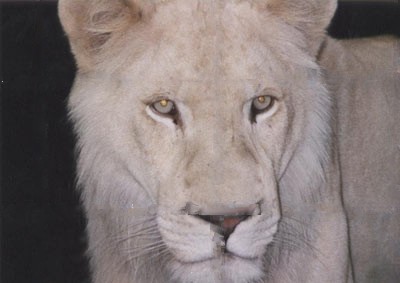
- Passaggio 4. Il risultato del ritocco non è perfetto; Retoucher ha omesso di ripristinare il naso che era quasi completamente oscurato dalle sbarre. Per fronteggiare le incongruenze utilizzeremo lo strumento Timbro clona
 .
.
Il Timbro clona consente di risanare i settori danneggiati servendosi di frammenti prelevati da altre parti della foto. Scegliere un campione per la clonazione facendo clic su una zona adatta tenendo premuto Alt (Opzione in Mac). Per applicare il frammento clonato portare il cursore sulla zona che si desidera riparare e fare clic con il tasto sinistro.
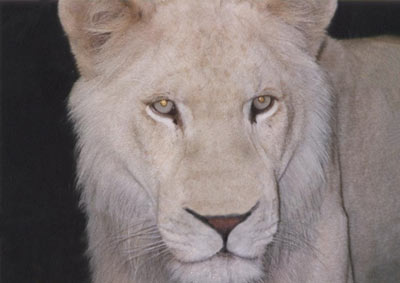
Guardate questa foto, le sbarre della gabbia sono state rimosse e la leonessa è finalmente libera, anche l’espressione del suo muso è cambiata sembrando finalmente più felice.
Retoucher v. 12.2 - 10-giorni di prova gratuita
