Foto storica: un gruppo di zingari
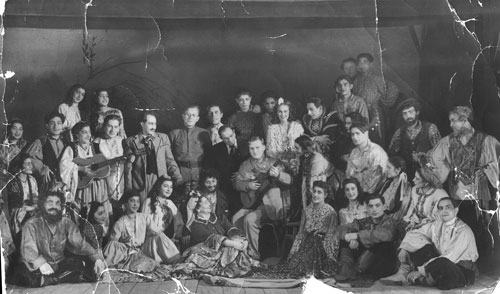
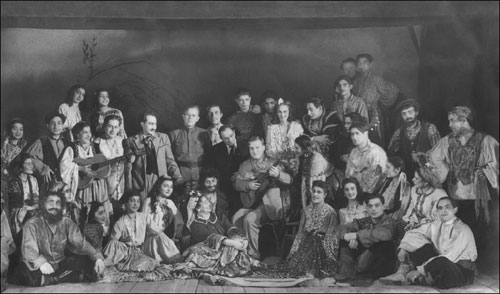
Ecco una vecchia immagine di un gruppo di zingari tratta da un archivio storico. La foto è gravemente danneggiata dall’usura del tempo, è ricoperta da numerosi graffi ed i bordi sono irregolari e sgualciti.
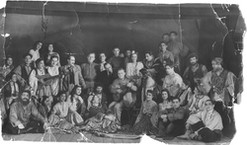
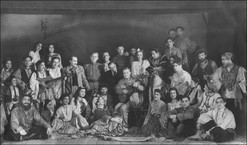
Si noti che l’immagine ha un valore storico in quanto riflette la cultura di un popolo ed è importante conservarla per le future generazioni. Gli zingari conducono una vita nomade e le foto che li ritraggono sono abbastanza rare. Qui possiamo ammirare i loro costumi ed alcuni strumenti musicali.
Nel corso degli anni gli archivi del museo non stanno migliorando e per preservare queste immagini esse vengono digitalizzate. In questo modo è possibile applicare le più avanzate tecnologie informatiche per migliorare la loro qualità.
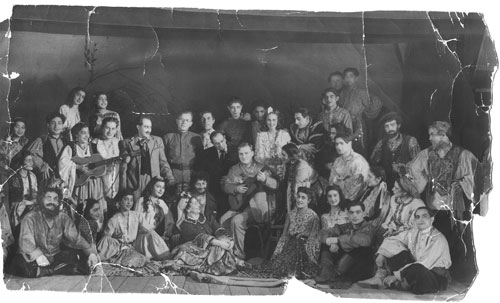
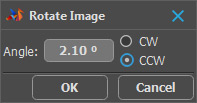
Preparare la foto per il ritocco. Aprire l’immagine in AliveColors (o altro). Prima di tutto è necessario raddrizzarla cliccando su Immagine -> Trasforma immagine -> Ruota a..., inserendo il valore Angolo di 2,1° e selezionando Antiorario.
Poi tagliare tutte le parti superflue con lo strumento Taglierina  oppure premere il tasto C. Selezionare la parte dell'immagine che deve essere mantenuta e premere Invio; tutto ciò che si troverà all’esterno della cornice tracciata sarà rimosso.
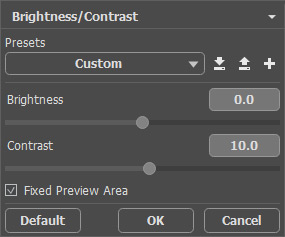
Ora è il momento di migliorare il contrasto della foto cliccando su Immagine -> Regolazione -> Luminosità/Contrasto ed immettere +10 nel campo del Contrasto.
Lanciare il plugin scegliendolo dal menu Effetti -> AKVIS -> Retoucher e selezionare le aree da ritoccare utilizzando il Pennello selezione  .
.
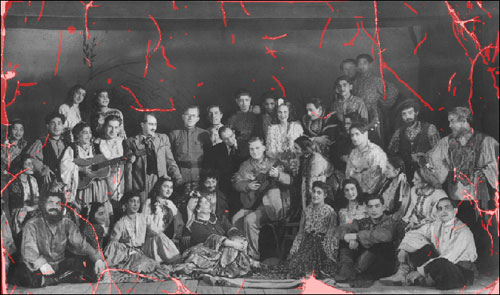
Per avviare la ricostituzione delle aree evidenziate in rosso premere  . Durante il processo di restauro i tratti rossi spariranno, restituendo una texture restaurata.
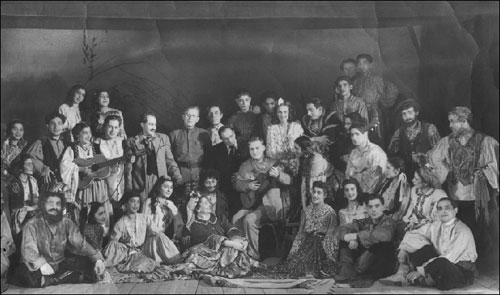
Il plugin ha fatto un ottimo lavoro, tuttavia sullo sfondo si vedono ancora gli aloni delle pieghe precedenti.
Essi possono essere facilmente ritoccati con i nuovi strumenti di AKVIS Retoucher: Timbro clona  e Pennello camaleonte
  oppure, dopo la chiusura del plugin
  , con gli strumenti di AliveColors:
 - Sfocatura (tasto rapido K);
- Pennello camaleonte (tasto rapido S);
 - Sbavatura (tasto rapido K).
- Timbro clona (tasto rapido S).
A ritocco ultimato si otterrà la seguente fotografia:
Retoucher v. 12.2 - 10-giorni di prova gratuita
