Teiere per tutti i gusti
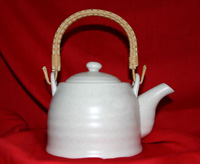
Questa teiera così semplice può diventare qualcosa di veramente unico cambiando il materiale o il colore con AKVIS Decorator.
 |
 |
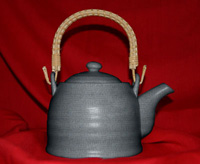 |
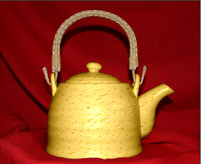
| Immagine originale | Risultati: la teiera "formaggio" e la teiera per la cerimonie orientali del tè | |
- Passaggio 1. Prima di tutto prendere la foto di una teiera, meglio se senza disegni.
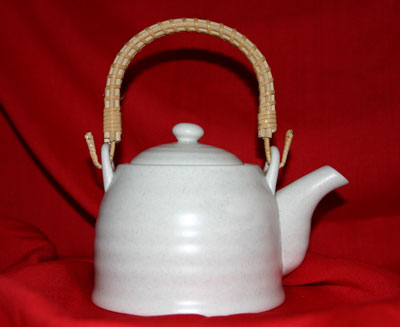
- Passaggio 2. Aprire la foto in un qualsiasi foto editor compatibile con AKVIS Decorator.
- Passaggio 3. Selezionare il corpo della teiera (senza maniglia) utilizzando uno strumento di selezione. La cosa principale è che si utilizzi la modalità più comoda per disegnare dei contorni precisi.
In AKVIS Decorator è possibile creare/modificare la selezione.
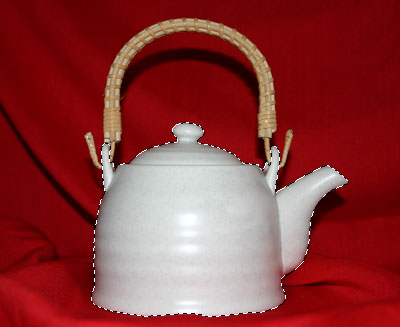
- Passaggio 4. Aprire il plugin AKVIS Decorator e selezionare una texture dalla Libreria texture. Noi abbiamo scelto una spiritosa texture con formaggio.
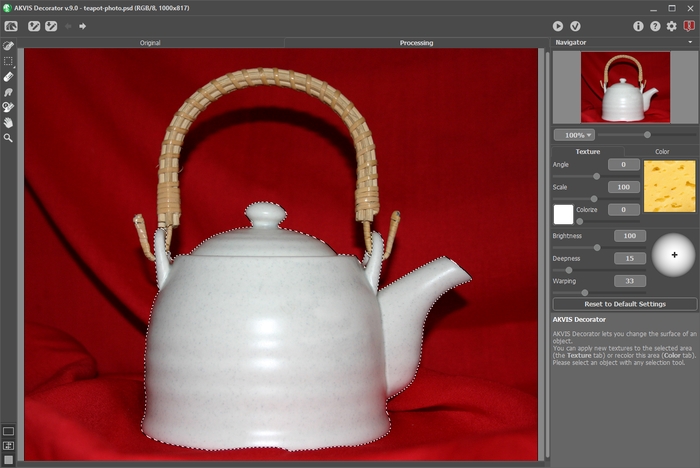
- Passaggio 5. Premere il pulsante
 .
.
In pochi secondi apparirà la teiera "formaggio" nella scheda Elaborazione. La nostra immaginazione ci porta in un accogliente chalet nel cuore delle Alpi, dove, vicino al camino, ci aspetta una gustosa Fondue al formaggio e, al termine di questo piacevole momento, un profumato tè.
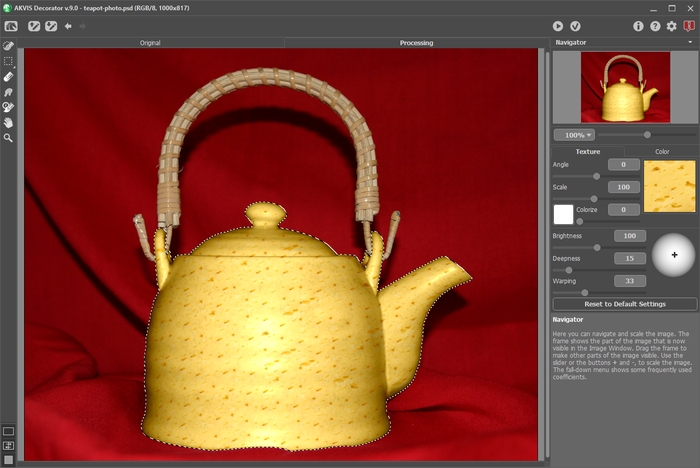
- Passaggio 6. Possiamo anche decidere di ricoprire la struttura della teiera scegliendo, per esempio, una texture di carta ruvida colore grigio scuro. Premere il pulsante .
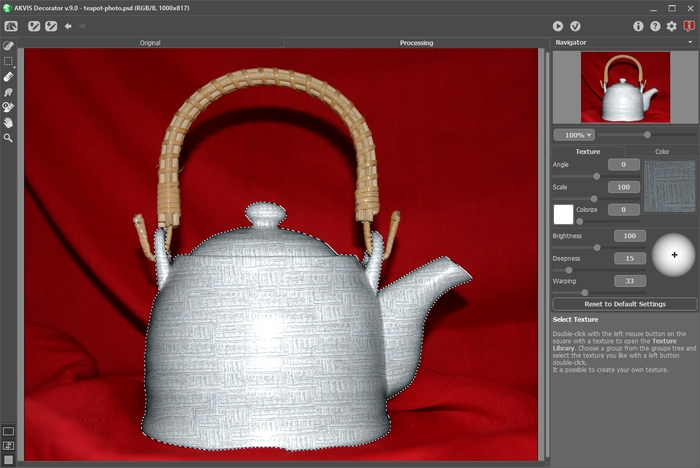
- Passaggio 7. Il colore di base della teiera è chiaro, quindi anche se si applica una trama scura avremo sempre e solo un effetto chiaro. Per risolvere questo problema e scurirla, ridurre semplicemente il valore del parametro Luminosità.
Ogni volta che si regolano i parametri è necessario premere il pulsante
per applicare le modifiche e visualizzare il risultato nella scheda Elaborazione della Finestra immagine.
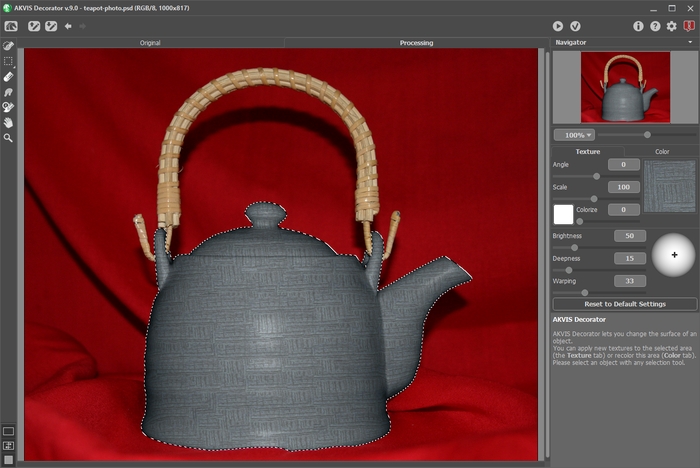
- Passaggio 8. Per dare alla nuova struttura un look più naturale creando volume, aumentare il valore del parametro Profondità. In questo modo la distribuzione di luci e d’ombre diventa più pronunciata, la aree scure diventano più scure, le aree chiare diventano più luminose.
La foto è stata scattata con il flash incorporato, in questo modo la luce cade direttamente sul soggetto, ecco perché non c’è bisogno di cambiare la posizione della sorgente di luce sulla sfera.
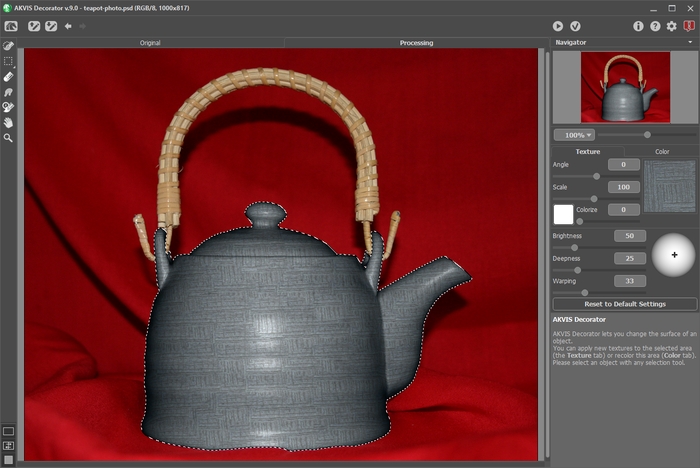
- Passaggio 9. Applicare il risultato premendo il pulsante
 . La semplicità del motivo e la sobrietà del colore non possono che evocare le raffinate cerimonie orientali del tè.
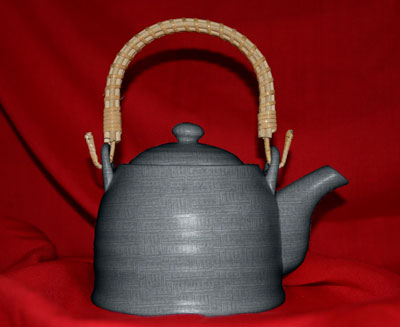
Cliccare sulla foto per aprire una finestra più grande
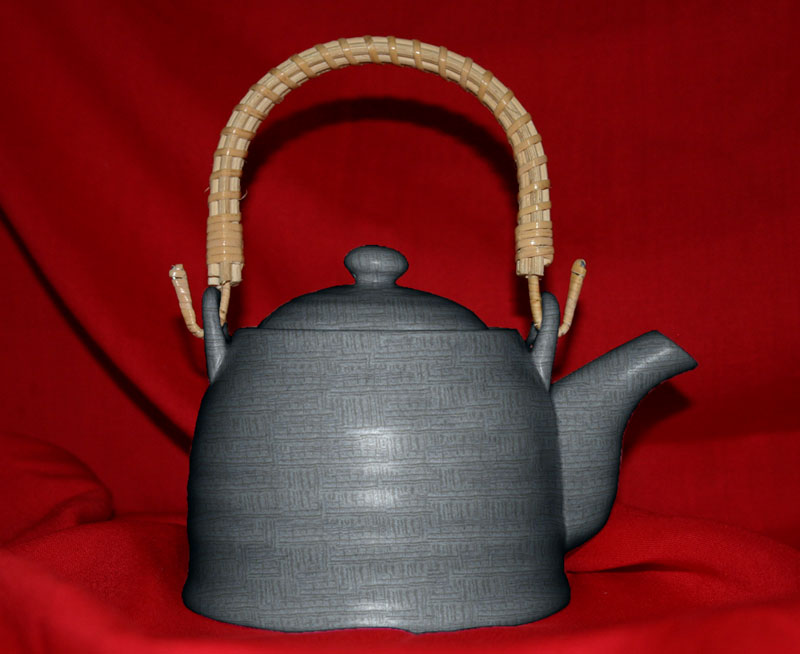
Nota: Se la selezione non è stata precisa o se la foto di base non permette una selezione corretta, dopo l’utilizzo di AKVIS Decorator, si possono ritoccare i bordi con lo strumento sfocatura di piccole dimensioni. Ad esempio, è possibile ritoccare con lo strumento Sfocatura  ad Raggio = 1.5.
Decorator v. 9.1 - 10-giorni di prova gratuita
