Creazione di una cartolina di Natale
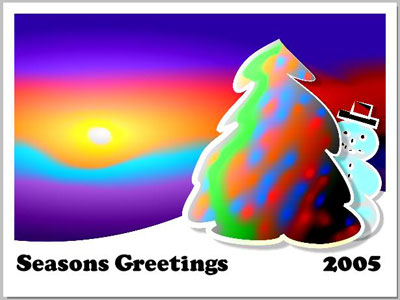
Questo esempio è stato creato da Michael Foutty con il plugin AKVIS Coloriage AI in Xara Xtreme (per l’Italia: MAGIX Photo & Graphic) e mostra come può essere facilmente realizzato un paesaggio coperto di neve.
Nota: Il seguente tutorial presuppone che si abbia una conoscenza di base di come lavorare con Xara Xtreme o MAGIX Photo & Graphic.
Realizzare lo sfondo
In Xtreme creare un rettangolo [800x600] ed impostare il colore di riempimento nero.
Selezionare lo Strumento di riempimento (F5).
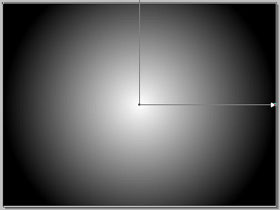
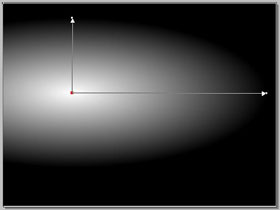
Scegliere un riempimento Ellittico dal menu a discesa e regolare di conseguenza.
Convertire il rettangolo selezionando dal menu: Arrangia -> Combina forme, quindi scegliere, dalla Barra degli strumenti sulla sx, lo strumento Modifica della forma e regolare il rettangolo di dare l'apparenza di una collina.
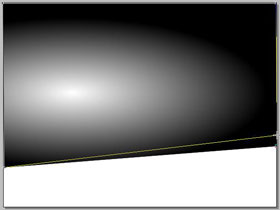
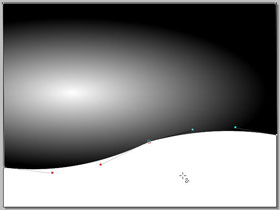
Ora è tempo di mettere all’opera il plugin Coloriage AI, questo è fattibile cliccando su Strumento effetto live (Ctrl + F5) che si trova nella Barra degli strumenti a sx, e selezionare il plugin AKVIS -> Coloriage AI dalla lista che appare in una nuova finestra.
Una volta all'interno dell'area di lavoro del plugin c’è una varietà di opzioni tra cui scegliere.
Prima di tutto disegnare il sole e proteggere la sua luminosità utilizzando la Matita conserva colore  tracciando un piccolo cerchio intorno al suo centro.
Quindi applicare una vasta gamma di colori utilizzando lo strumento Matita  . Immaginate gli effetti dei colori nella trasparenza della scala di grigi.
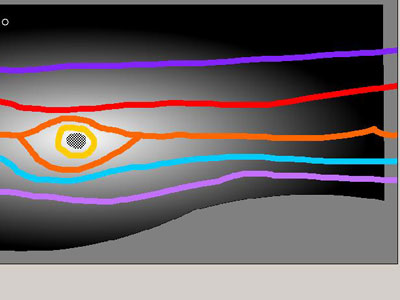
Cliccare su  per elaborare l'immagine.
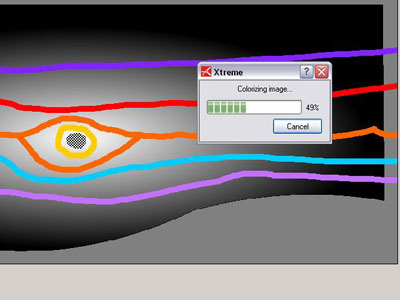
Qualora i risultati non dovessero essere di proprio gradimento, ritornare semplicemente alla scheda Prima, eseguire le modifiche e cliccare nuovamente su .
Quando tutto è soddisfacente, fare clic su  , Coloriage AI verrà chiuso ed il lavoro trasportato nell’area di Xara.
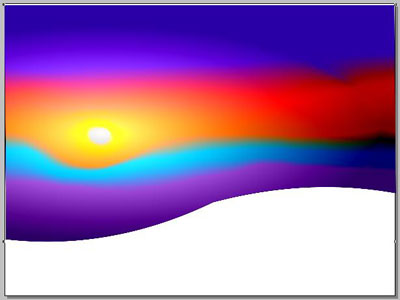
Lo sfondo è completato.
Ora creare un albero coperto di neve
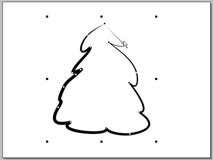
Utilizzare lo Strumento di disegno libero e pennello per disegnare l’albero.
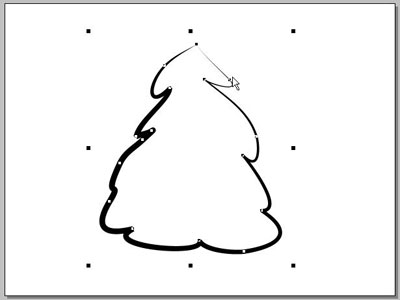
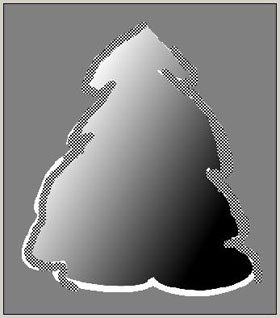
Impostare il colore di sfondo nero e quello della linea circostante di bianco. Selezionare lo Strumento di riempimento (F5) e sceglie il riempimento Lineare dal menu a discesa. Regolare di conseguenza.
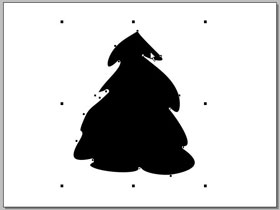
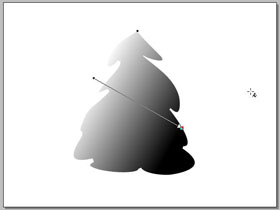
Selezionare la forma dell'albero e accedere nuovamente al plugin Coloriage AI.
Prima di tutto proteggere le aree bianche della neve delineandole, come abbiamo fatto con la luminosità del sole, con la Matita conserva colore per assicurare che rimangano candide come neve appena caduta.
Poi applicare il verde dell'albero con lo strumento Matita .
Ora sbizzarrirsi aggiungendo dei colori per simulare le luci che brillano sull’albero.
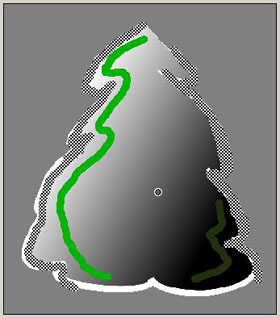
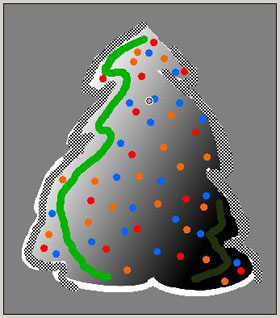
Quando tutto è pronto avviare l’elaborazione e ritornare a Xara.
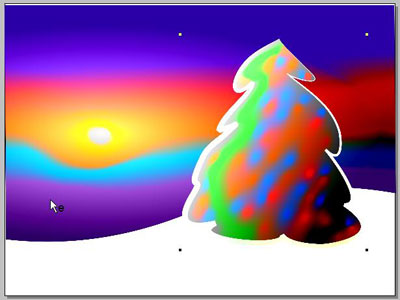
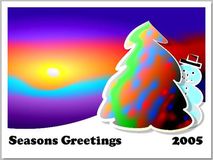
Aggiungere il testo ed un pupazzo di neve. Ecco l'immagine completa!
Tanto successo e buone vacanze!
Coloriage AI v. 15.7 - 10-giorni di prova gratuita
