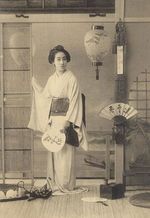
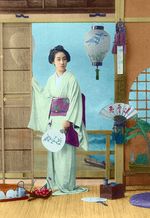
Una vecchia cartolina giapponese
Il tutorial è stato creato e scritto da Laura Mabee con l’utilizzo del plugin AKVIS Coloriage AI in AliveColors. Per effettuare questo lavoro è possibile usare anche la versione standalone, un’applicazione indipendente che non necessita di un editor grafico.
In questo tutorial vi mostrerò come far rinascere l’esotismo orientale di una vecchia cartolina degli inizi del 1900, raffigurante una Geisha, con AKVIS Coloriage AI.
-
Passaggio 1. Aprire l’immagine nell’editor grafico.
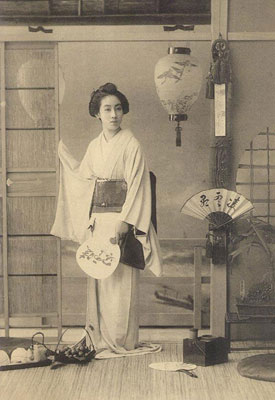
- Passaggio 2. Avviare il plugin AKVIS Coloriage AI selezionandolo dal menu Effetti -> AKVIS -> Coloriage AI di AliveColors.
-
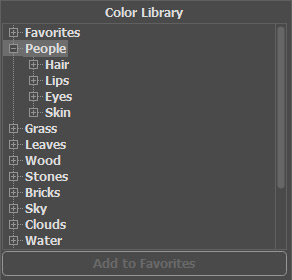
Passaggio 3. Passare alla modalità Classica. Decidere quali colori utilizzare per rendere l'immagine un vero capolavoro. Prendetevi tutto il tempo necessario, ricordando che L. da Vinci non ha dipinto la Gioconda in un'ora.
Utilizzare l’utilissima Libreria colori e scegliere le tinte adeguate.
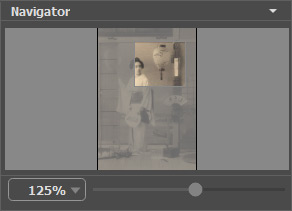
- Passaggio 4. Iniziare a delineare internamente gli oggetti dell’immagine con i rispettivi colori usando la Matita
 .
.
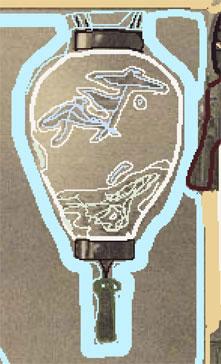
- Passaggio 5. Tutto dipende da voi, dalla precisione dei colori che si vuole raggiungere: è possibile colorare ogni minimo particolare con meticolosità oppure abbozzare qualche tinta qua e là "in fretta". Qui di seguito ecco il dettaglio della lampada giapponese:
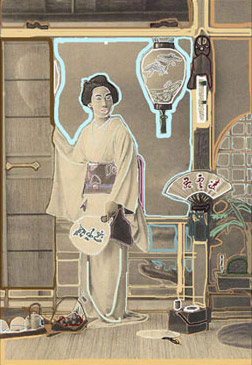
- Passaggio 6. Assicurarsi di non aver tralasciato nulla.
- Passaggio 7. Premere su
 …e voilà!
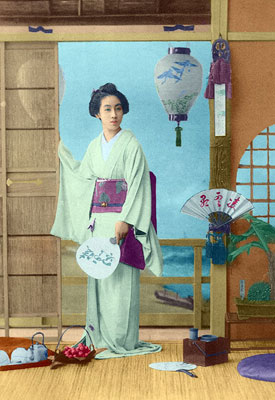
Coloriage AI v. 15.7 - 10-giorni di prova gratuita

- Passaggio 4. Iniziare a delineare internamente gli oggetti dell’immagine con i rispettivi colori usando la Matita