Graphic software for Windows Mac graphic software
Inserisci la tua e-mail per essere informato delle novità:
 
  
  Prodotti     Download     Online Store     Tutorial     Supporto     Chi siamo
en  fr  de  es  pt  it  jp  ru    
 

Tutorial: AKVIS Chameleon

Working with AKVIS Chameleon V.1.x-4.x in Corel Photo-Paint


Siamo spiacenti, questa pagina al momento è disponibile solo in lingua inglese.
La versione italiana sarà presto disponibile.
Se desiderate ottenere la licenza per la traduzione per favore scriveteci.

How It Works: for the Chameleon PlugIn V.1.x-4.x

In its old versions AKVIS Chameleon applied automatically right after you launched it from the menu Filter. It didn't have an interface and offered only two modes of collage creation.

Look how you could work with the old Chameleon:


The AKVIS Chameleon Plug-in offers two modes of photo collage creation: Standard and Snapshot.

In Standard mode of collage creation the program adjusts the inserted object to the target image color range and smoothes the object's borders.

Learn how to use Standard mode of AKVIS Chameleon by watching a flash movie. Click here (flash-movie, 2,6 Mb)


To create a photo collage in Corel Photo-Paint in Standard mode follow the instructions below:

  • Step 1. Select an object for the photo collage with any mask tool. Make sure that the button Anti-aliasing in the Options palette of the chosen selection tool is deactivated (the box Anti-aliasing must not be pressed). Read more about mask tools here.
  • Step 2. Copy the selection using the command Edit -> Copy.
  • Step 3. Activate the background image and paste the copied object with the command Edit -> Paste -> Paste as New Selection.
  • Step 4. Do not remove the mask!
  • Step 5. Adjust the position of the pasted object on the photo using the Object Pick Tool. It's crucial to do it at this moment, because it won't be possible later on.
  • Step 6. Call the command Mask -> Invert twice. That's the trick. Nothing changes in the appearance but it becomes possible to call the plug-in.
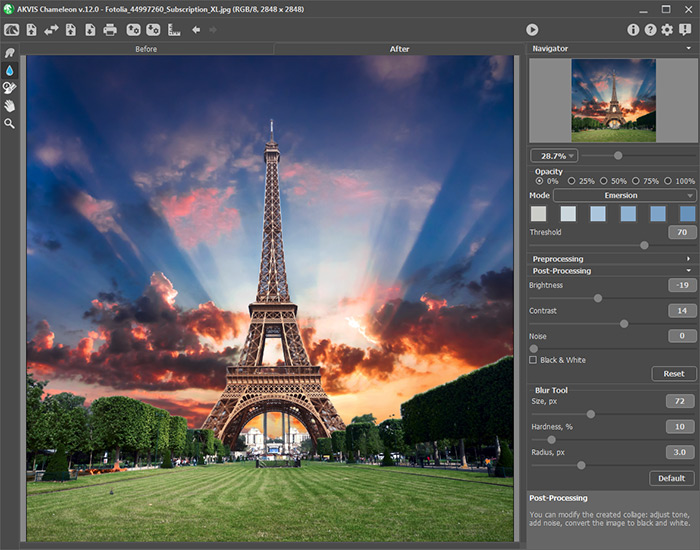
  • Step 7. Call AKVIS Chameleon by selecting the command Effects -> AKVIS -> Chameleon.
  • Step 8. Remove the mask with the command Mask -> Remove.
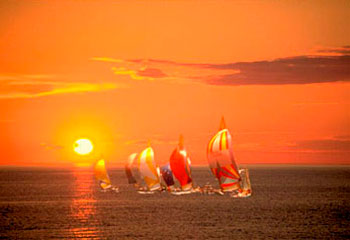
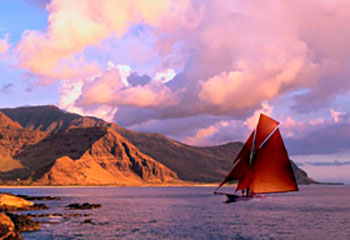
Image: sunset in the sea Image: yachts in the sea Photo Collage


In Snapshot mode, the program does not only smoothes the borders of the inserted object and adjusts its color range, but it also makes the object semi-transparent, so that the texture and the relief of the primary image can be seen through.

Learn how to use Snapshot mode of AKVIS Chameleon by watching a flash movie. Click here (flash-movie, 5,38 Mb).


Follow the instruction to process a photo in Snapshot mode in Corel Photo-Paint:

  • Step 1. Select an object with any mask tool. Make sure that the button Anti-aliasing in the Options palette of the chosen selection tool is deactivated (the box Anti-aliasing must not be pressed). Read more about mask tools here.
  • Step 2. Copy the selection using the command Edit -> Copy.
  • Step 3. Activate the background image and call the command Effects -> AKVIS -> Chameleon (Take Snapshot).
  • Step 4. Still on the background layer paste the copied object with the command Edit -> Paste -> Paste as New Selection.
  • Step 5. Do not remove the mask!
  • Step 6. Adjust the position of the pasted object on the photo using the Object Pick Tool. It's crucial to do it at this moment, because it won't be possible later on.
  • Step 7. Call the command Mask -> Invert twice. That's the trick. Nothing changes in the appearance but it becomes possible to apply the plug-in.
  • Step 8. Call the plug-in AKVIS Chameleon by selecting the command Effects -> AKVIS -> Chameleon (Use Snapshot).
  • Step 9. Remove the mask with the command Mask -> Remove.
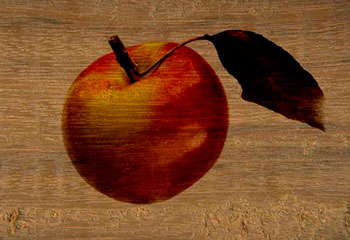
a wooden board an apple Photo collage

Attention! If the pasted object does not fit into the background you should adjust its size before copying it into the main picture.


Area di lavoro Area di lavoro
Funzionamento Funzionamento
Modalità Montaggio (Montage) Modalità Montaggio (Montage)
   — Fotocaccia — Fotocaccia
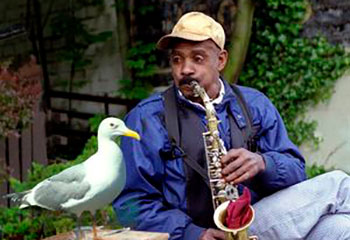
   — Serenata per un gabbiano — Serenata per un gabbiano
Modalità Camaleonte (Chameleon) Modalità Camaleonte (Chameleon)
   — Veleggiare al tramonto — Veleggiare al tramonto
   — Un nuovo sguardo — Un nuovo sguardo
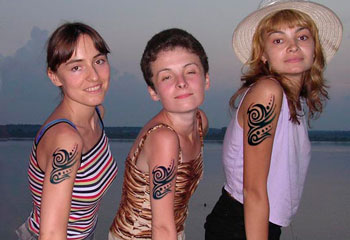
   — Prova un tatuaggio — Prova un tatuaggio
   — L'Olandese volante — L'Olandese volante
   — Il Gatto ed i fiori — Il Gatto ed i fiori
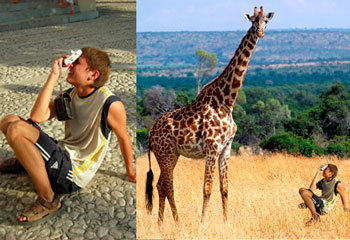
   — L'elefante nella savana — L'elefante nella savana
   — Ricostruzione archeologica — Ricostruzione archeologica
   — Il lago dei cigni — Il lago dei cigni
Modalità Fusione (Blend) Modalità Fusione (Blend)
   — Pittura su legno — Pittura su legno
   — Biglietto di San Valentino — Biglietto di San Valentino
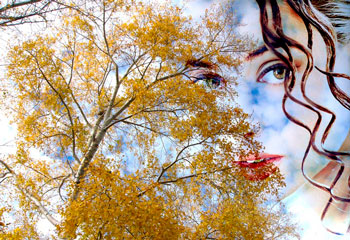
   — Collage d'autunno — Collage d'autunno
   — Una foto fiammeggiante — Una foto fiammeggiante
   — Sostituire il cielo — Sostituire il cielo
   — Sfondo con leopardo — Sfondo con leopardo
Modalità Emersione (Emersion) Modalità Emersione (Emersion)
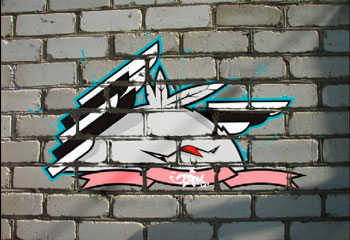
   — Per gli appassionati di graffiti — Per gli appassionati di graffiti


   Informativa sulla privacy | Mappa del sito | Cerca nel sito    
   Contatti | Twitter | Facebook   
| English  |Français  |Deutsch  |Español  |Português  | Italiano  |日本語  |Pусский  | © 2004-2010 AKVIS.com. Tutti i diritti riservati.