Comment corriger les artefacts dans une mauvaise image JPEG
L'auteur de ce tutoriel est Philippe Gregoire, un peintre numérique belge qui travaille avec Photoshop, Poser et Corel Painter.
Attention ! Le tutoriel a été réalisé avec l'ancienne version de l'algorithme du logiciel AKVIS Noise Buster. À partir de la version 12.0, il utilise des réseaux de neurones entraînés pour supprimer le bruit. Vous pouvez voir le travail de Noise Buster AI ici.
Pour éliminer le bruit et la pixellisation, Philippe a utilisé AKVIS Noise Buster. Maintenant, un logiciciel gratuit spécialisé pour la suppression d'artefacts jpeg est disponible — AKVIS Artifact Remover AI.
 |
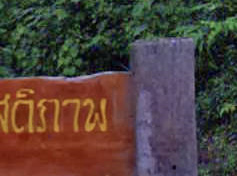 |
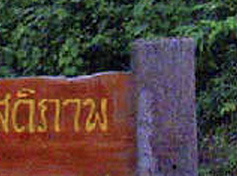
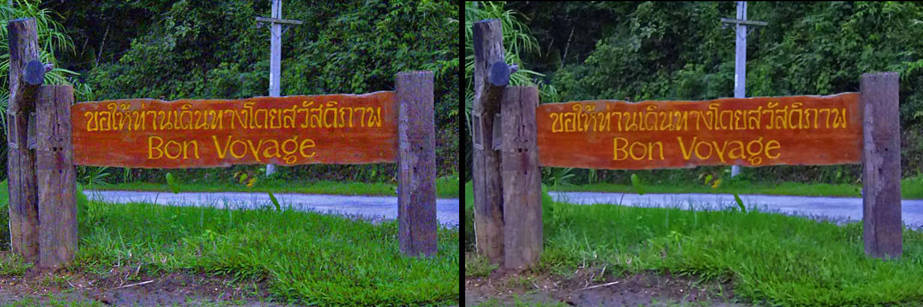
| Fragment avant filtration : photo avec bruit | Fragment après filtration : photo améliorée |
Philippe a écrit :
Il y a quelques semaines, un ami m'a parlé d'un plugin appelé AKVIS Noise Buster qui pourrait m'aider à résoudre mes problèmes de bruit d'image.
Pour mon travail, je pars toujours de photos que je prends moi-même et je fais aussi beaucoup de scans. Mon principal problème est d'améliorer d'abord la qualité de la photo et de la numérisation car toutes les images numérisées ont toujours beaucoup de bruit, en particulier celles qui proviennent des impressions. Les photos prises dans de mauvaises conditions d'éclairage ont également beaucoup de bruit.
La seule solution que j'avais dans Photoshop était d'appliquer le Flou gaussien puis l'Accentuation à mes images source. J'utilisais également un filtre anti-bruit dans PS pour supprimer le bruit restant. Mais le point principal avec tous ces outils est que quoi que vous essayiez, vous perdez toujours la netteté et les détails de l'image à la fin.
J'ai ensuite essayé AKVIS Noise Buster et lors de ma première tentative, j'ai été immédiatement surpris. Il fait un excellent travail de lissage de mes images sans perdre en netteté. Par exemple, dans une vue rapprochée d'une image où vous pouvez voir toutes les imperfections de la peau, AKVIS Noise Buster la transforme en une image où le sujet a une peau jeune et lisse tout en préservant la netteté des yeux, des lèvres et d'autres détails.
Parfois, vous obtenez une très mauvaise image JPEG.
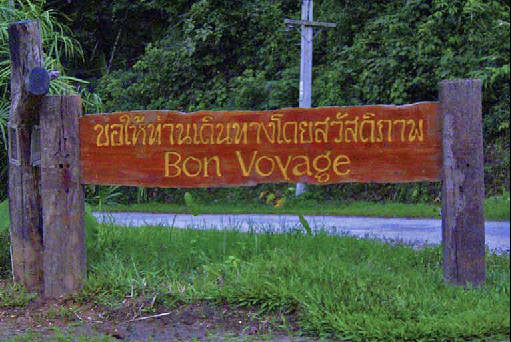
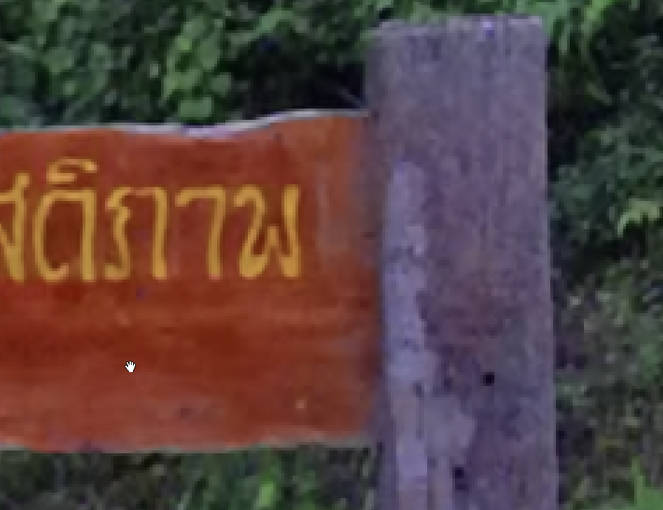
À première vue, l'image n'a pas l'air si mal, mais si vous zoomez un peu, vous verrez le design typiquement carré pixelisé que l'on peut trouver sur de mauvaises images JPEG.
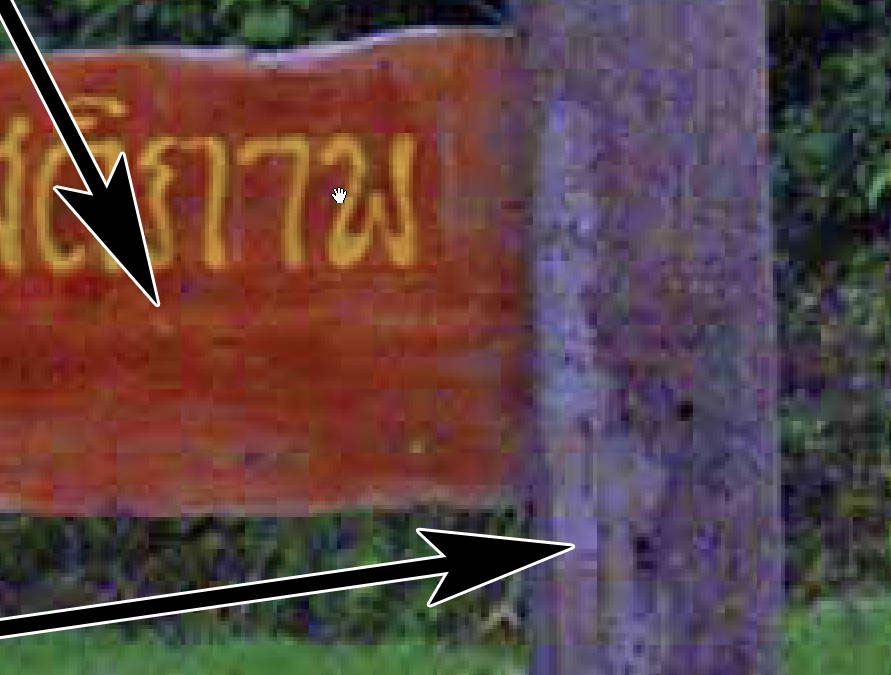
C'est alors que le plugin AKVIS Noise Buster peut être très utile.
- Étape 1. Chargez le fichier JPEG dans AliveColors. Appelez le plugin AKVIS Noise Buster (il vous suffit de choisir dans le menu principal Effets -> AKVIS -> Noise Buster).
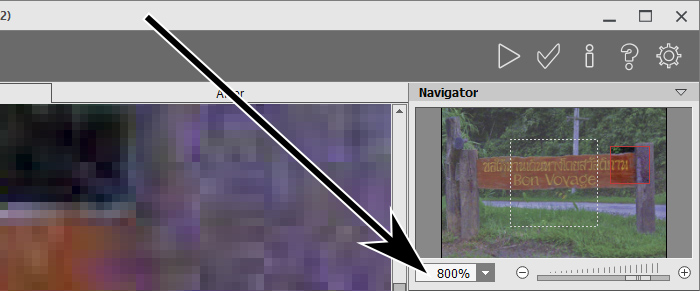
- Étape 2. Dans la fenêtre Navigation, déplacez le curseur vers la droite jusqu'à ce que vous voyiez clairement les artefacts JPEG dans la fenêtre principale.
- Étape 3. Utilisez le preset Auto Filtering.
- Étape 4. Sélectionnez une zone dans la fenêtre principale où vous pouvez facilement voir les différences entre les parties traitées et non traitées de l'image.
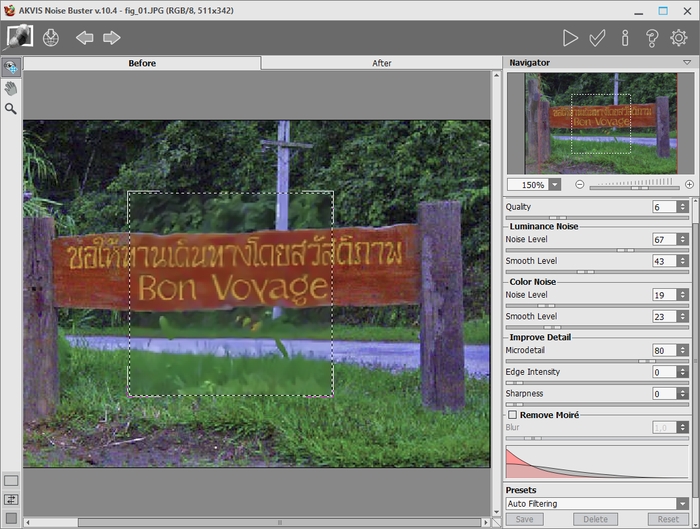
- Étape 5. Si vous aimez le résultat dans la fenêtre d'aperçu, cliquez sur le bouton
 et examinez à nouveau votre image dans AKVIS Noise Buster.
- Étape 6. Si vous êtes satisfait du résultat, cliquez sur le bouton
 pour appliquer les modifications.
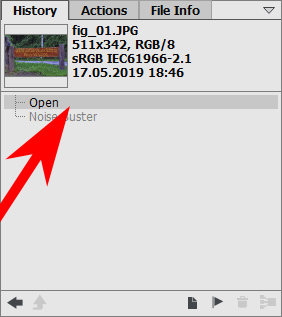
- Étape 7. Vous pouvez maintenant essayer le plugin avec des paramètres plus puissants. Accédez à la palette Historique dans AliveColors et cliquez sur le premier état de l'Historique. Cela vous ramènera à l'état d'origine de la photo.
- Étape 8. Appelez à nouveau le plugin AKVIS Noise Buster et choisissez des paramètres plus puissants.
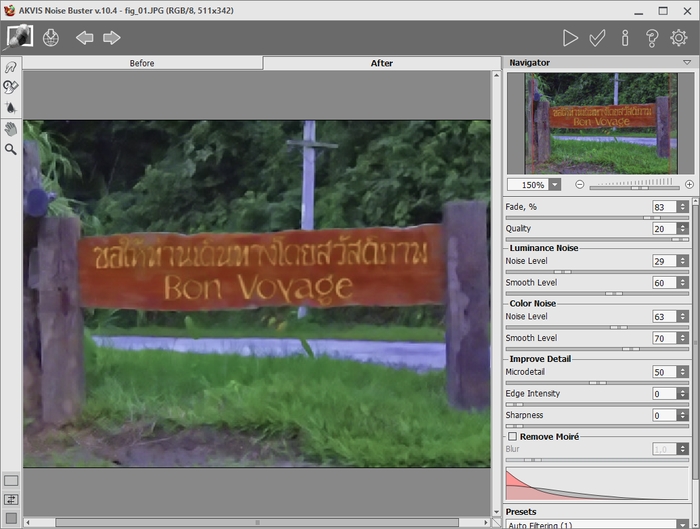
Cliquez à nouveau sur les boutons
et et vous obtenez une image plus corrigée. Peut-être que vous trouverez l'image trop corrigée.

- Étape 9. Si vous comparez l'image originale avec la première version corrigée,
vous voyez que la correction est bonne sur certaines parties de l'image (les poteaux et le panneau) et trop forte sur d'autres parties (les arbres et l'herbe).
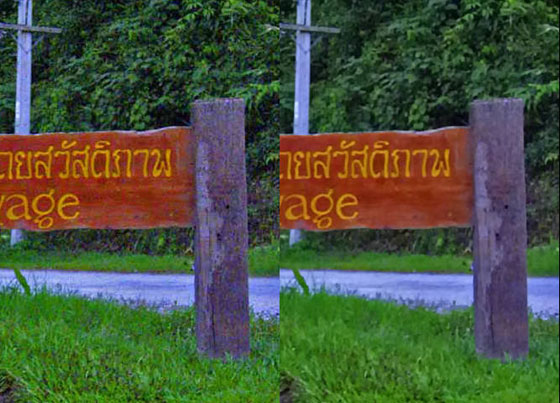
La solution sera d'isoler ces pièces les unes des autres.
- Étape 10. Faites une sélection des pièces à corriger. Le meilleur moyen est le Pinceau de sélection
 .
.
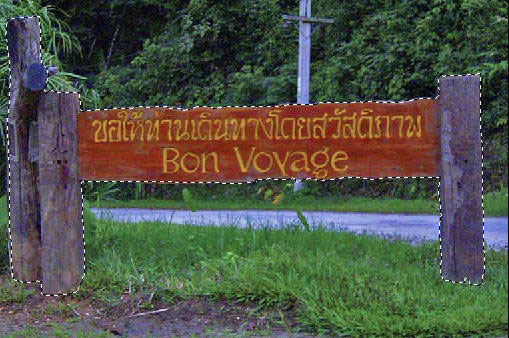
- Étape 11. Appuyez ensuite sur Ctrl+J sur le clavier. Vous obtenez une copie des pièces sélectionnées sur un nouveau calque.
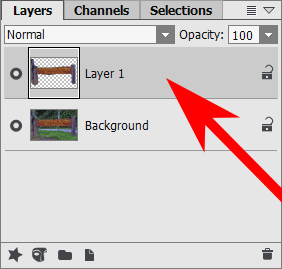
- Étape 12. Appliquez AKVIS Noise Buster (comme décrit ci-dessus) uniquement sur le calque 1 et vous obtenez une excellente image, où les poteaux et le panneau sont corrigés et l'herbe reste parfaite.

Noise Buster AI v. 13.2 - 10 jours d'essai
