Fond d'écran avec un animal de compagnie
L'auteur de ce tutoriel est Olga Podryadchikova.
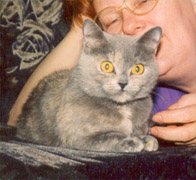
Olga a décidé de créer un fond d'écran d'une photo de son animal de compagnie. Dans ce tutoriel le plug-in Coloriage a été utilisé avec AliveColors.
-
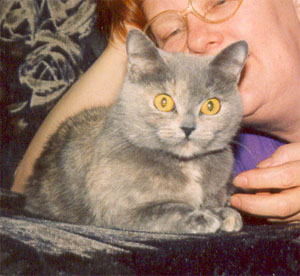
Étape 1. Choisissez une photo approprié et l'ouvrir dans votre logiciel de traitement de photos.
-
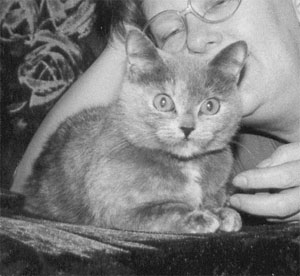
Étape 2. Appliquez la commande Image -> Réglage -> Noir et blanc pour effacer l'information de couleur.
-
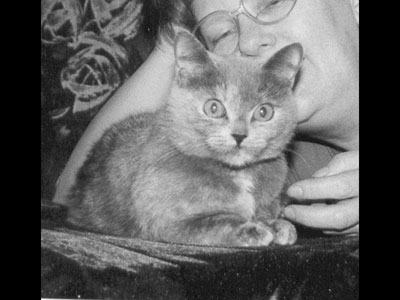
Étape 3. Puisque nous allons créer un fond d'écran, nous devons choisir les dimensions appropriées pour la photo, par exemple, 800*600 px. Tout d'abord, nous changeons la taille de l'image avec la commande Image -> Taille de l'image, puis nous augmentons la largeur de l'image avec la commande Image -> Taille de la zone de travail.
-
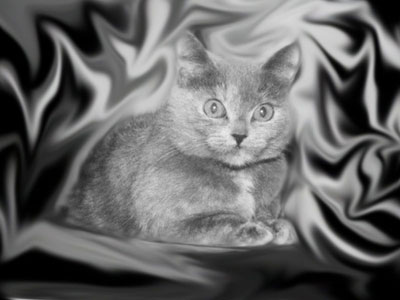
Étape 4. Sélectionnez l'outil Doigt de la barre d'outils de AliveColors pour répandre le fond autour du chat en boucles. Plus les boucles vous faites, le meilleur résultat vous obtiendrez.
-
Étape 5. Appelez le plug-in AKVIS Coloriage (Effets -> AKVIS -> Coloriage) et commencez la colorisation de la photo.
Ajoutez de la couleur aux yeux du chat. Pour ce faire, activez l'outil Garde-Couleur
 (cet outil vous permet de marquer les zones dont la couleur doit être gardée) et tracez un contour dans les deux yeux du chat et les coups noirs dans les prunelles.
Pour rendre l'application de petites touches plus facile, augmentez l'échelle de l'image et réduisez la taille du pinceau avec l'outil Crayon
 .
.
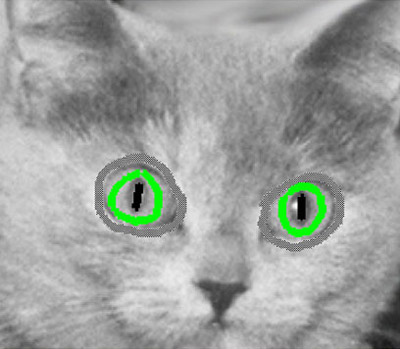
-
Étape 6. Passez maintenant à la colorisation du fond. Il faut d'abord dessiner un contour dans le chat avec l'outil Garde-Couleur parce que nous voulons laisser le chat gris.
Démarrez l'application des touches de couleurs au fond. Pour obtenir un fond de fantaisie, essayez de tracer des traits sur les boucles et sur les lignes. Veuillez noter que des couleurs sombres et saturées (rouge, bleu, violet, etc.) apparaissent mieux sur un fond sombre. Pour un fond clair, vous devez choisir des couleurs vives et claires (vert, jaune, bleu).
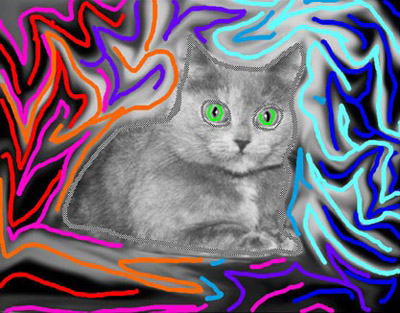
-
Étape 7. Appuyez sur le bouton
 et voyez le résultat dans l'onglet Après.
Si vous n'êtes pas satisfait du résultat, vous pouvez revenir à l'onglet Avant et modifier la forme et la couleur des contours. Les boutons de la barre d'outils vous permettent de:
- effacer les traits avec l'outil Gomme
 ;
;
- tracer des traits nouveaux avec l'outil Crayon;
- changer la couleur et la luminosité des traits avec l'outil Tube ;
;
- changer la couleur de tous les traits avec l'outil Tube magique .
.
Sauvegarder les traits en un fichier avec la terminaison .strokes avec le bouton
 et ouvrir les fichiers avec avec la terminaison .strokes avec le bouton
  .
.
-
Étape 8. Lorsque vous êtes satisfait du résultat, appuyez sur le bouton
 pour appliquer le résultat et fermer la fenêtre du plug-in.
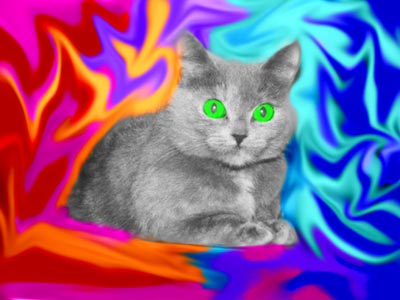
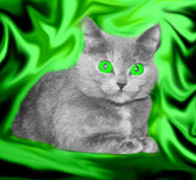
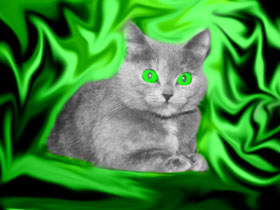
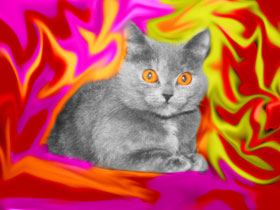
Finalement, nous voyons un chat aux yeux verts sur un fond de fantaisie, et le processus nous a pris seulement quelques minutes! Vous pouvez jouer encore pour obtenir de différentes versions du fond.
Coloriage AI v. 15.7 - 10 jours d'essai
