Cómo corregir las distorsiones usuales en una mala imagen JPG
El siguiente tutorial fue creado por Philippe Gregoire.
¡Atención! El tutorial fue creado con la versión anterior del algoritmo Noise Buster. Desde la versión 12.0 el programa utiliza redes neuronales entrenadas para eliminar el ruido. Puede ver el efecto de Noise Buster AI aquí.
Para deshacerse del ruido y la pixelación, Philippe usó AKVIS Noise Buster. Ahora un programa gratuito y especializado para la eliminación de artefactos jpeg está disponible: AKVIS Artifact Remover AI.
 |
 |
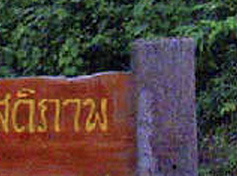
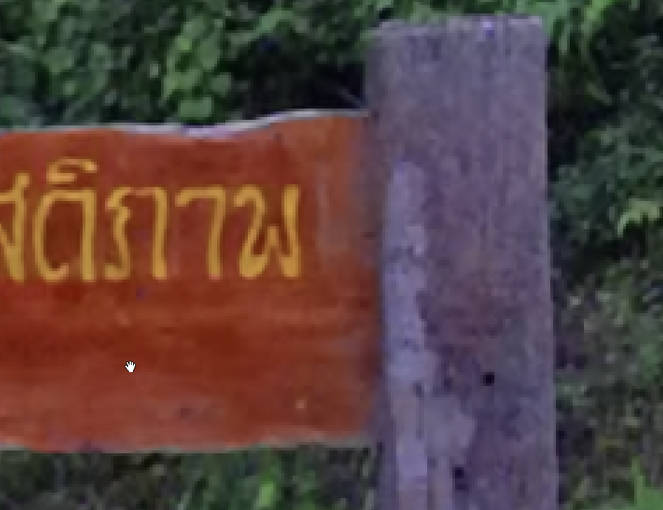
| Fragmento antes del filtro: foto con ruido |
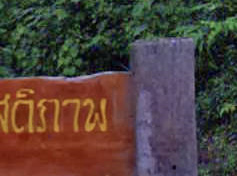
Fragmento después del filtro: foto mejorada |
Philippe escribió:
Soy un pintor belga de 41 años, que vive en Bruselas.
Desde hace algunos años he estado trabajando con Photoshop, y otros programas gráficos, entre ellos Poser y Corel Painter.
Hace unas semanas, un amigo me contó sobre el plugin llamado AKVIS Noise Buster que podría ayudarme con mis problemas de ruido en las imágenes.
Para mi trabajo, siempre empiezo con fotos que he tomado yo mismo, y hago un montón de escaneos. Mi mayor problema es mejorar la foto y la calidad de escaneo en primer lugar, porque todas las fotos escaneadas tienen siempre mucho ruido, especialmente aquellas que vienen de impresiones. Las fotos que son tomadas con malas condiciones de luz también tienen mucho ruido.
La única solución que tenía en Photoshop era el Desenfoque gaussiano, y luego aplicar una Máscara de enfoque a mi imagen de origen. También luchaba con el Filtro de ruido para remover el ruido restante. Pero lo más importante con todas estas herramientas, es que no importa cuanto lo intentes, al fin de cuentas siempre pierdes nitidez y detalles en la imagen.
Entonces intenté con AKVIS Noise Buster y en el primer intento, quedé inmediatamente sorprendido. Hace un excelente trabajo de suavizado en mis imágenes sin perder nitidez. Por ejemplo, en una vista de acercamiento de una imagen en la que se pueden ver todas las imperfecciones de la piel, AKVIS Noise Buster la transforma en una imagen donde el sujeto aparece con una piel suave y joven, mientras conserva la nitidez de los ojos, los labios y otros detalles.
A veces tienes una archivo de imagen JPEG muy malo.
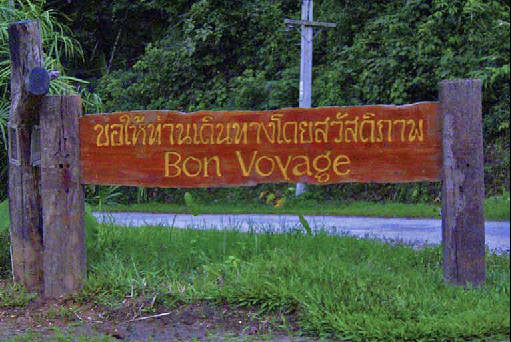
A primera vista no se ve tan mal, pero si hace un pequeño acercamiento, verá el típico diseño pixelado que se puede encontrar en JPEG malos.
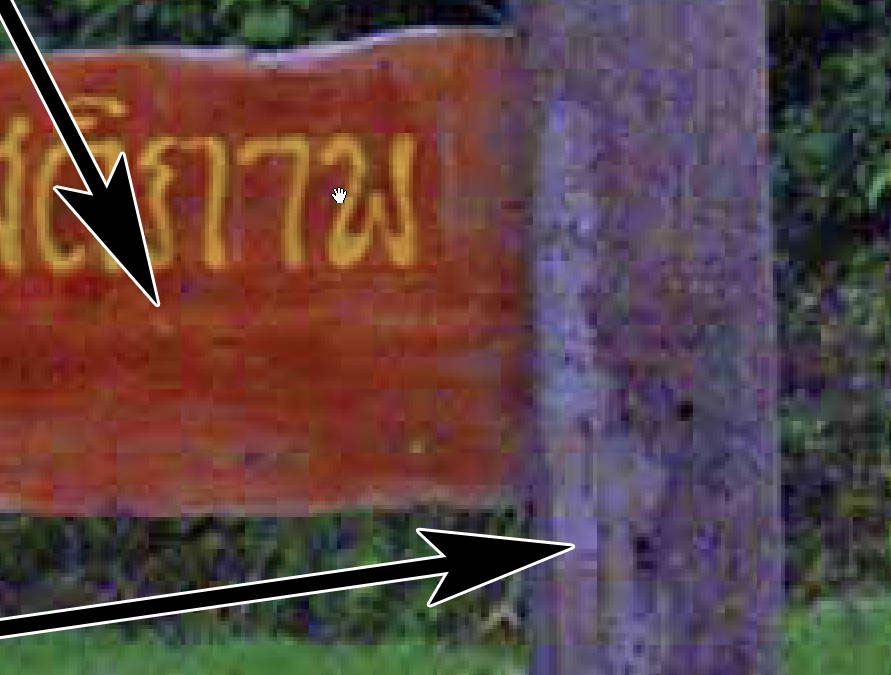
Ahí es cuando el plugin AKVIS Noise Buster puede ser útil.
- Paso 1. Cargue la imagen JPEG en AliveColors. Llame el plugin AKVIS Noise Buster (solo es necesario seleccionar en el menú principal Efectos -> AKVIS -> Noise Buster).
- Paso 2. En el Navegador, presione el deslizador hacia la derecha hasta que pueda ver claramente las imperfecciones JPEG en la ventana principal.
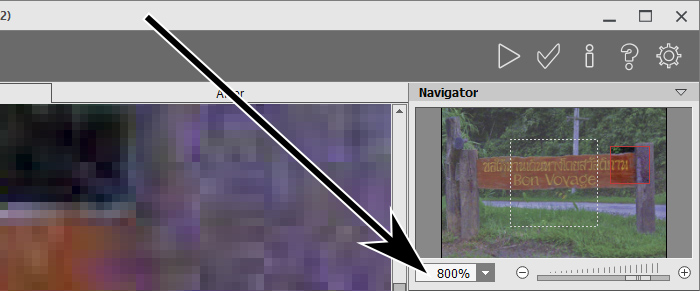
- Paso 3. Utilice el preset Auto Filtering.
- Paso 4. Seleccione un área en la ventana principal donde pueda ver claramente las diferencias entre las partes procesadas y no procesadas de la imagen.
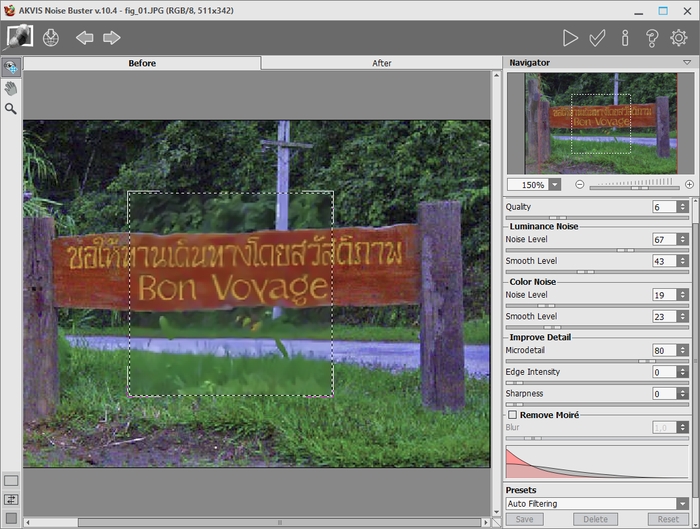
- Paso 5. Si le gusta el resultado en la ventana previa, dé clic en el botón
 y examine su imagen otra vez en la ventana del plugin AKVIS Noise Buster.
- Paso 6. Si está contento con el resultado, dé clic en el botón
 para aplicar los cambios.
- Paso 7. Ahora puede intentar los ajustes más poderosos del plugin. Vaya a la paleta Historia y haga clic en el primer estado. Esto lo devolverá al estado original de la foto.
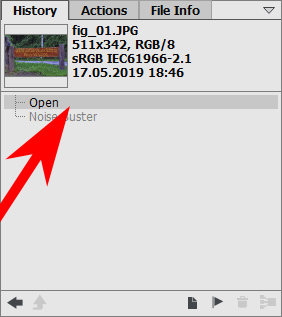
- Paso 8. Llame el plugin AKVIS Noise Buster nuevamente y escoja más configuraciones poderosas.
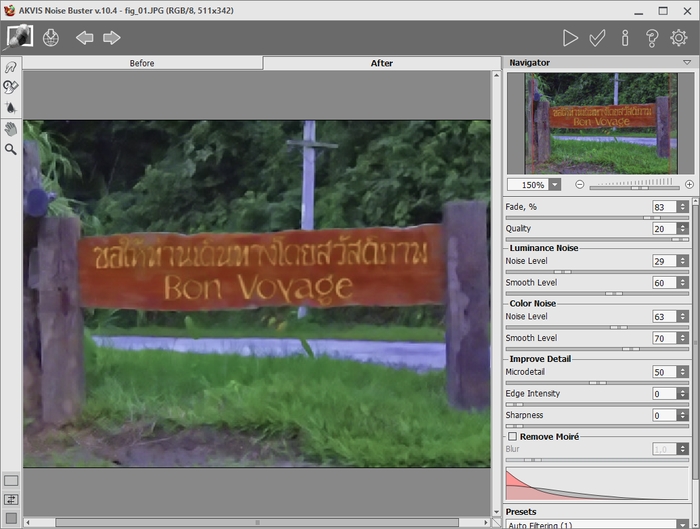
Dé clic en los botones
y otra vez, y conseguirá una imagen más corregida. Tal vez se encuentre con que está demasiado corregida.
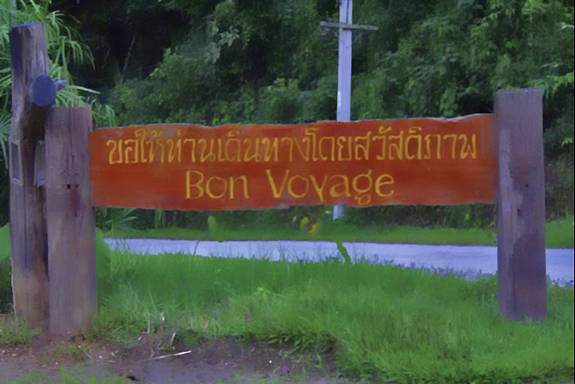
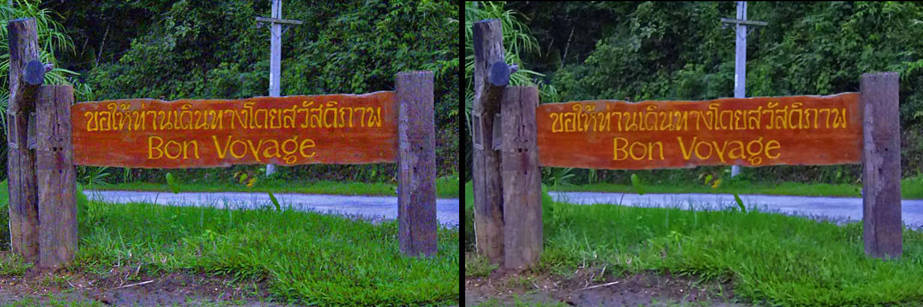
- Paso 9. Si compara la imagen original con la primera version corregida,
verá que la corrección es buena en algunas partes de la imagen (los postes y el aviso) y demasiado fuerte en algunas otras partes (árboles, pasto…).
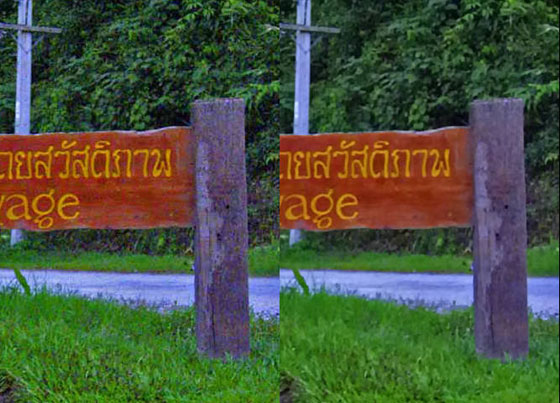
La solución será aislar esas partes una de otra.
- Paso 10. Haga una selección de las partes a ser corregidas. La mejor manera es el método de Pincel de selección
 .
.
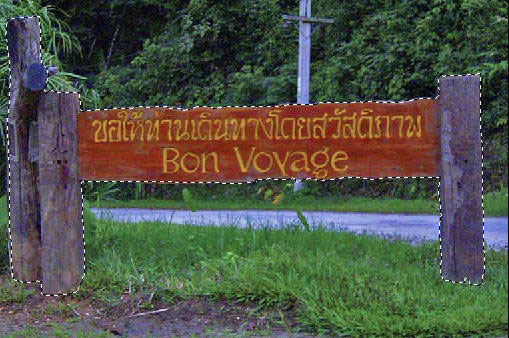
- Paso 11. Luego presione Ctrl+J en el teclado. Obtiene una copia de las partes seleccionadas en una nueva capa.
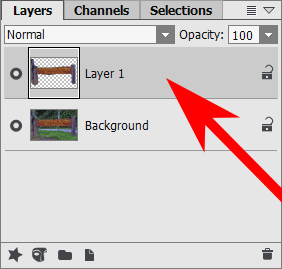
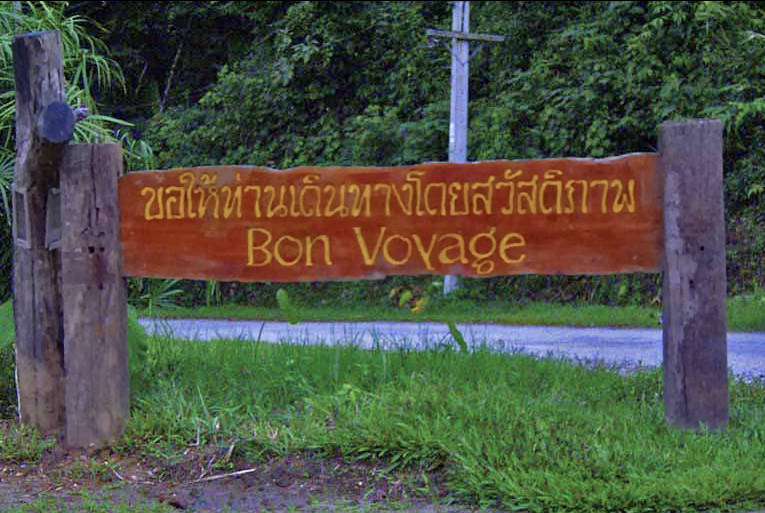
- Paso 12. Aplique el plugin AKVIS Noise Buster (como se describió antes) en la capa 1 únicamente, y obtendrá una excelente imagen, en la que los postes y el aviso están corregidos y el pasto permanece perfecto.
Noise Buster AI v. 13.2 - Prueba gratuita de 10 días
