Retoque fotográfico
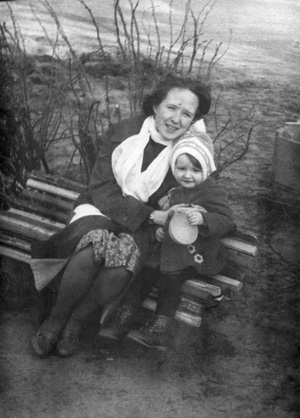
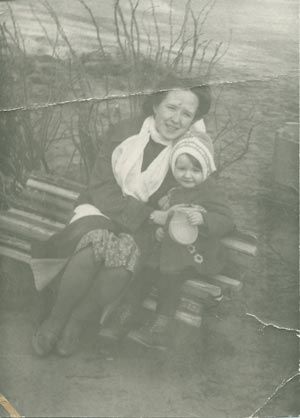
En el siguiente ejemplo, retocaremos una imagen degradada y cubierta con manchas.
Trabajaremos con la versión plugin de AKVIS MultiBrush en Adobe Photoshop y usaremos la herramienta Pincel camaleón que remueve rayaduras y manchas de la manera más natural.
 |
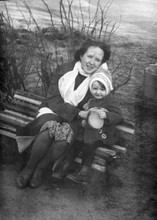 |
En primer lugar, usaremos las herramientas de Adobe Photoshop para realizar la corrección de tono; luego usaremos el plugin AKVIS MultiBrush para eliminar rayaduras y pliegues.
-
Paso 1. Comenzaremos con el comando Imagen -> Ajustes -> Desaturar, que removerá la tinta amarillenta.
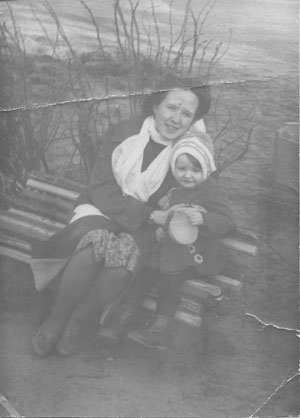
-
Paso 2. La imagen está en escala de grises. Necesita de los colores negro y blanco para mejorar la calidad tonal. Utilizaremos el comando Niveles para mejorarla.
Abriremos el cuadro de diálogo Niveles desde el comando Imagen -> Ajustes -> Niveles. Arrastraremos el cursor deslizante que se encuentra debajo del histograma hacia los extremos: moveremos el cursor deslizante negro hacia la derecha a 79 y luego el blanco hacia la izquierda a 224.
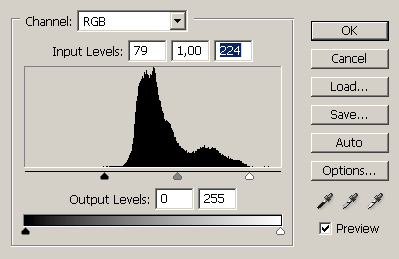
Luego presionaremos el botón OK y obtendremos la siguiente imagen:
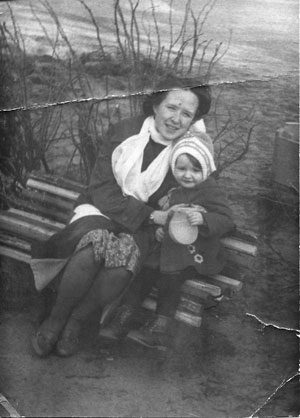
-
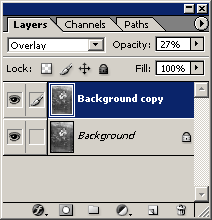
Paso 3. Intensificaremos los tonos de la imagen. Primero, crearemos una copia de la capa arrastrando ésta hacia el botón Crear una capa nueva ubicado en la parte inferior de la paleta Capas. Luego, utilizaremos el modo Superponer y estableceremos la Opacidad de la capa en 27%.
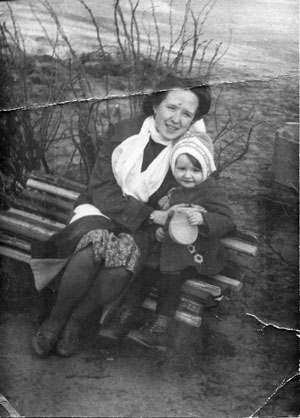
-
Paso 4. Ahora procederemos a la eliminación de defectos. Después de la corrección de tono, las rayaduras y pliegues se habrán acentuado, y podremos detectarlos y eliminarlos con facilidad.
Abriremos el plugin AKVIS MultiBrush seleccionando el comando AKVIS -> MultiBrush desde el menú Filtro.
En la ventana AKVIS MultiBrush seleccionaremos la herramienta Pincel camaleón
 y clonaremos las áreas intactas sobre las dañadas.
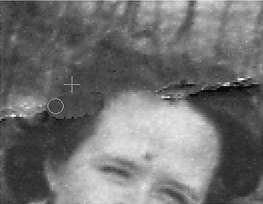
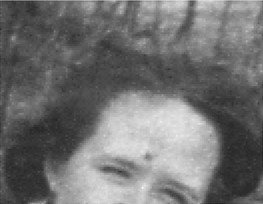
Estos 4 pasos sencillos nos habrán permitido retocar la fotografía en muy pocos minutos: